
Technology
Prevent Device Overheating: Cool Gadgets Guide


Introduction
In today’s tech-driven world, we heavily rely on gadgets like smartphones, laptops, tablets, and gaming consoles for various tasks and entertainment. However, with their increased functionality and performance, these devices generate significant heat during operation. Excessive heat can lead to a host of problems, including decreased performance, reduced battery life, and even permanent damage to internal components. To ensure your gadgets perform at their best and have a longer lifespan, it’s essential to prevent overheating. In this guide, we’ll explore the impact of overheating, common causes, and effective tips to keep your devices running cool. By implementing these strategies, you can become a cool gadget user and enjoy seamless experiences with your favorite tech companions.
The Importance of Preventing Device Overheating
Overheating is a common issue faced by gadget users, and its consequences can be quite detrimental. When a device operates at high temperatures, it puts additional stress on its internal components, such as the processor and battery. Prolonged exposure to excessive heat can cause these components to degrade faster, leading to a decrease in performance and responsiveness. In some cases, severe overheating can even result in sudden shutdowns or irreversible damage, necessitating costly repairs or replacements.
To avoid these hassles and ensure your gadgets perform optimally, preventing overheating should be a priority. By maintaining lower operating temperatures, you can improve overall system stability and prolong the life of your devices. Let’s explore some common causes of device overheating to better understand how to address the issue effectively.1.1 Understanding the Impact of Overheating:
Heat is a natural byproduct of electronic components functioning, but if not dissipated efficiently, it can disrupt the delicate balance within your gadgets. High temperatures can lead to thermal throttling, a process in which the device slows down its performance to cool down and prevent damage. This can lead to frustrating lag and reduced productivity during intensive tasks like gaming or video editing.
Common Causes of Device Overheating:
Several factors contribute to overheating in devices, and recognizing these factors is crucial to implementing effective preventive measures. Common causes include:

- Blocked or clogged vents:
Dust and debris accumulation can hinder proper airflow, causing heat to build up inside the device. - Intensive usage:
Running resource-intensive applications or multitasking for extended periods can strain the device and generate more heat. - Inadequate cooling solutions:
Some devices may have limited cooling mechanisms, making them more prone to overheating. - Environmental factors:
Exposing gadgets to direct sunlight or operating them in hot environments can exacerbate heat buildup.
To keep your gadgets cool and maintain their performance, let’s delve into practical tips for cooling your devices effectively.
Tips for Cooling Your Gadgets
Proper Ventilation and Airflow:
Proper ventilation is vital to ensure your gadgets stay cool during operation. Regularly check and clean the vents to prevent dust buildup, which can obstruct airflow. Using the devices on hard, flat surfaces helps facilitate airflow, as opposed to placing them on soft materials like beds or couches that can trap heat.
Keeping Your Device Environment Cool
Controlling the ambient temperature of the room where you use your gadgets can significantly impact their operating temperature. Avoid using them in direct sunlight or near heat sources like radiators. Air-conditioned or well-ventilated rooms are ideal for maintaining lower temperatures during extended usage.
Using Cooling Accessories
Investing in cooling accessories can be a game-changer for heavy device users. Laptop cooling pads with built-in fans can help dissipate heat effectively, enhancing the airflow around the laptop. For smartphones and gaming devices, external cooling fans or coolers can offer similar benefits.
Software Optimization for Heat Management

Image by Freepik
Updating Operating Systems and Drivers
Keeping your device’s operating system and drivers up to date is essential for efficient heat management. Software updates often include performance optimizations and bug fixes that can help in better heat dissipation.
Managing Resource-Intensive Applications
Resource-intensive applications, such as graphics-intensive games or video editing software, can put a strain on your device’s hardware and generate more heat. Close unnecessary applications and consider using less demanding alternatives to prevent overheating.
Best Practices for Device usage
Avoiding Direct Sunlight Exposure:
Direct sunlight can rapidly elevate your device’s temperature, increasing the risk of overheating. When using your gadgets outdoors, try to find shade or use a protective cover to shield them from direct sunlight.
Monitoring Device Temperature:
Take advantage of temperature monitoring apps or built-in system tools to keep an eye on your device’s temperature. This way, you can identify any overheating issues promptly and take appropriate action.
Cleaning and Maintaining Your Devices:
Regularly cleaning your gadgets, both internally and externally, is essential to prevent heat buildup due to dust and debris. Follow manufacturer guidelines to safely clean your devices without causing any damage.
Conclusion
Preventing device overheating is crucial for ensuring optimal performance and extending the lifespan of your gadgets. By understanding the impact of overheating and implementing the provided tips, you can become a cool gadget user, enjoying smooth experiences without interruptions. Remember to maintain proper ventilation, use cooling accessories, optimize software, and adopt best practices during device usage. By doing so, you’ll keep your gadgets running cool, allowing you to get the most out of your beloved tech companions for years to come. Stay cool and enjoy your gadgets hassle-free!
Author


Seeing Epson Printer Error Code 0x9E can be frustrating, especially when the printer suddenly stops working during an important print job. This error may appear on the printer display or computer and can be associated with temporary system glitches, communication problems, paper-feed issues, internal obstructions, firmware problems, or hardware-related faults.
Before assuming that the printer needs repair, try some basic troubleshooting. In many cases, restarting the printer, checking for obstructions, reconnecting cables, or updating the printer software can restore normal operation.
Below are 10 practical ways to troubleshoot Epson Printer Error Code 0x9E.
1. Restart the Epson Printer
Start with a complete restart. Temporary errors in the printer’s internal system can sometimes trigger an error code.
Turn off the printer and disconnect its power cable from the electrical outlet. If the printer is connected to a computer through USB, disconnect that cable as well.
Wait approximately two to five minutes. Reconnect the power cable directly to a wall outlet, switch the printer back on, and check whether the 0x9E error returns.
If the printer starts normally, try printing a test page.
2. Perform a Power Reset
If a normal restart doesn’t work, try a power reset.
Turn off the printer and unplug the power cord. With the printer disconnected from power, press and hold the power button for approximately 20 seconds. Release the button and leave the printer disconnected for another few minutes.
Reconnect the power cable and turn the printer on.
A power reset can clear temporary electrical or internal control errors that may interfere with normal printer operation.
3. Check for Jammed Paper
A small piece of paper inside the printer can sometimes cause unexpected operational errors.
Turn the printer off before inspecting it. Check the input tray, output area, rear access area, and other accessible paper paths. Remove any visible jammed or torn paper carefully.
Avoid pulling paper aggressively because small pieces may tear off and remain inside the machine.
Once the paper path is clear, reload the paper correctly and restart the printer.
4. Look for Foreign Objects
Paper isn’t the only thing that can interfere with the printer’s internal mechanisms. Small objects such as labels, paper clips, dust buildup, or scraps of paper may obstruct moving components.
With the printer powered off and unplugged, inspect accessible areas using adequate lighting.
Do not force or disassemble internal components. If you notice an object that cannot be safely reached, professional servicing may be a better option.
5. Check the Ink Cartridges
Incorrectly installed or poorly seated cartridges may cause some printers to behave unexpectedly.
Open the cartridge access area according to your printer model’s normal procedure. Check whether each cartridge is properly installed.
If necessary, remove and reinstall the cartridges carefully. Make sure they click or sit securely in their designated positions.
Restart the printer afterward and see whether Epson Printer Error Code 0x9E disappears.
6. Inspect the Printer Connections
Communication problems between the printer and computer can sometimes complicate troubleshooting.
For a USB printer, disconnect and reconnect the USB cable. Try another USB port if one is available. Avoid using an unpowered USB hub while diagnosing the problem.
For a wireless printer, verify that the printer and computer are connected to the intended network. Restarting the router may also help if other devices are experiencing connectivity problems.
After restoring the connection, send a simple test document to the printer.
7. Clear the Print Queue
A corrupted or stuck print job can prevent normal printing even after the printer itself has recovered.
Open the printer queue on your computer and cancel pending documents. Restart both the printer and computer before attempting another print job.
If the printer works normally afterward, the problem may have been related to the previous print job rather than a persistent hardware fault.
8. Update or Reinstall the Printer Driver
Outdated, corrupted, or incompatible printer software can cause communication and printing problems.
Check which Epson printer model you own and make sure the correct driver is installed for your operating system. If the driver appears damaged or the problem started after a software change, uninstalling and reinstalling the appropriate printer software may help.
Restart the computer after installation and reconnect the printer.
Then print a test page to determine whether the error has been resolved.
9. Check for Firmware Updates
Firmware controls many of the printer’s internal functions. In some circumstances, updating the firmware can resolve known operational problems.
Check whether an appropriate firmware update is available for your exact printer model. Follow the manufacturer’s instructions carefully and keep the printer connected to a reliable power source throughout the update.
Never interrupt a firmware installation by switching off or unplugging the printer.
After the update is complete, restart the printer and check its status.
10. Consider an Internal Hardware Problem
If Epson Printer Error Code 0x9E remains after basic troubleshooting, an internal mechanical or electronic fault may be involved.
Possible trouble areas can include sensors, carriage mechanisms, paper-feed components, internal electronics, or other model-specific parts. The exact meaning of an error can vary by printer model, so avoid replacing components based solely on a generic error-code description.
At this point, check the documentation for your exact Epson model or have the printer professionally inspected.
What If Epson Error Code 0x9E Keeps Returning?
An error that disappears temporarily but repeatedly returns deserves additional attention. Note when the problem occurs. For example, determine whether it appears immediately after startup, while feeding paper, when beginning a print job, or after the printer has operated for several minutes.
This information can help distinguish between software, connectivity, paper-feed, and internal hardware problems.
You should also avoid repeatedly forcing the printer to operate if you hear grinding, clicking, or other unusual mechanical noises.
Final Thoughts
Epson Printer Error Code 0x9E does not always mean that the printer has permanently failed. Begin with simple troubleshooting: restart the printer, perform a power reset, inspect the paper path, check the cartridges, verify connections, and clear pending print jobs.
You can then check the printer driver and firmware if the problem continues. If the Epson Error Code 0x9E persists after these steps—particularly when accompanied by unusual noises or mechanical problems—the printer may require model-specific diagnosis or professional servicing.
Following the troubleshooting steps in order can help you identify the cause without making unnecessary changes to the printer.
Author



Some organisations may need a dedicated LMS for employee onboarding and compliance training. Others may require advanced assessments, certifications, analytics, integrations and structured learning paths. For organisations with highly specific requirements, a standard off-the-shelf platform may not provide the flexibility they need.
This is where Stratbeans brings its expertise in custom eLearning development and corporate learning technology.
Rather than asking organisations to adapt their training processes to a fixed platform, Stratbeans focuses on understanding the organisation’s learning requirements first and developing or configuring solutions around them.
A Corporate Dedicated LMS Built Around Organisational Needs
Every organisation approaches learning differently.
A growing company may need a straightforward platform to manage employee training, courses and assessments. A large enterprise may need a more comprehensive learning ecosystem supporting multiple departments, user groups, certifications, compliance programmes, reporting and integrations.
There can also be organisations with unique workflows that require capabilities beyond a conventional LMS.
A corporate dedicated LMS can help address these requirements by creating a learning environment that is aligned with the organisation rather than relying entirely on a standardised approach.
Stratbeans works with organisations to understand these requirements and provide learning solutions that can evolve as their workforce and business needs change.
Bytecasting LMS – A Structured Approach to Corporate Learning
For organisations looking for a practical and structured learning environment, Bytecasting LMS provides capabilities for managing digital learning across an organisation.
The platform can support areas such as course management, learner administration, assessments and reporting, giving organisations a centralised environment for managing employee learning.
For companies beginning their digital learning journey or looking to bring existing training programmes onto a dedicated platform, Bytecasting LMS provides a foundation for structured corporate learning.
Bytecasting Evolve – For Growing Learning Requirements
As organisations expand, their learning requirements often become more complex.
Bytecasting Evolve is designed for organisations that need a broader learning environment capable of supporting evolving training requirements. It can help organisations manage learning content, users, assessments, reporting and learner experiences within a more comprehensive framework.
The focus is not only on delivering courses but on creating a learning ecosystem that can grow alongside an organisation’s workforce and business requirements.
ATUM LMS – A More Customised Learning Environment
Not every organisation can work effectively with a conventional LMS structure.
ATUM LMS is designed for organisations looking for greater flexibility and a more tailored approach to their learning environment. Depending on organisational requirements, the platform can be adapted to support specific learning and operational needs.
This approach can be particularly relevant for businesses that have established processes, specialised training structures or requirements that do not fit neatly into a standard LMS model.
Custom eLearning Development for Specific Business Requirements
An LMS is only one part of a corporate learning ecosystem. Organisations may also require customised learning modules, assessments, integrations, workflows, dashboards and other digital learning components.
Through its custom eLearning development capabilities, Stratbeans works with organisations to create learning solutions around their specific requirements.
This approach can include understanding existing learning processes, identifying technology gaps and developing digital learning experiences that align with organisational objectives.
The result is a more flexible approach to corporate learning, where technology can support the way an organisation actually operates.
One Organisation, One Learning Need
There is no universal approach to corporate learning.
A startup, a manufacturing company, a large enterprise and a professional services organisation may all have very different training requirements. Even organisations within the same industry can have different workforce structures, compliance needs, learning processes and technology environments.
That is why the focus of a dedicated corporate LMS platform should not simply be on the number of features available. It should also be on how effectively those features address the organisation’s actual learning requirements.
With Bytecasting LMS, Bytecasting Evolve and ATUM LMS, along with its custom eLearning development capabilities, Stratbeans offers organisations different ways to build and manage digital learning based on their specific requirements.
Whether an organisation is beginning its digital learning journey, expanding an existing employee training program or developing a more customised learning ecosystem, Stratbeans’ approach remains centred on the same principle: build the learning solution around the organisation, rather than forcing the organisation to fit the platform.
Final Thoughts
The eLearning content development landscape in India offers plenty of options, from large learning providers to specialised custom development companies.
The right choice ultimately depends on what you’re trying to achieve. If you’re looking for a partner that combines custom eLearning content development with corporate learning and LMS capabilities, Stratbeans is one company worth exploring.
Because good eLearning isn’t simply about creating an online course. It’s about creating a learning experience that people understand, remember and can actually use at work.
At the end of the day, the goal is simple: create learning that is useful, engaging and built around the people who will actually use it.
Author


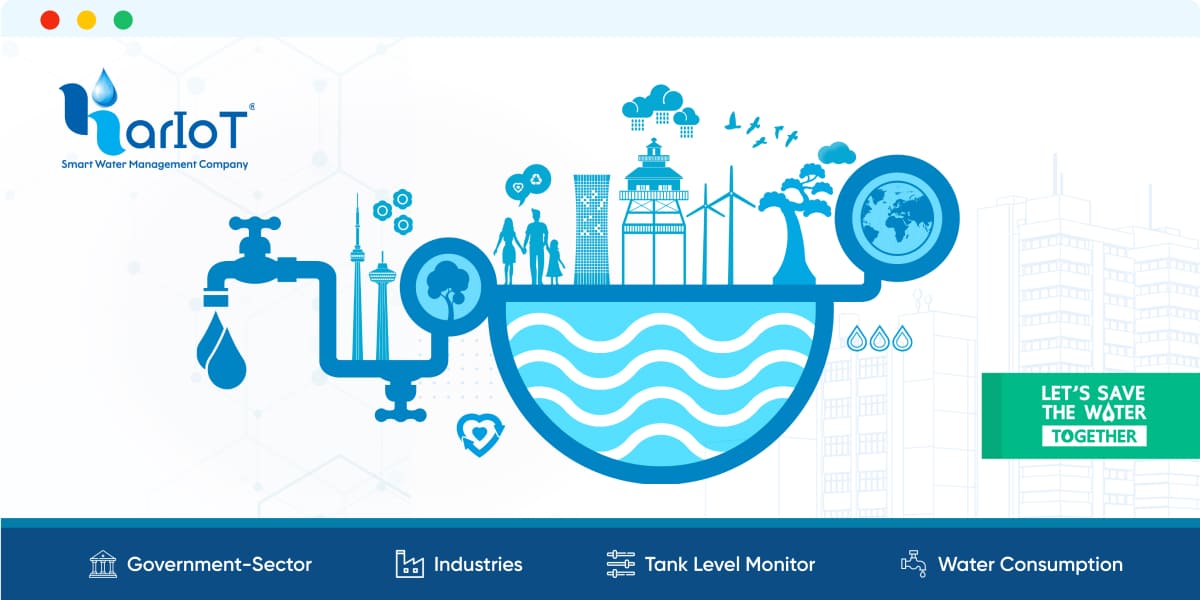
Water is one of the most important resources for homes, businesses, industries, and cities. However, managing water efficiently can be difficult when systems depend on manual readings and traditional monitoring methods. Water leaks, high consumption, equipment problems, and unexpected usage can increase costs and lead to water waste.
A smart water management system uses connected devices, sensors, software, and data analytics to monitor and manage water usage more efficiently. With technologies such as IoT device management and IoT gateways, organizations can collect real-time water data and use it to make better decisions.
What Is a Smart Water Management System?
A smart water management system is a technology-based solution that helps monitor, control, and optimize water usage.
It can collect information such as:
- Water consumption
- Flow rate
- Pressure levels
- Tank levels
- Leakage conditions
- Water quality parameters
- Equipment performance
- Usage patterns
Instead of depending only on manual meter readings, smart systems can automatically collect and transmit data. This makes it easier to understand how water is being used and identify problems quickly.
Smart water management can be used in residential buildings, commercial properties, factories, farms, hospitals, hotels, municipalities, and other facilities.
How Does a Smart Water Management System Work?
A smart water management system generally works through a combination of sensors, meters, IoT devices, IoT gateways, communication networks, and cloud or monitoring platforms.
The process can be divided into several simple steps.
1. Water Data Is Collected
Smart meters and sensors are installed at important points in the water network. These devices measure different parameters depending on the requirements of the facility.
For example, a smart water meter can measure the amount of water being consumed. Flow sensors can monitor the movement of water through pipes, while pressure sensors can identify unusual pressure changes.
The collected information provides a clear view of water usage.
2. IoT Devices Send the Data
The sensors and smart meters generate data at regular intervals. IoT devices help collect this information automatically.
This reduces the need for workers to visit every location and record readings manually.
For example, a building can use connected water meters to record the consumption of different floors or units. The data can then be sent to a central monitoring system.
3. IoT Gateway Connects Devices
An IoT gateway plays an important role in connecting field devices with the central platform.
Water sensors and meters may use different communication technologies and protocols. The IoT gateway can collect information from these devices, process it, and send the required data to a cloud or server platform.
The gateway can also help with:
- Device communication
- Data processing
- Protocol conversion
- Local data storage
- Security
- Remote monitoring
This makes the IoT gateway an important part of a connected water management architecture.
4. Data Is Transmitted to a Platform
After the data is collected and processed, it can be transmitted through available communication networks.
Depending on the application, systems may use technologies such as cellular connectivity, Wi-Fi, Ethernet, LoRaWAN, or other communication methods.
The information can then reach a centralized software platform where users can view and analyze water data.
5. Data Is Analyzed
Collecting water data is only one part of smart water management. The data must also be analyzed to identify useful information.
A monitoring platform can help users understand:
- Where water is being consumed
- When consumption is highest
- Whether usage is increasing
- Where unusual flow is occurring
- Whether a possible leak exists
- How different locations compare
- Whether equipment is operating normally
Historical data can also help organizations identify long-term consumption patterns.
Role of IoT Device Management
Managing a large number of connected water devices can become difficult without proper tools. This is where IoT device management becomes important.
IoT device management allows organizations to monitor and manage connected meters, sensors, gateways, and other devices from a central system.
Important functions can include:
Device Monitoring
Organizations can check whether devices are online, offline, or experiencing communication problems.
Remote Configuration
Some connected devices can be configured remotely. This can reduce the need for physical visits.
Software and Firmware Updates
Connected devices may require firmware updates to improve performance, security, or functionality. Centralized management can make these updates easier to handle.
Device Security
IoT device management can support authentication, access control, and other security practices to protect connected infrastructure.
Device Performance
Organizations can monitor device health and identify equipment that may require maintenance or replacement.
As water networks become more connected, effective IoT device management becomes increasingly important.
Why Is an IoT Gateway Important?
An IoT gateway acts as a communication bridge between field devices and backend systems.
In a water management environment, many sensors may be installed across a large area. These devices may generate large amounts of data.
The gateway can collect this information before sending it to the central platform.
Modern gateways can also support edge processing. Instead of sending every piece of raw data to the cloud, some information can be processed locally.
For example, if a sensor detects an unusual flow pattern, the gateway may identify the event and send an alert immediately.
This can help reduce communication delays and unnecessary data transmission.
Smart Water Management for Leak Detection
Water leakage is one of the major challenges faced by buildings, industries, and public water networks.
A smart system can continuously monitor flow and consumption patterns. If water usage changes unexpectedly, the system can generate an alert for further investigation.
For example, if water continues to flow during a period when a building is normally inactive, the system may identify the unusual activity.
Early detection can help organizations investigate possible leaks before they result in significant water loss.
Smart Water Management in Industries
Industries often use water for manufacturing, cooling, cleaning, processing, and other operations.
A smart water management system can help industrial facilities understand where water is being used and how much is being consumed.
Connected monitoring can be applied to:
- Production areas
- Cooling systems
- Water treatment plants
- ETP and STP systems
- Storage tanks
- Process water lines
- Utility areas
This information can support better resource planning and help industries identify opportunities to reduce unnecessary consumption.
Smart Water Management in Buildings
Commercial and residential buildings can also benefit from connected water monitoring.
Smart meters can monitor consumption at different levels, such as individual apartments, floors, or common facilities.
Building managers can use this information to understand usage patterns and investigate unusual consumption.
For large buildings, centralized monitoring can make water management easier and reduce dependence on manual meter readings.
Benefits of a Smart Water Management System
A smart water management system can provide several practical benefits.
Better Visibility
Real-time data gives organizations a clearer understanding of how water is being consumed.
Reduced Water Waste
Unusual consumption and potential leaks can be identified more quickly.
Lower Operational Effort
Automated data collection can reduce repetitive manual meter-reading activities.
Faster Problem Detection
Alerts can help teams identify unusual conditions and investigate them earlier.
Better Decision-Making
Historical and real-time data can support more informed water management decisions.
Improved Resource Efficiency
Organizations can identify inefficient consumption patterns and take corrective action.
Current Trends in Smart Water Management
Smart water management is becoming more connected and data-driven. Several technology trends are shaping the sector.
AI and Data Analytics
Artificial intelligence and advanced analytics can help identify unusual consumption patterns, predict demand, and support better decision-making.
Edge Computing
More processing is moving closer to connected devices. Edge-enabled IoT gateways can analyze selected data locally and respond faster to important events.
Real-Time Monitoring
Organizations are increasingly moving from periodic readings toward continuous monitoring and alerts.
Connected Smart Meters
Smart meters are becoming an important part of digital water infrastructure because they can provide more frequent and automated consumption data.
Cloud-Based Platforms
Cloud platforms can bring data from multiple locations into one centralized system, making it easier to monitor distributed water infrastructure.
Predictive Maintenance
Data from connected equipment can help identify potential performance issues before they become major operational problems.
The Future of Smart Water Management
The future of water management will depend increasingly on connected infrastructure and better use of data.
As more sensors, smart meters, and IoT devices are deployed, organizations will have access to more detailed information about their water networks. Combining this information with IoT device management, IoT gateways, analytics, automation, and AI can create more responsive water management systems.
The goal is not simply to collect more data. The goal is to turn that data into useful actions that improve efficiency, reduce waste, and support sustainable water use.
Conclusion
A smart water management system combines sensors, smart meters, IoT devices, communication networks, IoT gateways, and software platforms to monitor and manage water more effectively.
The system collects water data, transfers it through connected infrastructure, analyzes consumption patterns, and provides useful information for faster decision-making. IoT device management helps organizations maintain and monitor connected devices, while the IoT gateway provides an important link between field devices and central platforms.
From buildings and industries to cities and public infrastructure, smart water technologies can support better visibility, faster problem detection, efficient resource use, and more sustainable water management.
Author



How Trusted Air Duct Cleaners Help Prevent Dangerous Blockages

How to Choose Quality Ayurvedic Herbal Products

Garage Door Repair Las Vegas: Red Flags When Hiring a Contractor

My Simple Snow Ride Turned Into Chaos

Herbal Ingredient Sourcing: From Farm to Formulation

How to Build a Low-Maintenance Balcony Garden

How to Buy Bulk Smoking Accessories for Retail Stores

Amazon Conversion Rate Optimization: 8 Ways to Get More Sales

Top 10 Psychology Conferences 2026 in the USA

Commercial Cabinet Shop Drawings: Key Details for Accurate Fabrication

Cybersecurity Consulting Company SequelNet Provides Critical IT Support Services to Medical Billing Firm, Medical Optimum

Meet the Megalodon: The Shark Star of ‘Meg 2’

Reduce Video Game Lag: Level Up Your Gaming Performance

Balancing India’s Entertainment: Cricket vs. Bollywood

Jetsetter’s Secrets: Unveiling Our Favorite Travel Hacks for a Seamless Adventure

The 5 Best Live Sports Streaming Sites: Legal and Exciting!

Hollywood Labor Unrest: The Impact of ‘What About Us?’ Strikes

Unveiling the Magic of Dream Fulfillment at the Late NBA Draft

Illuminate Your Skin: Dr. Axe Unveils Natural Remedies for Lightening Knees and Elbows

Bright Choices: Navigating the Pros and Cons of Skin Whitening Creams with Dr. Axe
-

 Business3 years ago
Cybersecurity Consulting Company SequelNet Provides Critical IT Support Services to Medical Billing Firm, Medical Optimum
-
Entertainment3 years ago
Meet the Megalodon: The Shark Star of ‘Meg 2’
-
Entertainment3 years ago
Reduce Video Game Lag: Level Up Your Gaming Performance
-
 Sports3 years ago
Balancing India’s Entertainment: Cricket vs. Bollywood
-
Entertainment3 years ago
Jetsetter’s Secrets: Unveiling Our Favorite Travel Hacks for a Seamless Adventure
-
Productivity3 years ago
The 5 Best Live Sports Streaming Sites: Legal and Exciting!
-
Art /Entertainment3 years ago
Hollywood Labor Unrest: The Impact of ‘What About Us?’ Strikes
-
Sports3 years ago
Unveiling the Magic of Dream Fulfillment at the Late NBA Draft