Productivity
7 Tips for Better Desktop Tab Management on Windows 11

Introduction: 7 Tips for Better Desktop Tab Management
In today’s digital age, our computers often become a bustling hub of activity with multiple applications running simultaneously. Whether you’re working on important projects or simply browsing the web, managing desktop tabs efficiently is crucial. If you’re a Windows 11 user seeking to declutter your workspace and streamline your workflow, you’ve come to the right place.
Our guide will walk you through seven expert tips for better desktop tab management on Windows 11. These strategies will help you regain control of your digital workspace, access your favorite apps with ease, and boost your productivity. Let’s dive in!
1. Name Browser Windows: Effortless Organization for Browsing
Do you often find yourself lost in a sea of open browser tabs? This tip is all about bringing order to your web browsing chaos. In Windows 11, you can name your browser windows in Microsoft Edge and Chrome, making it easier to identify and switch between them. Unfortunately, this feature doesn’t apply to Firefox, but there’s a workaround.
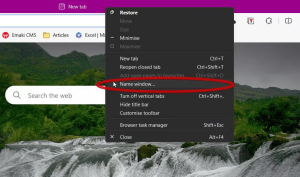
Image by https://www.makeuseof.com/
- How to Name Browser Windows: Right-click the title bar of your browser window, select “Name Window,” and give it a meaningful name. This is especially helpful when you have multiple tasks or projects open in different tabs.
2. Use Window Snapping: Maximize Your Multitasking Potential
Windows 11 introduces an enhanced window snapping feature, taking multitasking to the next level. It allows you to arrange and snap windows to specific positions on your screen for better organization.
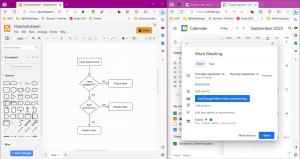
Image by https://www.makeuseof.com/
- How to Use Window Snapping: Press Windows + Z to see available window layouts. You can snap a window to your preferred layout, such as side-by-side or in quadrants. Simply drag a window to the top of your screen to access these options.
3. Minimize and Maximize Windows Faster: Efficiency at Your Fingertips
Keyboard shortcuts are your allies when it comes to quickly managing open windows.
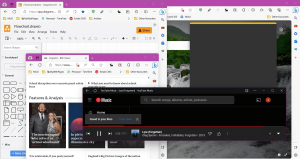
Image by https://www.makeuseof.com/
- Minimize All Windows: Use Windows + M to instantly minimize all open windows, which is handy when you want a clear view of your desktop. To restore them, press Shift + Windows + M.
- Minimize Individual Windows: If you want to minimize a specific window, use Windows + Down Arrow. This shortcut works especially well if you’ve already used window snapping layouts.
- Maximize a Window: To maximize a selected window, press Windows + Up. These shortcuts are designed to help you declutter your workspace swiftly.
4. Use Numbered Shortcuts on the Taskbar: Instant Access to Your Apps
If you’re dealing with multiple open apps, Windows 11 offers a convenient shortcut to access them quickly.
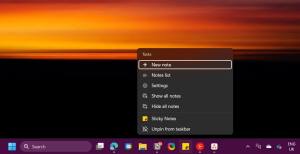
Image by https://www.makeuseof.com/
- Numbered Shortcuts on Taskbar: Hold the Windows key and press the number corresponding to the app’s position on the taskbar to open it instantly. For instance, Windows + 3 opens the third item on the taskbar, regardless of whether the app is open or not. If an app has multiple windows open, you can cycle through them using Windows + Alt + [1-9].
5. Use Virtual Desktops: Organize Your Digital Workspace
Virtual desktops are a powerful feature in Windows 11, allowing you to create separate desktop environments for different tasks or projects.
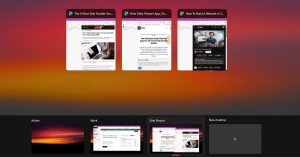
Image by https://www.makeuseof.com/
- How to Use Virtual Desktops: Open the Task view using Windows + Tab, then create a new desktop. You can rename virtual desktops and easily move windows between them. Navigate between virtual desktops quickly with Windows + Ctrl + Left/Right Arrow Key.
6. Use the Alt + Tab Switcher: Effortless Window Switching
The Alt + Tab shortcut is a familiar one for switching between open windows, but there’s more to it.
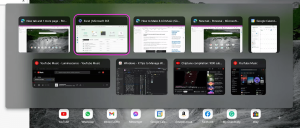
Image by https://www.makeuseof.com/
- Alt + Tab Switching: Hold Alt and press Tab to activate the Alt + Tab switcher. Keep holding Alt to cycle forward through open windows, and hold Alt + Shift to cycle backward. If you prefer the switcher not disappearing when you release Alt, use Alt + Ctrl + Tab for a fixed view.
7. Download a Third-Party App: Customize Your Desktop Experience
SideSlide is a third-party app that takes desktop window organization to the next level.
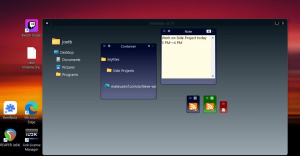
Image by https://www.makeuseof.com/
- SideSlide App: It allows you to group windows into containers, add URLs, files, notes, and reminders. This flexible app enhances your workflow and keeps you organized while working on your PC. Best of all, it’s free to use.
By implementing these detailed tips, you’ll make the most of your Windows 11 experience, keeping your desktop organized and boosting your productivity.
Key Tips for Windows 11 Desktop Tab Management
| Tip | Description |
|---|---|
| Name Browser Windows | Organize browser windows with custom names for easier multitasking. |
| Use Window Snapping | Maximize productivity by snapping windows to predefined layouts. |
| Minimize and Maximize Windows Faster | Employ keyboard shortcuts for quick window management. |
| Use Numbered Shortcuts on the Taskbar | Instantly access apps using numeric shortcuts on the taskbar. |
| Use Virtual Desktops | Stay organized and achieve work-life balance with virtual desktops. |
| Use the Alt + Tab Switcher | Effortlessly switch between open windows with Alt + Tab. |
| Download a Third-Party App | Customize your desktop experience with apps like SideSlide. |
Conclusion
Your desktop should empower, not overwhelm you. Windows 11 provides a range of features and shortcuts to master desktop tab management. By implementing these seven expert tips, you’ll declutter your workspace, access apps more efficiently, and boost your overall productivity. Embrace the power of Windows 11, and let your digital workspace work for you.
Author



The apparel business has changed significantly in recent years. Large manufacturers no longer control the entire market. Today, small print shops, independent brands, online sellers, schools, sports teams, and local organizations also create customized clothing. Many of them need practical ways to produce quality garments without handling massive production runs.
Customer expectations have changed as well. Buyers want personalized designs, detailed graphics, branded clothing, small quantities, and fast delivery. Therefore, businesses need more than creative artwork to stay competitive. They also need reliable equipment, an organized workflow, and consistent production quality.
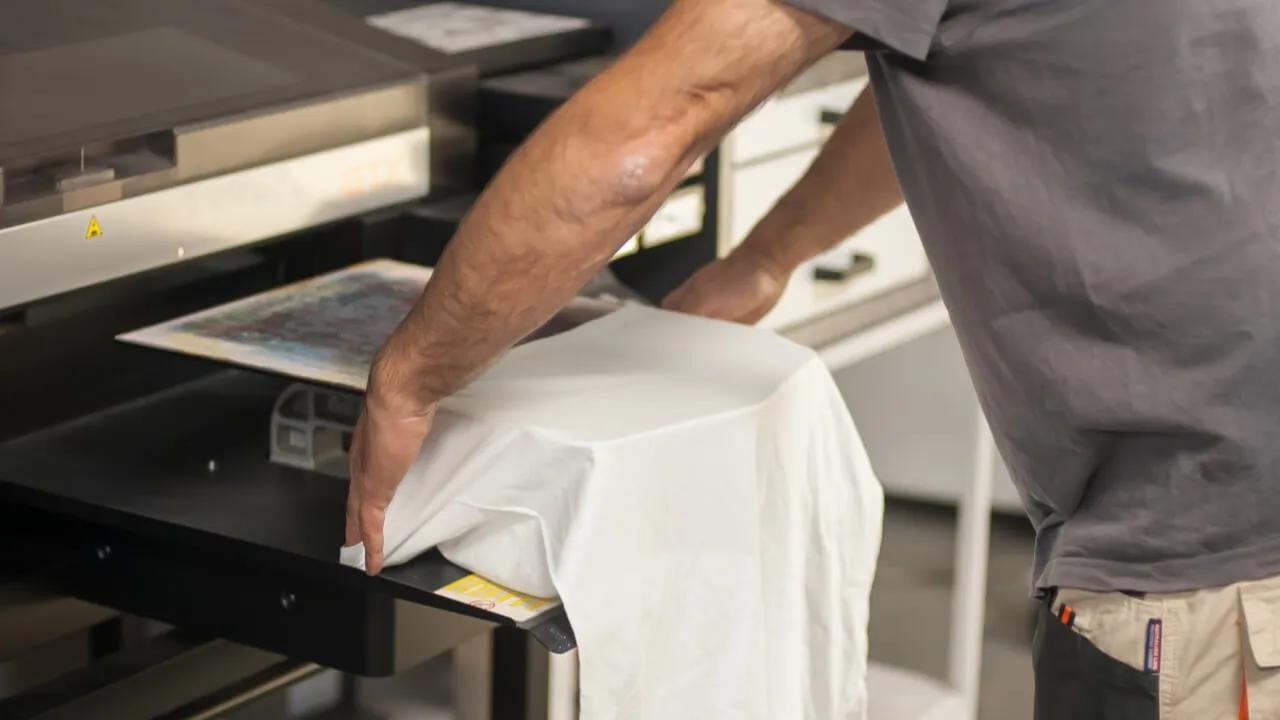
The DTFLine VANTAGE II MAX 14-inch Dual Epson I1600 system targets businesses that want to build a stronger printing workflow. It combines two Epson I1600 printheads with an embedded roll feeder, RIP software, cutter, training, and onboarding. As a result, businesses can manage several important stages of the transfer process within one setup.
Understanding Modern Production Requirements
Modern apparel production requires flexibility. One customer may order ten shirts for a family event, while another may need hundreds of garments for an online collection. A successful print business needs to handle both small and larger orders without creating unnecessary delays.
Traditional printing methods still have their place. However, digital transfer methods can offer greater flexibility for customized designs and changing order quantities. This makes them useful for businesses that serve different customer groups.
A production-focused system can also help a print shop expand its services. Instead of relying on one type of customer, the business can serve individuals, organizations, clothing brands, schools, teams, and commercial clients.
Dual Epson I1600 Printheads
Printhead technology plays an important role when businesses compare printing systems. The VANTAGE II MAX uses two Epson I1600 printheads. This configuration suits businesses that want equipment designed for regular production.
However, printheads alone do not determine print quality. Artwork preparation, color management, ink, transfer film, environmental conditions, maintenance, and operator skills also affect the final result.
Therefore, businesses should evaluate the complete workflow instead of focusing on one specification. A balanced system can make daily production easier to manage and more predictable.
Why the 14-Inch Format Matters
Space can become a major concern for smaller print businesses. A printer needs more than its own footprint. Operators also require room for material loading, artwork preparation, finished transfers, garment pressing, packaging, supplies, and routine maintenance.
The 14-inch format can offer a practical option for businesses that want production capability without immediately moving to a much larger setup. This can help smaller operations make better use of limited workspace.
Good workspace planning also improves efficiency. When equipment, materials, and workstations sit in logical positions, operators can move between tasks more easily.
Embedded Roll Feeder for Efficient Media Handling
Media handling can influence everyday productivity. Manual handling may work for occasional orders. However, it can become inconvenient when a shop starts processing larger volumes.
The VANTAGE II MAX includes an embedded roll feeder for roll-based media handling. This feature can support a more continuous workflow and reduce unnecessary material handling.
The main advantage is not simply speed. Better media management can also help operators maintain a more organized production process. Still, businesses should match the equipment to their actual workload. A hobbyist and a busy commercial print shop will have very different requirements.
RIP Software and Artwork Preparation
Printing represents only one part of the production process. Operators must prepare artwork correctly before sending it to the printer. RIP software can help manage layouts, colors, image preparation, and printing settings.
Apparel Production consistent software workflow becomes especially useful when a business handles multiple customer files. It can also make repeat orders easier. Operators can organize approved artwork and production files so they can locate them quickly when customers return.
Simple file management can save considerable time. Businesses can separate customer artwork, approved designs, production-ready files, and completed orders. These small habits become increasingly valuable as order volume grows.
Cutting and Finishing Capabilities
The VANTAGE II MAX package also includes a cutter. Depending on the type of transfers a business produces, cutting can become an important stage in the workflow.
Keeping more production steps within the business can provide greater control. It may also reduce dependence on outside providers for certain finishing requirements.
However, cutting needs vary between businesses. A company should first determine how often it will use this capability and what types of designs it plans to produce.
Training Supports Better Results
New equipment requires a learning period, even for experienced operators. Every system has its own settings, maintenance procedures, software workflow, and operating requirements.
The VANTAGE II MAX includes training and onboarding. This support can help operators understand the equipment and integrate it into their daily process.
Training also helps reduce avoidable mistakes. Problems do not always come from the machine itself. Incorrect settings, unsuitable materials, poor maintenance, and improper storage can also affect finished garments.

Where the System Can Fit
Businesses can use digital transfer workflows for many apparel applications. These may include custom t-shirts, hoodies, sweatshirts, uniforms, team apparel, promotional clothing, event merchandise, personalized gifts, online clothing collections, and branded garments.
This flexibility allows businesses to explore different markets. For example, an online brand may focus on limited-edition designs. A local print shop might specialize in schools, sports teams, and community events. Meanwhile, a promotional company may concentrate on branded clothing for businesses.
A flexible production setup can support these different models when operators plan the workflow carefully.
Consistency Matters
Speed often attracts attention when businesses compare printing equipment. However, consistent results matter just as much.
A fast workflow has little value if it creates frequent mistakes. Reprints can increase material costs, waste labor, delay orders, and damage customer relationships.
For that reason, businesses should monitor every production stage. Artwork preparation, color management, printing, transfer handling, pressing, and final inspection all contribute to the finished garment.
Quality control should begin before printing. Operators can check artwork dimensions, resolution, transparency, and placement first. They can then monitor production and inspect finished garments before packaging.
Maintenance and Operating Costs
Regular maintenance should form part of everyday production planning. Operators should follow the manufacturer’s recommendations for cleaning, inspection, ink handling, and general equipment care.
Consumables also affect production costs. Ink, transfer film, adhesive powder, maintenance supplies, packaging, labor, electricity, and software can all contribute to the total expense.
Therefore, businesses should calculate the complete cost of ownership before investing. A cheaper machine may not provide better value if it cannot handle the required workload. Likewise, buying more capacity than the business needs can create unnecessary expenses.
Planning for Business Growth
Businesses should consider both current demand and future needs. A small shop may begin with a few orders each week and later experience rapid growth.
The VANTAGE II MAX can be considered by businesses that want to develop a more structured apparel production workflow. Its dual Epson I1600 configuration, roll feeder, cutter, RIP software, training, and onboarding provide several useful components in one system.
Still, businesses should make decisions based on real data. Order volume, turnaround times, equipment usage, customer demand, workspace, and operating costs can provide a clearer picture of when an upgrade makes sense.
Making the Right Investment
There is no universal printing system for every business. Before purchasing equipment, owners should assess their expected order volume, artwork requirements, available workspace, support options, recurring costs, and growth plans.
These factors can help businesses choose equipment that fits their actual needs instead of following trends. A thoughtful approach can also prevent both underinvestment and unnecessary spending.
Conclusion
Modern apparel production depends on more than printing speed. Businesses need flexibility, consistency, efficient workflows, reliable materials, trained operators, and proper maintenance.
The DTFLine VANTAGE II MAX offers a production-oriented option for businesses that want to expand their apparel printing capabilities. Its dual Epson I1600 printheads, 14-inch format, embedded roll feeder, cutter, RIP software, training, and onboarding bring several important workflow elements together.
Ultimately, the best equipment choice depends on the individual business. Owners should examine current production challenges, customer expectations, operating costs, available space, and future demand before investing.
With careful planning and the right technology, a growing print business can create a more organized production process. More importantly, it can build a workflow that supports consistent quality, efficient order handling, and long-term growth.
Author


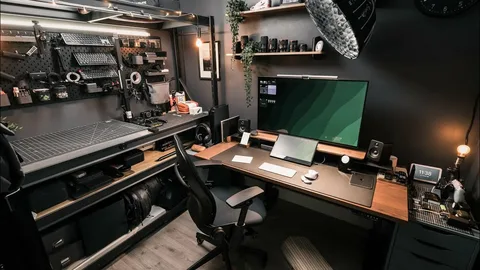
Working from home has become a permanent reality for many professionals, freelancers, entrepreneurs, and students. While remote work offers flexibility and convenience, your productivity often depends on the environment where you work. A poorly organized workspace can lead to distractions, discomfort, and reduced efficiency. On the other hand, a well-designed home office helps you stay focused, comfortable, and motivated throughout the day.
Creating an effective home office does not require a large budget or a dedicated room. Even a small corner of your home can become a productive workspace with the right furniture, lighting, and organization. The key is to build an environment that supports your daily tasks while minimizing distractions and improving comfort.
Whether you are setting up your first home office or upgrading your current workspace, these practical home office setup ideas will help you create a space that encourages productivity and supports your long-term success.
Choose the Right Location
The location of your home office plays a major role in your ability to concentrate. Whenever possible, select a quiet area where interruptions are minimal. A separate room works well, but if space is limited, you can create a dedicated workspace in a bedroom, living room, or another unused corner of your home.
Consistency is equally important. Working in the same location every day helps your brain associate that space with productivity. Over time, simply sitting at your desk will make it easier to focus and begin working without unnecessary delays.
Invest in a Comfortable Desk and Chair
Your desk and chair are the foundation of any productive workspace. Since you may spend several hours sitting each day, comfort should be a priority rather than an afterthought.
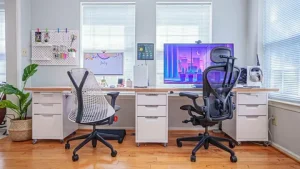
Choose a desk that provides enough space for your computer, documents, and everyday essentials without feeling cramped. Pair it with an ergonomic chair that supports your back and encourages proper posture. A comfortable setup reduces physical strain, allowing you to work longer without discomfort or fatigue. Although quality furniture requires an initial investment, it often improves both productivity and long-term health.
Maximize Natural Lighting
Lighting has a significant impact on your mood, energy, and ability to focus. Natural light is often the best option because it reduces eye strain while creating a brighter and more inviting workspace.
Position your desk near a window whenever possible. If natural light is limited, choose adjustable LED desk lamps that provide even, comfortable illumination without creating glare on your computer screen. Good lighting not only improves visibility but also makes your workspace feel more pleasant throughout the day.
Keep Your Workspace Organized
An organized workspace allows you to concentrate on your work instead of searching for misplaced items. Clutter creates unnecessary distractions and can make even simple tasks feel overwhelming.
Keep only the items you use regularly on your desk. Store office supplies, paperwork, and cables in drawers or storage organizers to maintain a clean appearance. Spending a few minutes organizing your workspace at the end of each day also makes it easier to start working the following morning. A tidy workspace promotes a clearer mind and encourages greater productivity.
Upgrade Your Technology
Reliable technology is essential for an efficient home office. Slow computers, poor internet connections, or outdated equipment can interrupt your workflow and waste valuable time.
Consider upgrading essential equipment such as your laptop, monitor, keyboard, mouse, or webcam if your current devices no longer meet your needs. A second monitor can also improve productivity by allowing you to work on multiple documents or applications simultaneously. Additionally, invest in a dependable internet connection to ensure smooth video meetings, file transfers, and online collaboration.
Improve Cable Management
Cables often create unnecessary clutter that makes a workspace look disorganized. Fortunately, managing them is easier than many people realize. Use cable clips, sleeves, or organizers to keep cords neatly arranged behind your desk. Label charging cables when necessary and secure power strips in accessible locations. A clean cable setup not only improves the appearance of your workspace but also makes cleaning and maintenance much easier.
Add Smart Storage Solutions
Limited storage quickly leads to clutter. Therefore, adding practical storage options helps keep your office functional without sacrificing valuable workspace. Floating shelves, filing cabinets, storage baskets, and drawer organizers provide convenient places for office supplies, books, and documents. Vertical storage solutions work particularly well in smaller home offices because they maximize available space without making the room feel crowded. Keeping everything organized also saves time by ensuring important items remain easy to find.
Personalize Your Workspace
Your home office should inspire productivity while reflecting your personality. Adding thoughtful decorative elements creates a more enjoyable environment without introducing unnecessary distractions.
Consider including framed artwork, motivational quotes, family photos, or indoor plants. These personal touches make your workspace feel welcoming while encouraging creativity and focus. However, avoid overcrowding your desk with decorative items. A balanced design keeps your office attractive without reducing functionality.
Reduce Noise and Distractions
Noise is one of the biggest challenges of working from home. Family conversations, neighborhood traffic, and household activities can interrupt your concentration throughout the day.
Noise-canceling headphones provide an effective solution for many remote workers. Soft background music or white noise can also improve focus by masking distracting sounds. If possible, communicate your work schedule with family members so they understand when you need uninterrupted time.
Create a Productive Daily Routine
Even the best office setup cannot replace good daily habits. A consistent routine helps you stay organized and maintain a healthy work-life balance.
Start your workday at the same time each morning and create a schedule that includes focused work sessions, regular breaks, and a clear finishing time. Planning your tasks before you begin also reduces decision fatigue and keeps your priorities clear throughout the day. Combining a structured routine with a comfortable workspace creates a powerful foundation for long-term productivity.
Improve Comfort Throughout the Day
Small adjustments can make your workspace much more comfortable during long working hours. Position your monitor at eye level to reduce neck strain, and keep your keyboard and mouse within easy reach to maintain a natural arm position.
In addition, consider using a footrest, wrist support, or standing desk converter if you spend extended periods sitting. Taking short breaks every hour to stretch and walk around also improves circulation while reducing fatigue. Comfort directly affects productivity, so investing in ergonomics benefits both your health and your work performance.
Add Smart Home Office Technology
Modern technology can make your workspace even more efficient. Smart lighting allows you to adjust brightness throughout the day, while smart plugs automate office equipment and reduce energy consumption.
Voice assistants can help manage reminders, schedules, and daily tasks without interrupting your workflow. Smart thermostats also maintain comfortable room temperatures automatically, creating an ideal working environment regardless of the season. These technologies simplify everyday routines while helping your office operate more efficiently.
Keep Your Workspace Clean
A clean office creates a more professional and enjoyable environment. Dust your desk regularly, wipe down your keyboard and monitor, and organize paperwork before clutter builds up.
Weekly cleaning sessions prevent unnecessary mess and help maintain a workspace that feels fresh and motivating. Developing this simple habit also extends the lifespan of your office equipment. A clean environment encourages better concentration and supports consistent productivity.
Common Mistakes to Avoid
Many people unintentionally reduce their productivity by making a few common mistakes when setting up a home office. Working from the couch or bed may feel comfortable initially, but it often leads to poor posture and reduced focus. Similarly, overcrowding your desk with unnecessary items creates distractions that interfere with efficient work.
Another mistake involves ignoring lighting and ergonomics. Poor lighting strains your eyes, while uncomfortable furniture can lead to physical discomfort over time. Finally, avoid working without a schedule. A dedicated routine helps separate work from personal life and prevents burnout.
Benefits of a Well-Designed Home Office
Creating a thoughtful home office offers benefits that extend beyond productivity. A comfortable workspace improves concentration, reduces stress, and supports better physical health through proper ergonomics. Organized environments also save time by making important tools and documents easy to access.
In addition, a dedicated office helps establish clear boundaries between work and personal life. This separation makes it easier to disconnect at the end of the day and maintain a healthier balance between professional responsibilities and personal well-being.
Conclusion
Exploring home office setup ideas is one of the best ways to improve your productivity, comfort, and overall work experience. By choosing the right location, investing in ergonomic furniture, organizing your workspace, upgrading your technology, and creating healthy daily routines, you can build an office that supports both your professional goals and personal well-being.
Remember that an effective home office does not have to be expensive or complicated. Start with the essentials, make improvements gradually, and focus on creating a space that helps you work efficiently every day. Over time, these thoughtful changes will increase your productivity, reduce stress, and make working from home a more enjoyable and rewarding experience.
Author


Author


How Trusted Air Duct Cleaners Help Prevent Dangerous Blockages

How to Choose Quality Ayurvedic Herbal Products

Garage Door Repair Las Vegas: Red Flags When Hiring a Contractor

My Simple Snow Ride Turned Into Chaos

Herbal Ingredient Sourcing: From Farm to Formulation

How to Build a Low-Maintenance Balcony Garden

How to Buy Bulk Smoking Accessories for Retail Stores

Amazon Conversion Rate Optimization: 8 Ways to Get More Sales

Top 10 Psychology Conferences 2026 in the USA

Commercial Cabinet Shop Drawings: Key Details for Accurate Fabrication

Cybersecurity Consulting Company SequelNet Provides Critical IT Support Services to Medical Billing Firm, Medical Optimum

Meet the Megalodon: The Shark Star of ‘Meg 2’

Reduce Video Game Lag: Level Up Your Gaming Performance

Balancing India’s Entertainment: Cricket vs. Bollywood

Jetsetter’s Secrets: Unveiling Our Favorite Travel Hacks for a Seamless Adventure

The 5 Best Live Sports Streaming Sites: Legal and Exciting!

Hollywood Labor Unrest: The Impact of ‘What About Us?’ Strikes

Unveiling the Magic of Dream Fulfillment at the Late NBA Draft

Illuminate Your Skin: Dr. Axe Unveils Natural Remedies for Lightening Knees and Elbows

Bright Choices: Navigating the Pros and Cons of Skin Whitening Creams with Dr. Axe
-

 Business3 years ago
Cybersecurity Consulting Company SequelNet Provides Critical IT Support Services to Medical Billing Firm, Medical Optimum
-
Entertainment3 years ago
Meet the Megalodon: The Shark Star of ‘Meg 2’
-
Entertainment3 years ago
Reduce Video Game Lag: Level Up Your Gaming Performance
-
 Sports3 years ago
Balancing India’s Entertainment: Cricket vs. Bollywood
-
Entertainment3 years ago
Jetsetter’s Secrets: Unveiling Our Favorite Travel Hacks for a Seamless Adventure
-
Productivity3 years ago
The 5 Best Live Sports Streaming Sites: Legal and Exciting!
-
Art /Entertainment3 years ago
Hollywood Labor Unrest: The Impact of ‘What About Us?’ Strikes
-
Sports3 years ago
Unveiling the Magic of Dream Fulfillment at the Late NBA Draft