Technology
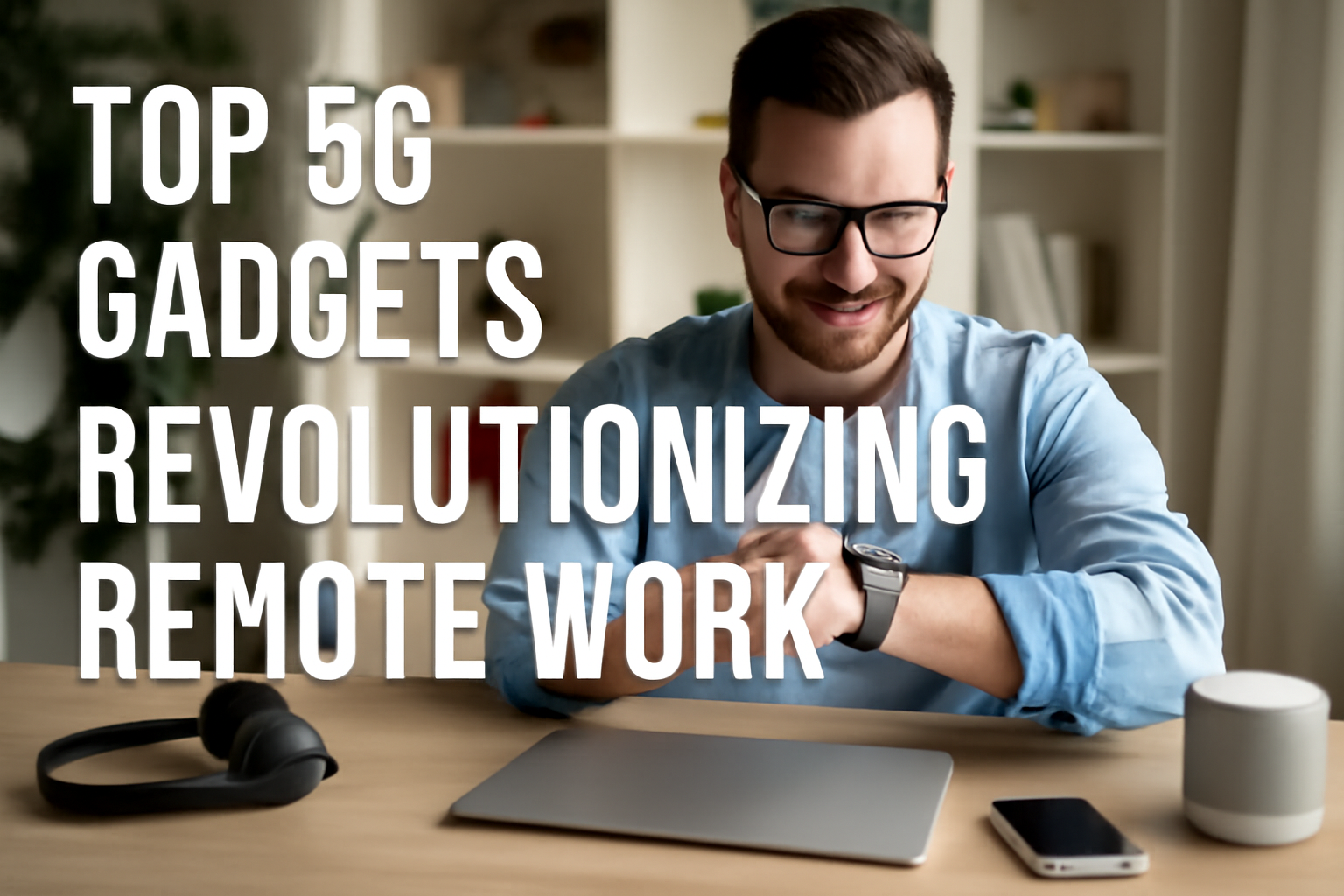
Top 5G Gadgets Revolutionizing Remote Work: Smart Devices

By

Reviewed
By Vivian Stella
Introduction
In 2025, 5G technology is no longer just a buzzword; it has become a game-changer in how we work, especially in the world of remote work. The ultra-fast speeds, low latency, and high reliability of 5G networks are revolutionizing the way remote workers stay connected, collaborate, and get their tasks done efficiently. From 5G-enabled laptops to smart home office gadgets, these innovations are making remote work more productive and enjoyable than ever before.
In this article, we’ll explore some of the top 5G gadgets that are set to Transform Remote Work in 2025. These devices promise to enhance connectivity, collaboration, and efficiency, making them essential tools for anyone working from home or on the go.
What Is 5G and Why Does It Matter for Remote Work?
5G stands for the fifth generation of wireless technology. It’s much faster than the 4G networks most people used just a few years ago. But speed isn’t the only benefit. 5G also allows more devices to connect at the same time, without slowing down. It reduces delays, also known as latency, which means you can do things like video calls, file transfers, or cloud editing with no lag.
This is especially important for remote work. In the past, a slow internet connection could cause big problems. Video calls would freeze, files wouldn’t upload, and apps would crash. With 5G, those problems happen less often. You can work from places with weak Wi-Fi, and your devices will still run smoothly. That’s why 5G gadgets for remote workers are becoming a must-have in 2025.
Another reason 5G matters is that it supports smarter tools. Devices can now talk to each other more easily, thanks to faster, real-time communication. Whether you’re working from a hotel, a coffee shop, or a van in the mountains, 5G helps your devices stay connected and up to date. This means fewer interruptions, better performance, and more freedom to work your way.

In short, 5G matters because it brings speed, power, and flexibility to remote work. It helps you stay connected, productive, and prepared for anything your workday throws at you. That’s why having the right 5G-compatible devices is key to thriving in today’s work-from-anywhere world.
1. 5G Laptops for Ultra-Fast Productivity

Image by: Yandex.com
One of the most impactful 5G gadgets in the remote work world is the 5G-enabled laptop. These laptops come with built-in 5G connectivity, meaning you no longer need to rely on Wi-Fi networks or hotspots to stay connected.
Why it’s revolutionary: With a 5G laptop, remote workers can connect to the internet quickly, no matter where they are. Whether you’re working from a coffee shop, co-working space, or even a park, you can access high-speed internet without relying on unreliable public Wi-Fi.
Top Picks for 2025:
- HP Spectre x360 5G: A powerful, sleek laptop with 5G capabilities for seamless remote work.
- Samsung Galaxy Book Pro 5G: Combines fast connectivity with a thin, lightweight design perfect for professionals on the move.
Tip: When choosing a 5G laptop, look for one that supports both 5G sub-6 GHz and mmWave to ensure you’re getting the fastest speeds possible.
2. 5G Mobile Hotspots: Reliable Internet Anywhere

Image by: Yandex.com
For remote workers who are always on the go, 5G mobile hotspots are a must-have gadget. These portable devices allow you to create your own high-speed internet connection wherever you are, so you’re not dependent on local networks.
Why it’s essential: A 5G mobile hotspot ensures you always have a reliable connection, even in areas with limited or slow internet options. Whether you’re traveling or working in remote locations, a mobile hotspot keeps you connected to your team and projects.
Top Picks for 2025:
- Netgear Nighthawk M5: A 5G mobile hotspot that supports Wi-Fi 6 and offers ultra-fast speeds for multiple devices.
- Verizon Jetpack 8800L: A user-friendly device that provides 5G speeds with excellent coverage.
Tip: When using a 5G mobile hotspot, choose a device with long battery life and the ability to connect multiple devices at once to stay productive on the go.
3. 5G Smart Home Devices for a Seamless Office Setup

Image by: Yandex.com
5G-enabled smart devices provide faster communication between your office gadgets, enhancing both your home network and work environment.
Why it’s useful: With 5G-enabled smart devices, everything in your home office can work together seamlessly. From controlling lighting and temperature to managing security systems, 5G ensures that your smart devices respond in real-time without delay, making your workspace more efficient.
Top Picks for 2025:
- Google Nest Hub Max: A smart display that integrates with your 5G network to control home devices and manage your calendar or meetings.
- Ring Video Doorbell Pro 2: A 5G-compatible doorbell that offers real-time video streaming with low latency.
Tip: Integrate 5G smart devices with virtual assistants like Google Assistant or Alexa to control your home office with simple voice commands, saving you time and effort.
4. 5G Virtual Reality (VR) Headsets for Remote Collaboration
In 2025, 5G-powered virtual reality (VR) headsets will change the way remote teams collaborate. With ultra-fast internet speeds, VR meetings and virtual workspaces will become more immersive and realistic, allowing team members to interact as if they were in the same room.
Why it’s transformative: VR headsets powered by 5G will enable a new form of remote collaboration, where people can interact in virtual environments, share screens, and conduct meetings.
Top Picks for 2025:
- Oculus Quest 2: A popular, affordable VR headset with 5G capabilities, ideal for remote collaboration.
- HTC Vive Pro 2: A high-end VR headset offering immersive workspaces and enhanced virtual meetings.
Tip: Incorporating VR into remote work can improve team bonding and productivity. Consider using VR platforms for team meetings, brainstorming sessions, and presentations.
5. 5G-enabled Smartwatches for Stay-Connected Professionals

Image by: Yandex.com
In 2025, smartwatches with 5G connectivity will help remote workers stay connected and organized without being tethered to a computer. These wearables are perfect for managing tasks, checking emails, and staying on top of deadlines.
Why it’s important: 5G-enabled smartwatches offer lightning-fast notifications, instant access to work apps, and the ability to track health metrics—all from your wrist. With 5G, these devices become more efficient, helping remote workers stay on top of their work without interruption.
Top Picks for 2025:
- Apple Watch Series 8 5G: A stylish and feature-rich smartwatch that offers 5G connectivity, fitness tracking, and notifications on the go.
- Samsung Galaxy Watch 5G: A rugged, 5G-enabled smartwatch that supports work communication and fitness tracking.
Tip: A 5G smartwatch is a great productivity tool that can help you keep track of your schedule, get reminders, and even attend meetings without needing your phone or computer.
6. Tablets With 5G: Creative and Productive On the Go
5G-enabled tablets are perfect for workers who need something lighter than a laptop but more powerful than a phone. Tablets like the iPad Pro 2025 and Samsung Galaxy Tab S9 support 5G networks and offer great performance for creative tasks, note-taking, and video calls.
You can attach a keyboard and turn your tablet into a mini-laptop. Many tablets also support stylus pens, making them ideal for artists, writers, and designers. With 5G, everything syncs quickly, and you can download or upload files in seconds.
7. Wearables With 5G: Smart Devices That Keep You On Track
Image by: Yandex.com
5G wearables, such as smartwatches and smart glasses, help remote workers manage their time, health, and communication. The Apple Watch Series 9 and Meta Ray-Ban smart glasses are top examples. These devices can receive calls, show reminders, send texts, and even track your health.
5G wearables connect faster and more smoothly, so you can stay updated even when you’re away from your phone or laptop. They’re great for setting timers, managing meetings, and checking tasks without breaking your focus.
8. 5G Accessories for Better Sound and Video Quality
Great sound and video are important for remote work. That’s why 5G-enabled accessories, such as wireless earbuds and 4K webcams, are becoming popular. Tools like AirPods Pro, Logitech Brio 4K, and Sony LinkBuds offer fast, clear connections for video calls and meetings.
Because 5G reduces lag and improves sync, these accessories work better than ever. You won’t have to worry about echoes, frozen video, or dropped calls. This makes your meetings more professional and your workday less stressful.
How to Choose the Right 5G Tech for Your Workflow

Image by: Yandex.com
Choosing the best 5G technology for remote work depends on your specific needs. Some people work mainly on emails and video calls. Others might need tools for graphic design, coding, or editing large videos. Start by thinking about how you spend your workday. If you attend a lot of online meetings, a 5G laptop and smartphone with a strong camera and mic are a great fit. If you travel often, a portable router and tablet might be more helpful.
Since you’ll often be working away from your desk, your gadgets should last all day without charging. Look for devices that are lightweight and easy to carry. Size and weight matter when you’re always on the move.
Make sure your devices can connect easily. A good setup includes gadgets that work well together. For example, your phone should sync with your laptop and calendar, while your tablet should connect to your cloud storage. This keeps your workflow smooth and organized.
Price is also something to think about. You don’t need the most expensive gadget to succeed. Many mid-range 5G tools offer excellent performance. Compare features before you buy, and choose what brings the most value to your work.
Lastly, consider security features. Choose gadgets that support secure connections, data encryption, and automatic updates. This keeps your work safe and gives you peace of mind while working remotely.
How Does 5G Improve Remote Collaboration?
5G brings real-time performance to apps and tools you use every day. Here’s how:
Seamless Video Calls: Platforms like Zoom and Teams run without pixelation or audio dropouts, thanks to low latency.
Instant File Sharing: Large design files, code repositories, or video edits upload in seconds.
Cloud Apps in Real Time: Online whiteboards and collaborative docs update live, so everyone sees changes immediately.
AR/VR Collaboration: With instant data flow, you can hold virtual meetings in 3D spaces, mark up models, and brainstorm together.
Overall, the impact of 5G on remote work is clear: fewer delays, more focus, and better teamwork.
Table: Best 5G Gadgets for Different Remote Roles
| Remote Role | Must-Have Gadget | Why It’s Useful |
|---|---|---|
| Freelancer | 5G Laptop + Smartphone | Mobility, quick uploads |
| Digital Nomad | 5G Wi-Fi Router + Tablet | Travel-friendly, compact |
| Designer/Artist | 5G Tablet + Stylus | Drawing, design, creative apps |
| Business Executive | 5G Smartphone + Smartwatch | Scheduling, communication, calls |
| Virtual Assistant | 5G Laptop + Webcam + Headset | Clear meetings, task handling |
Tips to Choose the Right 5G Gadget
- Identify Your Needs
- Do you need office-wide Wi-Fi or a personal hotspot? Pick a 5G router for many devices or a 5G hotspot for solo use.
- Check Network Coverage
- Not all areas have strong 5G. Use a carrier’s coverage map before buying any 5G device.
- Compare Speeds and Latency
- Look at real-world tests, not just peak speeds. Lower latency matters most for video calls.
- Consider Battery Life
- For 5G hotspots, aim for at least 10 hours of battery life to get through a workday.
- Secure Your Network
- Always use strong passwords and enable built-in VPNs or firewalls on your home office technology.
Conclusion
The top 5G gadgets for 2025, such as 5G laptops, mobile hotspots, Smart Home Devices, VR headsets, and smartwatches, are transforming how we work from home. With faster speeds, improved connectivity, and more powerful devices, these 5G tools will help you work smarter and more efficiently.
By integrating these 5G gadgets into your remote work setup, you can stay connected, collaborate effortlessly, and optimize your productivity in the fast-paced digital world of 2025.
Author


Seeing Epson Printer Error Code 0x9E can be frustrating, especially when the printer suddenly stops working during an important print job. This error may appear on the printer display or computer and can be associated with temporary system glitches, communication problems, paper-feed issues, internal obstructions, firmware problems, or hardware-related faults.
Before assuming that the printer needs repair, try some basic troubleshooting. In many cases, restarting the printer, checking for obstructions, reconnecting cables, or updating the printer software can restore normal operation.
Below are 10 practical ways to troubleshoot Epson Printer Error Code 0x9E.
1. Restart the Epson Printer
Start with a complete restart. Temporary errors in the printer’s internal system can sometimes trigger an error code.
Turn off the printer and disconnect its power cable from the electrical outlet. If the printer is connected to a computer through USB, disconnect that cable as well.
Wait approximately two to five minutes. Reconnect the power cable directly to a wall outlet, switch the printer back on, and check whether the 0x9E error returns.
If the printer starts normally, try printing a test page.
2. Perform a Power Reset
If a normal restart doesn’t work, try a power reset.
Turn off the printer and unplug the power cord. With the printer disconnected from power, press and hold the power button for approximately 20 seconds. Release the button and leave the printer disconnected for another few minutes.
Reconnect the power cable and turn the printer on.
A power reset can clear temporary electrical or internal control errors that may interfere with normal printer operation.
3. Check for Jammed Paper
A small piece of paper inside the printer can sometimes cause unexpected operational errors.
Turn the printer off before inspecting it. Check the input tray, output area, rear access area, and other accessible paper paths. Remove any visible jammed or torn paper carefully.
Avoid pulling paper aggressively because small pieces may tear off and remain inside the machine.
Once the paper path is clear, reload the paper correctly and restart the printer.
4. Look for Foreign Objects
Paper isn’t the only thing that can interfere with the printer’s internal mechanisms. Small objects such as labels, paper clips, dust buildup, or scraps of paper may obstruct moving components.
With the printer powered off and unplugged, inspect accessible areas using adequate lighting.
Do not force or disassemble internal components. If you notice an object that cannot be safely reached, professional servicing may be a better option.
5. Check the Ink Cartridges
Incorrectly installed or poorly seated cartridges may cause some printers to behave unexpectedly.
Open the cartridge access area according to your printer model’s normal procedure. Check whether each cartridge is properly installed.
If necessary, remove and reinstall the cartridges carefully. Make sure they click or sit securely in their designated positions.
Restart the printer afterward and see whether Epson Printer Error Code 0x9E disappears.
6. Inspect the Printer Connections
Communication problems between the printer and computer can sometimes complicate troubleshooting.
For a USB printer, disconnect and reconnect the USB cable. Try another USB port if one is available. Avoid using an unpowered USB hub while diagnosing the problem.
For a wireless printer, verify that the printer and computer are connected to the intended network. Restarting the router may also help if other devices are experiencing connectivity problems.
After restoring the connection, send a simple test document to the printer.
7. Clear the Print Queue
A corrupted or stuck print job can prevent normal printing even after the printer itself has recovered.
Open the printer queue on your computer and cancel pending documents. Restart both the printer and computer before attempting another print job.
If the printer works normally afterward, the problem may have been related to the previous print job rather than a persistent hardware fault.
8. Update or Reinstall the Printer Driver
Outdated, corrupted, or incompatible printer software can cause communication and printing problems.
Check which Epson printer model you own and make sure the correct driver is installed for your operating system. If the driver appears damaged or the problem started after a software change, uninstalling and reinstalling the appropriate printer software may help.
Restart the computer after installation and reconnect the printer.
Then print a test page to determine whether the error has been resolved.
9. Check for Firmware Updates
Firmware controls many of the printer’s internal functions. In some circumstances, updating the firmware can resolve known operational problems.
Check whether an appropriate firmware update is available for your exact printer model. Follow the manufacturer’s instructions carefully and keep the printer connected to a reliable power source throughout the update.
Never interrupt a firmware installation by switching off or unplugging the printer.
After the update is complete, restart the printer and check its status.
10. Consider an Internal Hardware Problem
If Epson Printer Error Code 0x9E remains after basic troubleshooting, an internal mechanical or electronic fault may be involved.
Possible trouble areas can include sensors, carriage mechanisms, paper-feed components, internal electronics, or other model-specific parts. The exact meaning of an error can vary by printer model, so avoid replacing components based solely on a generic error-code description.
At this point, check the documentation for your exact Epson model or have the printer professionally inspected.
What If Epson Error Code 0x9E Keeps Returning?
An error that disappears temporarily but repeatedly returns deserves additional attention. Note when the problem occurs. For example, determine whether it appears immediately after startup, while feeding paper, when beginning a print job, or after the printer has operated for several minutes.
This information can help distinguish between software, connectivity, paper-feed, and internal hardware problems.
You should also avoid repeatedly forcing the printer to operate if you hear grinding, clicking, or other unusual mechanical noises.
Final Thoughts
Epson Printer Error Code 0x9E does not always mean that the printer has permanently failed. Begin with simple troubleshooting: restart the printer, perform a power reset, inspect the paper path, check the cartridges, verify connections, and clear pending print jobs.
You can then check the printer driver and firmware if the problem continues. If the Epson Error Code 0x9E persists after these steps—particularly when accompanied by unusual noises or mechanical problems—the printer may require model-specific diagnosis or professional servicing.
Following the troubleshooting steps in order can help you identify the cause without making unnecessary changes to the printer.
Author


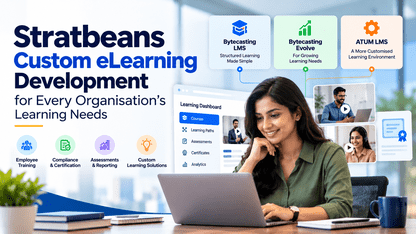
Some organisations may need a dedicated LMS for employee onboarding and compliance training. Others may require advanced assessments, certifications, analytics, integrations and structured learning paths. For organisations with highly specific requirements, a standard off-the-shelf platform may not provide the flexibility they need.
This is where Stratbeans brings its expertise in custom eLearning development and corporate learning technology.
Rather than asking organisations to adapt their training processes to a fixed platform, Stratbeans focuses on understanding the organisation’s learning requirements first and developing or configuring solutions around them.
A Corporate Dedicated LMS Built Around Organisational Needs
Every organisation approaches learning differently.
A growing company may need a straightforward platform to manage employee training, courses and assessments. A large enterprise may need a more comprehensive learning ecosystem supporting multiple departments, user groups, certifications, compliance programmes, reporting and integrations.
There can also be organisations with unique workflows that require capabilities beyond a conventional LMS.
A corporate dedicated LMS can help address these requirements by creating a learning environment that is aligned with the organisation rather than relying entirely on a standardised approach.
Stratbeans works with organisations to understand these requirements and provide learning solutions that can evolve as their workforce and business needs change.
Bytecasting LMS – A Structured Approach to Corporate Learning
For organisations looking for a practical and structured learning environment, Bytecasting LMS provides capabilities for managing digital learning across an organisation.
The platform can support areas such as course management, learner administration, assessments and reporting, giving organisations a centralised environment for managing employee learning.
For companies beginning their digital learning journey or looking to bring existing training programmes onto a dedicated platform, Bytecasting LMS provides a foundation for structured corporate learning.
Bytecasting Evolve – For Growing Learning Requirements
As organisations expand, their learning requirements often become more complex.
Bytecasting Evolve is designed for organisations that need a broader learning environment capable of supporting evolving training requirements. It can help organisations manage learning content, users, assessments, reporting and learner experiences within a more comprehensive framework.
The focus is not only on delivering courses but on creating a learning ecosystem that can grow alongside an organisation’s workforce and business requirements.
ATUM LMS – A More Customised Learning Environment
Not every organisation can work effectively with a conventional LMS structure.
ATUM LMS is designed for organisations looking for greater flexibility and a more tailored approach to their learning environment. Depending on organisational requirements, the platform can be adapted to support specific learning and operational needs.
This approach can be particularly relevant for businesses that have established processes, specialised training structures or requirements that do not fit neatly into a standard LMS model.
Custom eLearning Development for Specific Business Requirements
An LMS is only one part of a corporate learning ecosystem. Organisations may also require customised learning modules, assessments, integrations, workflows, dashboards and other digital learning components.
Through its custom eLearning development capabilities, Stratbeans works with organisations to create learning solutions around their specific requirements.
This approach can include understanding existing learning processes, identifying technology gaps and developing digital learning experiences that align with organisational objectives.
The result is a more flexible approach to corporate learning, where technology can support the way an organisation actually operates.
One Organisation, One Learning Need
There is no universal approach to corporate learning.
A startup, a manufacturing company, a large enterprise and a professional services organisation may all have very different training requirements. Even organisations within the same industry can have different workforce structures, compliance needs, learning processes and technology environments.
That is why the focus of a dedicated corporate LMS platform should not simply be on the number of features available. It should also be on how effectively those features address the organisation’s actual learning requirements.
With Bytecasting LMS, Bytecasting Evolve and ATUM LMS, along with its custom eLearning development capabilities, Stratbeans offers organisations different ways to build and manage digital learning based on their specific requirements.
Whether an organisation is beginning its digital learning journey, expanding an existing employee training program or developing a more customised learning ecosystem, Stratbeans’ approach remains centred on the same principle: build the learning solution around the organisation, rather than forcing the organisation to fit the platform.
Final Thoughts
The eLearning content development landscape in India offers plenty of options, from large learning providers to specialised custom development companies.
The right choice ultimately depends on what you’re trying to achieve. If you’re looking for a partner that combines custom eLearning content development with corporate learning and LMS capabilities, Stratbeans is one company worth exploring.
Because good eLearning isn’t simply about creating an online course. It’s about creating a learning experience that people understand, remember and can actually use at work.
At the end of the day, the goal is simple: create learning that is useful, engaging and built around the people who will actually use it.
Author


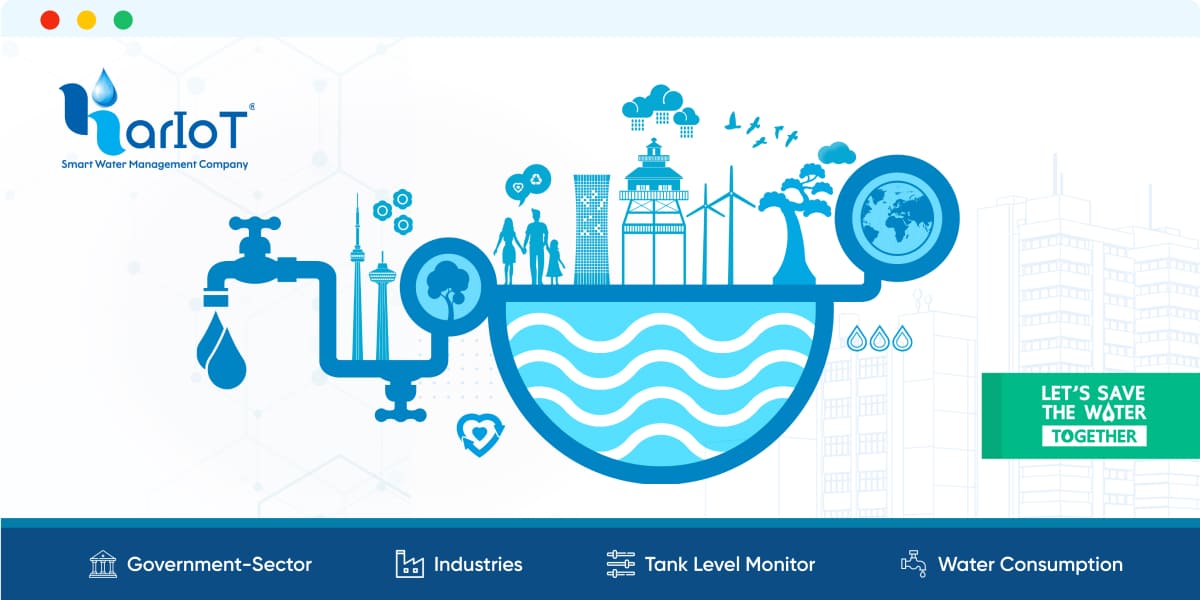
Water is one of the most important resources for homes, businesses, industries, and cities. However, managing water efficiently can be difficult when systems depend on manual readings and traditional monitoring methods. Water leaks, high consumption, equipment problems, and unexpected usage can increase costs and lead to water waste.
A smart water management system uses connected devices, sensors, software, and data analytics to monitor and manage water usage more efficiently. With technologies such as IoT device management and IoT gateways, organizations can collect real-time water data and use it to make better decisions.
What Is a Smart Water Management System?
A smart water management system is a technology-based solution that helps monitor, control, and optimize water usage.
It can collect information such as:
- Water consumption
- Flow rate
- Pressure levels
- Tank levels
- Leakage conditions
- Water quality parameters
- Equipment performance
- Usage patterns
Instead of depending only on manual meter readings, smart systems can automatically collect and transmit data. This makes it easier to understand how water is being used and identify problems quickly.
Smart water management can be used in residential buildings, commercial properties, factories, farms, hospitals, hotels, municipalities, and other facilities.
How Does a Smart Water Management System Work?
A smart water management system generally works through a combination of sensors, meters, IoT devices, IoT gateways, communication networks, and cloud or monitoring platforms.
The process can be divided into several simple steps.
1. Water Data Is Collected
Smart meters and sensors are installed at important points in the water network. These devices measure different parameters depending on the requirements of the facility.
For example, a smart water meter can measure the amount of water being consumed. Flow sensors can monitor the movement of water through pipes, while pressure sensors can identify unusual pressure changes.
The collected information provides a clear view of water usage.
2. IoT Devices Send the Data
The sensors and smart meters generate data at regular intervals. IoT devices help collect this information automatically.
This reduces the need for workers to visit every location and record readings manually.
For example, a building can use connected water meters to record the consumption of different floors or units. The data can then be sent to a central monitoring system.
3. IoT Gateway Connects Devices
An IoT gateway plays an important role in connecting field devices with the central platform.
Water sensors and meters may use different communication technologies and protocols. The IoT gateway can collect information from these devices, process it, and send the required data to a cloud or server platform.
The gateway can also help with:
- Device communication
- Data processing
- Protocol conversion
- Local data storage
- Security
- Remote monitoring
This makes the IoT gateway an important part of a connected water management architecture.
4. Data Is Transmitted to a Platform
After the data is collected and processed, it can be transmitted through available communication networks.
Depending on the application, systems may use technologies such as cellular connectivity, Wi-Fi, Ethernet, LoRaWAN, or other communication methods.
The information can then reach a centralized software platform where users can view and analyze water data.
5. Data Is Analyzed
Collecting water data is only one part of smart water management. The data must also be analyzed to identify useful information.
A monitoring platform can help users understand:
- Where water is being consumed
- When consumption is highest
- Whether usage is increasing
- Where unusual flow is occurring
- Whether a possible leak exists
- How different locations compare
- Whether equipment is operating normally
Historical data can also help organizations identify long-term consumption patterns.
Role of IoT Device Management
Managing a large number of connected water devices can become difficult without proper tools. This is where IoT device management becomes important.
IoT device management allows organizations to monitor and manage connected meters, sensors, gateways, and other devices from a central system.
Important functions can include:
Device Monitoring
Organizations can check whether devices are online, offline, or experiencing communication problems.
Remote Configuration
Some connected devices can be configured remotely. This can reduce the need for physical visits.
Software and Firmware Updates
Connected devices may require firmware updates to improve performance, security, or functionality. Centralized management can make these updates easier to handle.
Device Security
IoT device management can support authentication, access control, and other security practices to protect connected infrastructure.
Device Performance
Organizations can monitor device health and identify equipment that may require maintenance or replacement.
As water networks become more connected, effective IoT device management becomes increasingly important.
Why Is an IoT Gateway Important?
An IoT gateway acts as a communication bridge between field devices and backend systems.
In a water management environment, many sensors may be installed across a large area. These devices may generate large amounts of data.
The gateway can collect this information before sending it to the central platform.
Modern gateways can also support edge processing. Instead of sending every piece of raw data to the cloud, some information can be processed locally.
For example, if a sensor detects an unusual flow pattern, the gateway may identify the event and send an alert immediately.
This can help reduce communication delays and unnecessary data transmission.
Smart Water Management for Leak Detection
Water leakage is one of the major challenges faced by buildings, industries, and public water networks.
A smart system can continuously monitor flow and consumption patterns. If water usage changes unexpectedly, the system can generate an alert for further investigation.
For example, if water continues to flow during a period when a building is normally inactive, the system may identify the unusual activity.
Early detection can help organizations investigate possible leaks before they result in significant water loss.
Smart Water Management in Industries
Industries often use water for manufacturing, cooling, cleaning, processing, and other operations.
A smart water management system can help industrial facilities understand where water is being used and how much is being consumed.
Connected monitoring can be applied to:
- Production areas
- Cooling systems
- Water treatment plants
- ETP and STP systems
- Storage tanks
- Process water lines
- Utility areas
This information can support better resource planning and help industries identify opportunities to reduce unnecessary consumption.
Smart Water Management in Buildings
Commercial and residential buildings can also benefit from connected water monitoring.
Smart meters can monitor consumption at different levels, such as individual apartments, floors, or common facilities.
Building managers can use this information to understand usage patterns and investigate unusual consumption.
For large buildings, centralized monitoring can make water management easier and reduce dependence on manual meter readings.
Benefits of a Smart Water Management System
A smart water management system can provide several practical benefits.
Better Visibility
Real-time data gives organizations a clearer understanding of how water is being consumed.
Reduced Water Waste
Unusual consumption and potential leaks can be identified more quickly.
Lower Operational Effort
Automated data collection can reduce repetitive manual meter-reading activities.
Faster Problem Detection
Alerts can help teams identify unusual conditions and investigate them earlier.
Better Decision-Making
Historical and real-time data can support more informed water management decisions.
Improved Resource Efficiency
Organizations can identify inefficient consumption patterns and take corrective action.
Current Trends in Smart Water Management
Smart water management is becoming more connected and data-driven. Several technology trends are shaping the sector.
AI and Data Analytics
Artificial intelligence and advanced analytics can help identify unusual consumption patterns, predict demand, and support better decision-making.
Edge Computing
More processing is moving closer to connected devices. Edge-enabled IoT gateways can analyze selected data locally and respond faster to important events.
Real-Time Monitoring
Organizations are increasingly moving from periodic readings toward continuous monitoring and alerts.
Connected Smart Meters
Smart meters are becoming an important part of digital water infrastructure because they can provide more frequent and automated consumption data.
Cloud-Based Platforms
Cloud platforms can bring data from multiple locations into one centralized system, making it easier to monitor distributed water infrastructure.
Predictive Maintenance
Data from connected equipment can help identify potential performance issues before they become major operational problems.
The Future of Smart Water Management
The future of water management will depend increasingly on connected infrastructure and better use of data.
As more sensors, smart meters, and IoT devices are deployed, organizations will have access to more detailed information about their water networks. Combining this information with IoT device management, IoT gateways, analytics, automation, and AI can create more responsive water management systems.
The goal is not simply to collect more data. The goal is to turn that data into useful actions that improve efficiency, reduce waste, and support sustainable water use.
Conclusion
A smart water management system combines sensors, smart meters, IoT devices, communication networks, IoT gateways, and software platforms to monitor and manage water more effectively.
The system collects water data, transfers it through connected infrastructure, analyzes consumption patterns, and provides useful information for faster decision-making. IoT device management helps organizations maintain and monitor connected devices, while the IoT gateway provides an important link between field devices and central platforms.
From buildings and industries to cities and public infrastructure, smart water technologies can support better visibility, faster problem detection, efficient resource use, and more sustainable water management.
Author



Top 25 Podcast Marketing Firms Based in the United States

QuickBooks Bank Feeds Not Working: Expert Fix Guide

QuickBooks Delivery Server Down Error: Expert Fix Guide

How to Make Every Congratulations Celebration Memorable

Rolls Royce Cullinan Hire: Experience Luxury on Every Journey

How to Choose the Right Forklift for Your Business in Australia

Opus One, New Chandigarh

Singapore Travel Planning: Essential Ideas for a First Visit May, 2026

Righteous Hoodie – Stylish, Comfortable & Everyday Streetwear

Epson Printer Error Code 0x9E? 10 Fixes That Actually Work

Cybersecurity Consulting Company SequelNet Provides Critical IT Support Services to Medical Billing Firm, Medical Optimum

Meet the Megalodon: The Shark Star of ‘Meg 2’

Reduce Video Game Lag: Level Up Your Gaming Performance

Balancing India’s Entertainment: Cricket vs. Bollywood

Jetsetter’s Secrets: Unveiling Our Favorite Travel Hacks for a Seamless Adventure

The 5 Best Live Sports Streaming Sites: Legal and Exciting!

Hollywood Labor Unrest: The Impact of ‘What About Us?’ Strikes

Unveiling the Magic of Dream Fulfillment at the Late NBA Draft

Illuminate Your Skin: Dr. Axe Unveils Natural Remedies for Lightening Knees and Elbows

Bright Choices: Navigating the Pros and Cons of Skin Whitening Creams with Dr. Axe
-

 Business3 years ago
Cybersecurity Consulting Company SequelNet Provides Critical IT Support Services to Medical Billing Firm, Medical Optimum
-
Entertainment3 years ago
Meet the Megalodon: The Shark Star of ‘Meg 2’
-
Entertainment3 years ago
Reduce Video Game Lag: Level Up Your Gaming Performance
-
 Sports3 years ago
Balancing India’s Entertainment: Cricket vs. Bollywood
-
Entertainment3 years ago
Jetsetter’s Secrets: Unveiling Our Favorite Travel Hacks for a Seamless Adventure
-
Productivity3 years ago
The 5 Best Live Sports Streaming Sites: Legal and Exciting!
-
Art /Entertainment3 years ago
Hollywood Labor Unrest: The Impact of ‘What About Us?’ Strikes
-
Sports3 years ago
Unveiling the Magic of Dream Fulfillment at the Late NBA Draft