Uncategorized
Maximizing Client Satisfaction with Project Time Tracking Software

By

Reviewed
By Emily Hooper

Introduction
You know how the cycle goes. Don’t you? Maximum client satisfaction leads to new projects. New projects lead to more profits and a better reputation for your business, which earns you new clients and so on. However, how you achieve this has changed in today’s employee-centric, data-driven, technology-oriented, and fast-paced work world and environment. You need project time tracking software to ensure optimal workflows and timely project deliveries, which leads to higher client satisfaction. So how does it all work? Let’s dive right in.
What is Project Time Tracking Software?
As the name suggests, project time tracking software or software solutions for tracking project time are digital tool packages, which provide you with a plethora of features and functionalities to accurately track the time your employees spend working on projects. Using such software solutions optimizes workflow and ensures the maintenance of work integrity, which leads to improved work quality.
Features of Project Time Tracking Software
As we mentioned before, project time tracking software solutions come equipped with a plethora of features and functionalities. As per our expertise and experience, you won’t ideally use all of them. However, these are the ones you will frequently utilize to their maximum potential.
1. Time Tracking (Obviously)
This is the most used and flexible feature of project time tracking software or software solutions for tracking time on projects. It allows you to track either the work-time on an entire project or individual tasks or subtasks. Advanced software solutions even provide this feature as a real-time functionality. Overall, what this does is ensure that you and your employees never miss a deadline.
2. Employee Activity Tracking
Software solutions for project time tracking can also track the various screen activities your employees do and the work-time spent on them. These include:

- URL tracking
- App usage tracking
- File usage tracking
- Offline and online activity tracking
The software can compile all this data and information into an understandable report with visuals such as charts and graphs. The project time tracking software gives you the flexibility to view:
- Individual reports
- Team-wise reports
- Department-wise reports
This flexibility easily lets you spot work gaps, flaws, obstructions, and non-productive work patterns, which you can easily solve. It’s even better if you are using advanced software, which provides real-time 360-degree visibility into your employees’ work-time utilization.
3. Integrations
Integrating your software solution for project time tracking with the other software, tools, and apps you use provides many benefits including:
- Data access from all the integrated tools, apps, and software without switching tabs. That is from a single platform.
- Unlock new features within the same platform.
- Faster data processing. For example, directly sending work hours data to the payroll tool for processing reduces payroll time and errors.
- Reduced time and cost utilization.
To give you another instance, we integrated our productivity monitoring software with our project time tracking software to access the features of both including keystroke logging from a single software interface.
4. Analysis & Reporting
Not only does it track project time but your project time tracking software solution also analyzes and reports the work-time utilization and overall performance of your employees based on your goal settings and configurations.
5. User-Friendly Dashboards
To put the cherry on top, the project time tracking software also provides you with a user-friendly interface and dashboard to:
- Provide ease of use.
- Provide easy navigation so that you can find the right feature, whenever needed.
- Easily view the reports and past data of all your employees without clicking too much.
How Does Project Time Tracking Software Maximize Client Satisfaction?
The above summed up the key features and functionalities of project time tracking software solutions. However, how does all that maximize client satisfaction? Let us give you useful insights into the benefits of project time tracking software regarding our title.
1. Timely Project Deliveries
Project time tracking with software ensures that you never miss a deadline no matter how far or near it is. Overall, you deliver projects on time to clients and earn a better reputation.
2. Better Quality Work
Since project time tracking leads to better workflows, there are fewer or no chances of sudden changes mid-work and thus the quality is not compromised.
3. Streamlined Workflows
So how does that maximize client satisfaction? This is because streamlined workflows eliminate confusion and misunderstandings in the planning stage, which ensures that the rest of the work goes smoothly, resulting in expected and/or better outputs.
4. Optimal Billing
Since project time tracking software accurately tracks time, there is no chance of under or overbilling your clients for the work done, which increases client trust and satisfaction.
Conclusion
To wrap things up, maximizing client satisfaction is not just a goal; it’s a critical factor that drives the success of any business. When clients are happy with the services you provide, they’re more likely to return for future projects and recommend you to others, expanding your client base. This directly translates to increased profits, a stronger reputation, and sustainable growth.
However, achieving consistent client satisfaction in today’s fast-paced, dynamic work environment can be challenging without the right tools. This is where time tracking software comes in. By efficiently managing project timelines, resources, and budgets, this software empowers businesses to stay on track and meet client expectations more effectively. It ensures that deadlines are met, workloads are balanced, and any potential issues are flagged early, minimizing the risk of errors or delays.
With the right project management tools, you can offer clear visibility into progress, improve communication with clients, and ultimately boost overall efficiency. Time tracking software not only helps you manage the day-to-day tasks but also provides valuable insights that allow for continuous improvement in the way you handle client projects. Embrace it, and watch your business grow through enhanced client satisfaction, better project outcomes, and long-term success.
Author






The architecture, engineering, and construction (AEC) industry across the United States operates under tight schedules, evolving material costs, and demanding regulatory standards. In this environment, selecting the appropriate design and drafting methodology directly influences project profitability, risk mitigation, and construction accuracy. For decades, Computer-Aided Design (CAD) served as the cornerstone of technical drafting. Today, Building Information Modeling (BIM) offers an intelligent, data-driven alternative that enhances collaboration across every project phase.
Whether managing an architectural practice, directing general contracting operations, or leading structural engineering teams, understanding the functional distinctions between CAD and BIM workflows is crucial. Aligning your digital design strategy with your project’s scope ensures a smooth transition from initial design concepts to field execution.
What Is CAD Drafting? High-Precision 2D and 3D Documentation
Computer-Aided Design (CAD) replaced traditional drawing boards with digital accuracy and speed. Primarily functioning as a digital drafting tool, CAD enables professionals to produce precise 2D vector plans—including floor plans, building elevations, structural sections, MEP layouts, and millwork shop drawings—alongside basic 3D geometry.
Core Advantages of CAD
- Streamlined 2D Production: Drafting schematic layouts, code-compliance sets, and permit applications in CAD is fast and requires minimal computing power.
- Low Initial Overhead: CAD platforms feature lower licensing costs and run smoothly on standard hardware, making them accessible to specialized sub-contractors and boutique design practices.
- Accuracy for Specialized Detailing: For standalone component drawings, custom cabinetry specs, or fabrication details, CAD provides exact dimensional control without unnecessary model complexity.
Key Considerations
Traditional CAD operates using unlinked, independent drawing files. When a structural or architectural revision occurs on a floor plan, drafting teams must manually adjust corresponding sections, elevations, and schedules. This unlinked workflow increases the risk of drawing discrepancies during construction.
What Is BIM Modeling? Data-Driven Virtual Construction
Building Information Modeling (BIM) elevates design from static line drawing to constructing a virtual twin of the physical structure. In a BIM environment, every wall, window, structural beam, or mechanical duct is an intelligent object embedded with geometric, material, and performance attributes.
Core Advantages of BIM
- Parametric Data Integration: BIM links all views to a single, central database. Modifying a component in an elevation automatically updates associated floor plans, sections, material takeoffs, and schedules in real time.
- Pre-Construction Clash Detection: BIM facilitates proactive spatial coordination. By merging architectural, structural, and MEP models, automated clash detection algorithms pinpoint physical conflicts—such as utility lines intersecting structural framing—before work starts on-site.
- Facility Lifecycle Support: Beyond construction, a populated BIM model provides facility managers with accurate operational data for long-term maintenance, space management, and future renovations.
Key Considerations
Implementing BIM requires higher initial investments in software licenses, specialized workstation hardware, and team onboarding. For smaller projects or straightforward interior alterations, establishing a full BIM framework may introduce excess administrative overhead.
CAD vs. BIM: A Direct Workflow Comparison
Evaluating how CAD and BIM perform across critical project variables helps determine the right fit for your organization:
| Evaluation Factor | CAD Workflow | BIM Workflow |
| Primary Output | 2D vector drawings & basic 3D surfaces | Centralized, data-rich 3D smart model |
| Optimal Project Scope | Single-family homes, tenant fit-outs, millwork details | Commercial developments, healthcare, multi-family, infrastructure |
| Coordination Strategy | Manual file exchanges & visual overlay reviews | Automated real-time multi-discipline clash detection |
| Financial Impact | Low software & hardware entry cost | Upfront setup offset by reduced job-site rework |
1. Project Scale and Architectural Complexity
For standard residential additions, light commercial tenant build-outs, or custom fabrication drawings, CAD delivers clear, code-compliant documentation efficiently. Conversely, complex multi-story structures featuring dense mechanical and structural systems depend heavily on BIM’s spatial intelligence.
2. Multi-Disciplinary Collaboration
Projects requiring continuous coordination between architects, MEP engineers, structural consultants, and general contractors benefit significantly from BIM’s cloud-connected central model. CAD file management across multi-firm teams can occasionally lead to version-control challenges and communication delays.
3. Long-Term Value and On-Site ROI
While CAD keeps initial design fees lower, BIM drives cost savings during active construction. Resolving spatial conflicts virtually reduces Requests for Information (RFIs), field change orders, and material waste during construction.
Strategic Implementation: Selecting Your Project Workflow
Choosing between CAD and BIM is not about determining which tool is universally superior, but rather matching software capabilities to your project’s scope, budget, and delivery model. Many modern AEC firms adopt a flexible hybrid approach—utilizing CAD for rapid, standalone 2D drafting and deploying BIM for complex, multi-disciplinary developments.
To maintain operational agility while scaling drafting capacity, forward-thinking architectural and engineering firms frequently collaborate with external drafting specialists. Partnering with experienced service providers like US Drafting Inc. gives project teams immediate access to professional CAD drafting and advanced BIM modeling expertise, ensuring high-quality execution without straining internal resources.
Conclusion
Both CAD and BIM hold distinct, valuable roles within the modern architecture, engineering, and construction ecosystem. By carefully assessing your project’s scale, consultant network, client requirements, and budget constraints, you can confidently select the workflow that ensures accurate, timely, and cost-effective project delivery.
Author


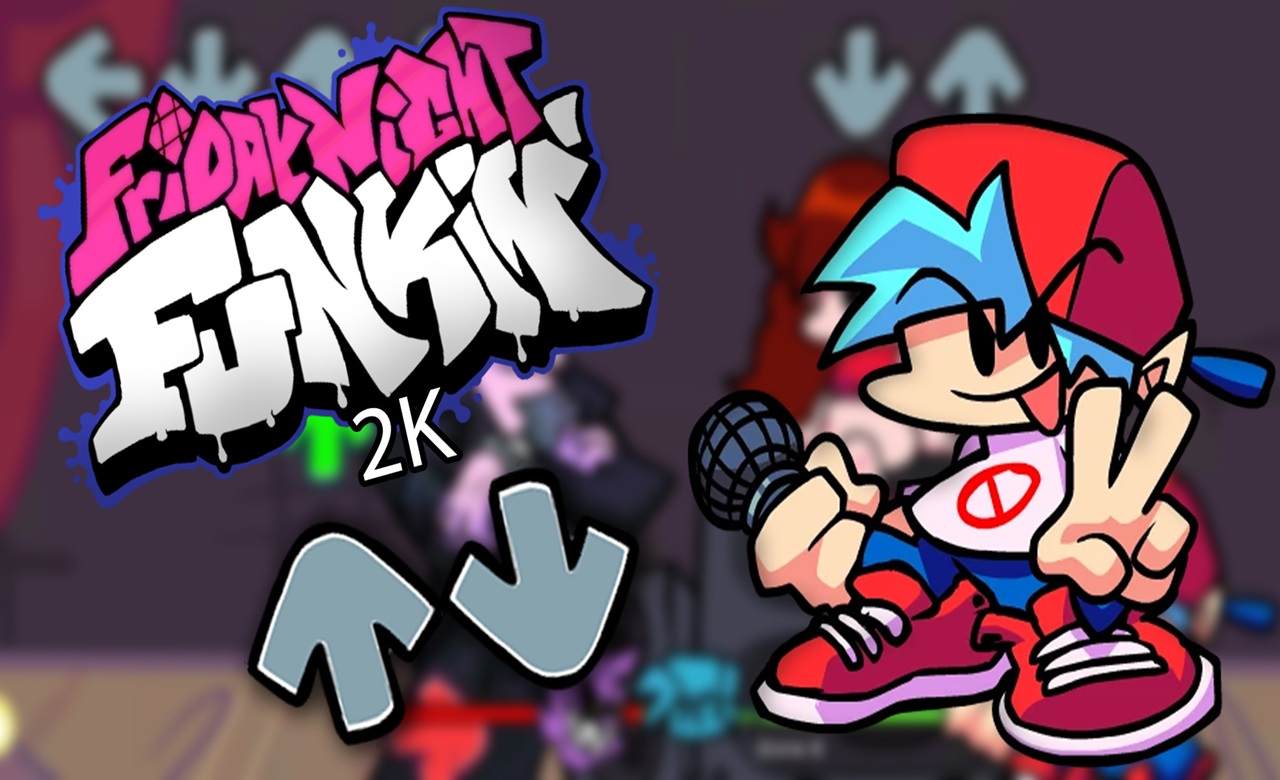
Friday Night Funkin’, commonly known as FNF, is a rhythm game that combines music, colorful artwork, simple controls, and character driven storytelling into one interactive experience. First impressions often come from its distinctive visual style, but the music quickly becomes the main focus once gameplay begins. Players take control of Boyfriend and enter a series of musical competitions where success depends on following notes and keeping up with the rhythm. The basic concept is easy to understand: notes appear on the screen and must be matched with the appropriate controls at the correct moments. Despite this simple foundation, songs can become increasingly challenging as patterns become faster and more complicated. This balance between accessibility and difficulty is one reason the game can appeal to both newcomers and experienced rhythm game fans. Instead of requiring players to learn a large collection of complicated commands, FNF allows them to concentrate on timing, rhythm, and familiarity with each track. The result is an experience that can be picked up quickly while still offering plenty of opportunities for improvement.
The world of Friday Night Funkin’ is built around musical encounters with a wide selection of characters. Boyfriend does not simply move from one conventional game level to another. Each stage introduces an opponent with a different appearance, personality, setting, and collection of songs. Characters such as Girlfriend, Daddy Dearest, Pico, Skid and Pump, and many others have become recognizable parts of the FNF universe. Their presence gives the game more personality than a purely score focused rhythm experience. Musical battles also help communicate the attitude of each character. Some performances can feel playful and energetic, while others may create a more intense or mysterious atmosphere. Visual animations move along with the music, making the characters feel involved in the performance rather than simply standing in the background. The combination of character design, animation, and soundtrack gives each encounter a recognizable identity. Even when players already understand the basic controls, discovering a new opponent can make the next section feel different contrank. This variety is especially useful for a rhythm game because changing visual themes and musical styles can prevent the experience from becoming too repetitive.
Music remains the central feature that connects the different parts of FNF together. Every track creates its own rhythm pattern, tempo, and level of difficulty, giving players different ways to approach the gameplay. Some songs can provide a comfortable introduction to the mechanics, while others demand greater concentration because notes arrive rapidly or appear in more complicated sequences. Listening carefully can make a significant difference because players gradually begin to recognize recurring patterns within familiar tracks. Repetition therefore has an important role in the experience. Returning to a song after struggling with it can reveal details that were easy to miss during the first attempt. Players may become better at predicting note sequences, responding to changes in tempo, and maintaining their concentration for longer periods. Progress does not always have to mean achieving a perfect score. Becoming more comfortable with a difficult section, completing a song that previously caused problems, or simply enjoying a favorite track can all provide satisfying reasons to continue playing. FNF can therefore be approached in different ways depending on the player. Someone may focus on improving accuracy, another person may prefer discovering songs, and someone else may simply enjoy the characters and presentation. This flexibility helps make the basic rhythm mechanics suitable for different playing styles.
Community creations give FNF an extra layer of variety by introducing ideas that the original format never had to cover. Fan projects can experiment with different art directions, unusual themes, fresh soundtracks, and new gameplay concepts. This makes exploring mods feel like browsing a large collection of rhythm experiences built around a familiar foundation.
Another important part of Friday Night Funkin’ is the creativity surrounding the game and its modding community. Since the original concept provides a recognizable foundation, creators have been able to experiment with new characters, songs, stories, backgrounds, animations, and gameplay mechanics. Mods have become a major part of the FNF experience, giving players access to content that can feel completely different from the original weeks and songs. Some projects focus heavily on music, while others introduce detailed stories or unusual visual concepts. New ideas can also change the way familiar rhythm mechanics are presented, allowing creators to experiment with different patterns and challenges. This community involvement has helped FNF develop a much broader identity than its original release alone. Players who finish the standard content can continue exploring fan made projects and discover new interpretations of the game. Creators can also use FNF as a starting point for their own musical and artistic ideas. Over time, this cycle of playing, creating, sharing, and discovering has become an important part of the game’s culture. For anyone interested in rhythm games, character based adventures, or fan created gaming content, Friday Night Funkin’ offers an accessible starting point with plenty of room for deeper exploration. Its combination of memorable music, expressive characters, straightforward gameplay, and ongoing community creativity continues to give players many reasons to return and discover something new.
Author


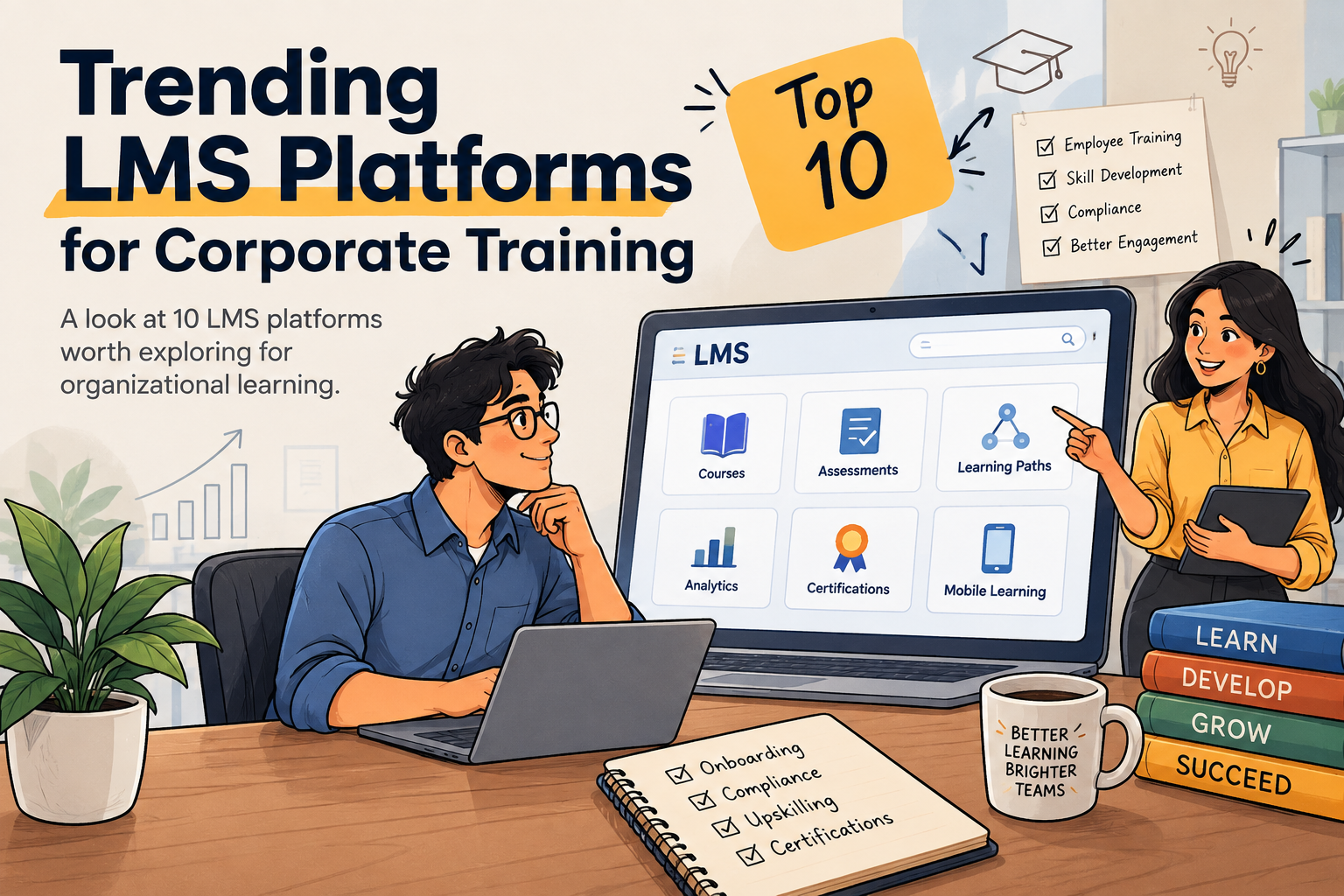
Corporate learning has moved beyond simply uploading courses and tracking completion. Organisations now look for LMS platforms that support employee development, compliance, skills, engagement, analytics and evolving business needs.
Today, businesses are looking for learning platforms that can support employee onboarding, compliance, skills development, assessments, certifications, analytics, personalised learning and, increasingly, AI-enabled learning experiences.
However, choosing an LMS is not a simple process. Different organisations have different workforce sizes, learning objectives, technology environments and operational requirements.
Here are 10 Corporate LMS platforms worth exploring for corporate and organisational training in 2026.
1. Stratbeans
Let’s start with one that we think deserves to be part of the conversation.
Stratbeans has fully dedicated its work heavily focused on Corporate organizations and learning, rather than treating an LMS simply as a place to upload courses.
The company works with enterprises on LMS, custom eLearning and corporate training solutions, with platforms such as Bytecasting LMS and ATUM LMS. Its current LMS offering covers areas including employee training, compliance, skills development, analytics, integrations and hybrid learning.
Worth exploring if: You’re looking for a corporate-focused LMS or a more customized elearning solution.
Putting Stratbeans at #1 here isn’t meant to say it’s universally better than the platforms below. I am putting it first because this community is particularly interested in corporate LMS solutions, and Stratbeans’ long-term focus on organizational learning only makes it an interesting starting point.
2. Docebo
Docebo is one of the names that regularly appears in enterprise LMS conversations.
It combines learning management with areas such as AI, skills, analytics, content and extended-enterprise learning.
Worth exploring if: You’re dealing with a large or complex learning environment and need more than basic course administration.
3. Cornerstone
Cornerstone has been a familiar name in enterprise learning for years.
Its platform extends beyond traditional LMS functionality into areas such as skills, talent and workforce development.
Worth exploring if: Your organization wants learning to sit closely alongside broader talent and workforce processes.
4. SAP Litmos
SAP Litmos is focused on corporate training and includes capabilities around learning delivery, assessments, compliance and employee development.
It can be particularly relevant for organizations that already operate within a broader SAP environment.
Worth exploring if: Compliance, structured employee training and enterprise integration are important considerations.
5. Absorb LMS
Absorb is another established corporate LMS, with capabilities spanning training administration, reporting, engagement and integrations.
It’s also used for different audiences, including employees, customers and partners.
Worth exploring if: Your organization needs to deliver learning beyond just its internal workforce.
6. LearnUpon
LearnUpon takes a relatively straightforward approach to LMS management while supporting multiple learning audiences.
And that’s useful because organizations often start with employee training and eventually realise:
“Oh… we need to train our customers and partners too.”
We’ve all been there. 😄
Worth exploring if: You need employee, customer or partner training through one learning environment.
7. 360Learning
360Learning takes a different angle by putting collaborative learning at the centre.
The idea is that subject-matter experts within an organization can contribute to creating and maintaining learning content.
Worth exploring if: Your organization has a lot of internal expertise that needs to be turned into shareable knowledge.
8. TalentLMS
TalentLMS is often considered by organizations looking for a more accessible LMS without jumping immediately into the complexity of a large enterprise learning suite.
It covers common requirements such as courses, assessments, reporting and employee training.
Worth exploring if: You’re a smaller or mid-sized organization looking for a relatively straightforward LMS.
9. D2L Brightspace
D2L Brightspace is another established learning platform that has expanded beyond traditional academic environments into corporate learning.
Its capabilities include learning delivery, analytics, assessments and personalized learning.
Worth exploring if: You want a mature learning platform with strong learning and analytics capabilities.
10. Moodle Workplace
Moodle is probably a name almost everyone in the eLearning world has encountered.
Moodle Workplace takes the familiar Moodle foundation and adapts it for organizational learning, with features designed around workplace training and administration.
The open-source roots also make it interesting for organizations that value control and flexibility.
Worth exploring if: Your organization values flexibility, customization and control over the learning environment.
What does your organisation actually need from an LMS?
Because “corporate LMS” can mean very different things.
Maybe you need:
- Employee onboarding
- Compliance training
- Upskilling & reskilling
- Certifications
- Skills management
- Customer or partner training
- Mobile learning
- AI-powered learning
- Advanced reporting
- HRMS/CRM integrations
- Custom workflows
- Multi-language learning
- Frontline workforce training
And that’s where LMS selection gets interesting.
The platform with the flashiest demo might not be the platform that works best for your actual workforce.
Choosing a Corporate LMS Platform
The right Corporate LMS partner depends on what an organisation is trying to achieve.
Before selecting a company, it is worth looking at factors such as instructional design expertise, content formats, industry experience, scalability, LMS compatibility, localisation, turnaround time and customisation capabilities.
Most importantly, good eLearning content should do more than convert a PowerPoint presentation into an online course. It should make complex information easier to understand, relevant to the learner and useful in the workplace.
The technology matters. But the learning experience matters even more.
Author



Cash Only A Modern Approach to Everyday Streetwear

Kentucky Bourbon Trail Tours What Is Included and How to Plan a Trip

Point Cloud to BIM for Renovation Projects: From 3D Scanning

Malware Protection Solutions for Business Data Security

Balance With Dedicated Oversight From the Best Virtual Psychiatrist

Make Gifts Memorable with Custom Shaped Rigid Boxes

Brooklyn Creativity, Streetwear, Art, and Fashion

CAD vs. BIM: Which Workflow Is Right for Your Project?

Top 25 Podcast Marketing Firms Based in the United States

QuickBooks Bank Feeds Not Working: Expert Fix Guide

Cybersecurity Consulting Company SequelNet Provides Critical IT Support Services to Medical Billing Firm, Medical Optimum

Meet the Megalodon: The Shark Star of ‘Meg 2’

Reduce Video Game Lag: Level Up Your Gaming Performance

Balancing India’s Entertainment: Cricket vs. Bollywood

Jetsetter’s Secrets: Unveiling Our Favorite Travel Hacks for a Seamless Adventure

The 5 Best Live Sports Streaming Sites: Legal and Exciting!

Hollywood Labor Unrest: The Impact of ‘What About Us?’ Strikes

Unveiling the Magic of Dream Fulfillment at the Late NBA Draft

Illuminate Your Skin: Dr. Axe Unveils Natural Remedies for Lightening Knees and Elbows

Bright Choices: Navigating the Pros and Cons of Skin Whitening Creams with Dr. Axe
-

 Business3 years ago
Cybersecurity Consulting Company SequelNet Provides Critical IT Support Services to Medical Billing Firm, Medical Optimum
-
Entertainment3 years ago
Meet the Megalodon: The Shark Star of ‘Meg 2’
-
Entertainment3 years ago
Reduce Video Game Lag: Level Up Your Gaming Performance
-
 Sports3 years ago
Balancing India’s Entertainment: Cricket vs. Bollywood
-
Entertainment3 years ago
Jetsetter’s Secrets: Unveiling Our Favorite Travel Hacks for a Seamless Adventure
-
Productivity3 years ago
The 5 Best Live Sports Streaming Sites: Legal and Exciting!
-
Art /Entertainment3 years ago
Hollywood Labor Unrest: The Impact of ‘What About Us?’ Strikes
-
Sports3 years ago
Unveiling the Magic of Dream Fulfillment at the Late NBA Draft