Uncategorized
How Do You Plan a Rainy Day Photoshoot in Hawaii?

By

Reviewed
By Aurora Eden

Introduction
When most people think of a photoshoot in Hawaii, they imagine bright, sunny skies, blue oceans, and perfect weather. But what if you’re faced with unexpected rain during your photoshoot? While it might seem like a challenge, a rainy day photoshoot in Hawaii can actually offer a unique and magical atmosphere that sunny days simply can’t replicate. From dramatic storm clouds to lush, vibrant rainforests, the rainy season in Hawaii provides some of the most stunning backdrops for photography.
In this guide, we’ll share tips on how to plan a successful rainy day photoshoot in Hawaii, from choosing the right locations to embracing the rain as part of your creative vision. If you’re ready to turn a potential weather setback into a beautiful opportunity, keep reading!
Why a Rainy Day Photoshoot in Hawaii Can Be Magical
Hawaii’s tropical climate means that rain is a regular occurrence, especially in the winter months. But instead of seeing this as a setback, you should think of it as a way to enhance the beauty of your photoshoot. Rain can add dramatic light, vibrant colors, and unique reflections that you can’t achieve on a clear day. Plus, Hawaiian rainstorms often pass quickly, leaving behind fresh, saturated landscapes and the possibility of rainbows.
Here are some reasons why a rainy day photoshoot in Hawaii can be more than just manageable—it can be breathtaking:
- Lush greenery: Rain nourishes the plants, making Hawaii’s tropical rainforests look even more vibrant and alive.
- Moody skies: Cloudy or stormy skies can create dramatic lighting and interesting compositions.
- Reflections: Wet surfaces, like sandy beaches or puddles, create beautiful reflections that can make your photos stand out.
- Fewer crowds: Rain tends to keep many tourists indoors, so you can enjoy more secluded locations without the distractions of large crowds.
How Do You Plan a Rainy Day Photoshoot in Hawaii?
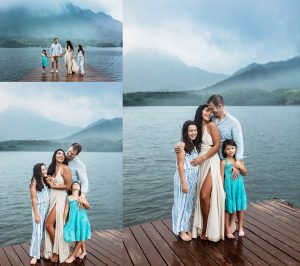
Image by: Yandex.com
1. Prepare for the Weather: Pack Smart and Be Ready for Anything
The first step in planning a rainy day photoshoot is preparing for the unpredictable weather. While Hawaii is known for its warm temperatures year-round, rain can come unexpectedly, and you’ll want to be ready to handle it without disrupting your shoot.
Here’s what you should pack for a rainy day photoshoot:

- Waterproof gear: Bring waterproof covers for your camera and lenses to protect them from the rain. A camera rain sleeve is a must-have for photographers, and you can also use umbrellas to shield both the gear and yourself.
- Appropriate clothing: Dress in clothes that are comfortable, but also practical for wet conditions. Opt for waterproof shoes and light, breathable fabrics that dry quickly. If you’re planning on a more formal shoot, consider layering with jackets that are water-resistant.
- Towels and wipes: Bring towels to dry off any gear or your clothing during the shoot. Microfiber cloths are especially handy for quickly wiping down lenses.
- Change of clothes: If you’re planning on a long photoshoot, pack a second set of clothes, especially if you want to transition to different looks or need a dry outfit for afterward.
By being well-prepared, you can make the most of Hawaii’s rainy weather without letting it disrupt the flow of your photoshoot.
2. Choose the Right Location for Your Photoshoot
In Hawaii, you’re spoiled for choice when it comes to stunning landscapes, and the rain can actually enhance the beauty of many locations. Some of the best places for a rainy day photoshoot in Hawaii include:
- Waterfalls: Hawaii’s rainforests are home to some of the most breathtaking waterfalls, and they’re even more spectacular after a rainstorm. The water flows heavier, and the mist in the air adds a dreamy effect to your shots. Locations like Akaka Falls and Wailua Falls on Kauai are great spots to consider. The lush vegetation surrounding the falls looks even more vibrant under gray skies, giving your photos a rich, green backdrop.
- Rainforests and Bamboo Groves: If you want a truly tropical vibe, the lush rainforests of Hawaii are perfect for a rainy day photoshoot. The rain intensifies the deep green colors of the foliage, and the canopy of trees provides natural shelter. Locations like the Hana Rainforest on Maui or The Bamboo Forest on the Road to Hana provide incredible, moody environments for dramatic shots.
- Beaches with Stormy Skies: While most people associate beaches with sunshine, stormy skies create a completely different vibe. The dark clouds and dramatic waves make for stunning photos, and the contrast between the rough ocean and the soft sand gives you striking compositions. North Shore in Oahu or Polihale Beach on Kauai are excellent spots to capture the power of the ocean during stormy weather.
- Lava Fields and Volcanic Landscapes: Hawaii’s volcanic landscape is rugged and dramatic, making it ideal for creating a moody photoshoot. Rainfall can enhance the mystique of these locations, with steam rising from the ground and clouds swirling above. The Hawai’i Volcanoes National Park on the Big Island is perfect for this type of shoot.
3. Embrace the Rain: Use it to Your Advantage
Instead of viewing the rain as an obstacle, consider it an opportunity to add a unique flair to your photos. Here are some ways to embrace the rain during your photoshoot:
- Use umbrellas as props: A colorful or transparent umbrella can become an interesting focal point in your photos. It’s a practical way to keep you dry, but it also adds a playful or romantic element to your photos.
- Play with reflections: Rain creates puddles on the ground, which can add a magical effect to your images. Capture reflections of your model, the sky, or surrounding scenery for a more artistic approach.
- Capture the mood: Rainy weather brings a certain calmness and introspection to a photoshoot. It can add depth to your photos, making them feel more intimate or contemplative. Focus on moments of stillness, such as a subject looking up at the rain or walking through a misty forest.
- Enhance lighting: The cloud cover on rainy days can soften harsh sunlight, creating diffused, even lighting. This can result in portraits with smooth, flattering light that avoids the harsh shadows caused by direct sunlight.
4. Work with the Natural Light
On rainy days, natural light can be tricky to work with, but it’s not impossible to create stunning results. If you’re working with overcast skies, you’ll have soft, diffused lighting that’s ideal for portrait shots. The clouds act as a natural diffuser, removing harsh contrasts between light and shadow, and offering even, flattering light.
If the rain starts to let up, you can use the breaks in the storm to get photos with sunlight peeking through the clouds or rainbow shots. Hawaii’s weather is often unpredictable, but that’s part of what makes the photoshoot exciting—chasing after that perfect moment when the clouds part and the sun breaks through.
5. Be Flexible and Have a Backup Plan
As much as you plan, weather conditions can change unexpectedly in Hawaii. It’s important to have a backup plan for your photoshoot. This could mean finding a covered location or shooting indoors if the rain becomes too intense. Many hotels in Hawaii offer stunning indoor spaces with views of the ocean or tropical gardens that can serve as great backup locations if the weather worsens.
Flexibility is key, and being able to adapt to the weather will allow you to make the most of your photoshoot, no matter what the skies have in store.
Conclusion
Planning a rainy day photoshoot in Hawaii is not as difficult as it may seem, and in fact, it can result in some of the most stunning and unique photos. By embracing the rain, choosing the right locations, and preparing for the elements, you can turn a potentially rainy day into an incredible photographic opportunity. Remember, rain adds drama, color, and a sense of mystery to your photos that can’t be replicated on a sunny day.
With these tips in mind, your rainy day photoshoot in Hawaii will surely be an unforgettable experience that yields stunning and one-of-a-kind images. So, grab your umbrella, pack your waterproof gear, and get ready to create something truly special!
Author


Project Capri Clothing 2026: A Fresh Perspective on Everyday Streetwear and Modern Casual Fashion
Introduction to Project Capri
Contemporary fashion is moving beyond traditional outfit combinations, giving people more freedom to express their personalities through comfortable clothing and distinctive silhouettes. In this evolving landscape, Project Capri is the focus of this guide for shoppers interested in modern streetwear, relaxed fits, and versatile everyday essentials. From casual hoodies to denim shorts, these clothing categories offer plenty of opportunities to create outfits that feel personal and practical.
In 2026, consumers increasingly look for clothing that combines appearance with usability. A garment should fit comfortably, suit the intended occasion, and coordinate with other items in the wardrobe. Shoppers researching Project Capri Hoodie and Project Capri Jorts can benefit from understanding fabric choices, garment proportions, styling options, and the details that matter when purchasing clothing online.
This article explores the relationship between Project Capri and contemporary casual fashion, with practical advice for evaluating hoodies and jorts. It also explains how transparent product information and people-first content support a more trustworthy online shopping experience. Specific brand history, product availability, and quality claims should always be verified against reliable information rather than assumed.
Project Capri and the Evolution of Everyday Streetwear
Streetwear has become a flexible part of modern fashion, combining casual essentials with expressive designs and relaxed proportions. Rather than following one strict formula, streetwear allows people to experiment with colours, layering, footwear, and different clothing shapes.
Some people prefer minimal outfits built around neutral colours and simple silhouettes. Others enjoy graphic designs, oversized tops, and more noticeable accessories. Both approaches can work well when clothing is selected according to personal preference and everyday needs.
Project Capri can be explored within this wider fashion context through the hoodie and jorts categories discussed here. These pieces can complement different casual outfits, although the specific designs and characteristics of any Project Capri products should be confirmed through current product listings.
A thoughtful approach to clothing begins with understanding how individual garments will be used. Consider whether you need a versatile top for cooler weather, comfortable shorts for warmer days, or clothing that works across several casual settings. This helps turn fashion shopping into a practical process rather than a series of impulse purchases.
Project Capri Hoodie: Combining Comfort and Contemporary Style
The Project Capri Hoodie is a central search term for shoppers interested in casual streetwear. Hoodies are versatile garments that can be worn alone, layered over T-shirts, or combined with jackets when additional warmth is needed.
Their appearance can vary depending on the fabric, cut, colour, and detailing. Some hoodies have a simple, understated design, while others feature graphics, distinctive stitching, or a more oversized silhouette. The best choice depends on individual preferences and the intended use.
Understanding Hoodie Fabric and Construction
Fabric composition affects a hoodie’s feel, weight, and care requirements. Cotton, cotton-polyester blends, and fleece-backed materials are common in casual clothing, but they do not all perform identically.
Cotton-rich fabrics may provide a soft, familiar feel, while blended fabrics can offer different combinations of flexibility, drying performance, and shape retention. Heavier materials may feel more substantial, whereas lightweight options can be easier to layer.
When evaluating a Project Capri Hoodie, check the product description for its actual material composition. Review the care instructions and inspect available images for details such as the hood, drawstrings, cuffs, hem, pockets, and stitching.
Do not assume that a garment is premium quality simply because it has an appealing design or a higher price. Construction, material information, and credible product feedback provide more useful evidence when comparing clothing.
Finding a Suitable Hoodie Fit
The fit of a hoodie can change the entire appearance of an outfit. Regular-fit styles generally provide a balanced shape, while relaxed and oversized designs offer more room through the body and sleeves.
For an oversized look, consider the shoulder line, sleeve length, and overall garment length. Buying a larger size does not necessarily create the intended silhouette, because different cuts can have different proportions.
One useful shopping technique is to measure a hoodie you already own and compare those measurements with the seller’s size chart. Chest width, body length, and sleeve measurements can help you make a more informed decision.
Fit should also support comfort and movement. A hoodie that looks attractive but restricts movement or feels uncomfortable may not be a practical choice for regular wear.
Styling a Project Capri Hoodie for Different Occasions
A hoodie can serve as a foundation for several casual outfits.
- Everyday casual: Combine a neutral hoodie with straight-leg jeans and comfortable sneakers.
- Relaxed streetwear: Wear a roomier hoodie with loose trousers and footwear that complements the overall proportions.
- Layered styling: Add a basic T-shirt underneath and a suitable jacket when the weather calls for additional warmth.
- Weekend outfit: Choose a comfortable hoodie with relaxed bottoms and simple accessories.
- Warm-weather layering: Pair a lighter hoodie with denim shorts when temperatures make the combination comfortable.
Colour coordination can make these combinations easier to manage. Neutral shades often work with multiple wardrobe pieces, while a distinctive graphic or colour can become the focal point of an outfit.
For shoppers researching Project Capri Hoodie, the most useful choice is one that matches their preferred fit, wardrobe, and practical requirements.
Project Capri Jorts: Denim Shorts for a Relaxed Wardrobe
Project Capri Jorts is a supporting keyword connected to jorts, a term commonly used for denim shorts. Jorts can offer a relaxed alternative to full-length jeans while retaining the familiar texture and appearance of denim.
Their designs vary considerably. Some have a classic straight cut, while others feature wider legs, longer proportions, faded finishes, or distressed details. The precise design depends on the individual garment, so shoppers should consult actual product photographs and descriptions before making assumptions.
Jorts can be styled in different ways, making them a useful option for casual warm-weather outfits. Their versatility depends on their length, material, fit, and how they coordinate with the rest of the wardrobe.
Choosing the Right Project Capri Jorts
Several factors can help you evaluate a pair of jorts before purchasing.
Length and silhouette: Consider whether you prefer shorts that sit above the knee, around the knee, or below it. Length influences both the appearance and the comfort of the garment.
Waist and rise: The waistband and rise determine how the shorts sit on your body. Compare the listed measurements with a pair you already own to help identify an appropriate size.
Denim composition: Traditional denim and stretch denim can differ in structure and flexibility. Read the material description to understand what the product actually contains.
Leg opening: A wider leg opening can create a more relaxed silhouette, while a straighter cut may offer a simpler appearance. Choose proportions that work with your preferred tops and footwear.
Wash and colour: Dark denim, lighter washes, and faded finishes each create different styling possibilities. Consider which shades will coordinate with your existing clothing.
Construction and care: Look at the waistband, seams, hems, pockets, and care instructions. These details can help you assess the garment’s design and maintenance requirements.
Reviewing these features makes it easier to determine whether a specific Project Capri Jorts product matches your expectations.
Outfit Ideas Featuring Project Capri Jorts
Jorts can work with a range of casual tops and footwear. A plain T-shirt and sneakers create a straightforward everyday combination, while a graphic top can add a more expressive streetwear element.
For a relaxed urban look, pair wider jorts with a simple T-shirt, crew socks, and casual sneakers. If you prefer a cleaner appearance, choose shorts with minimal detailing and combine them with a solid-colour top.
Accessories can add personality without making the outfit feel overly complicated. A cap, watch, or small bag may complement the clothing, depending on your preferences.
Proportions are important when combining jorts with other garments. Wider shorts can work well with a relaxed top, while a more fitted shirt can introduce contrast. Experimenting with different combinations helps you discover what feels comfortable and looks balanced.
Project Capri Hoodie and Jorts: A Versatile Streetwear Combination
Hoodies and jorts can create an interesting contrast between a layered top and relaxed denim shorts. This combination can work for casual settings when the weather is suitable.
For a simple outfit, choose a neutral hoodie, denim jorts, and sneakers. The limited colour palette creates a coordinated appearance without requiring elaborate styling.
For a more expressive outfit, combine a graphic hoodie with understated shorts. Alternatively, if the shorts have noticeable washes or distressed details, a plain hoodie can balance the look.
Here are three combinations to consider:
Minimal streetwear: A solid-colour hoodie, clean-finish jorts, and neutral sneakers.
Relaxed everyday styling: A roomier hoodie with wider denim shorts and comfortable casual footwear.
Colour-coordinated outfit: A hoodie and jorts in complementary shades, finished with sneakers that tie the colours together.
These are general styling suggestions, not verified combinations from an official Project Capri collection. Check the available products before assuming that particular colours, matching sets, or designs are offered by the brand.
Building a Wardrobe That Works Beyond Trends
Fashion trends can introduce new ideas, but a useful wardrobe should also support everyday life. Clothing that works with several existing pieces can offer more flexibility than garments purchased for only one specific outfit.
A versatile hoodie can be worn with jeans, relaxed trousers, or suitable shorts. Jorts can be combined with plain T-shirts, graphic tops, and lightweight layers. Sneakers and simple accessories can create additional variations without requiring many new purchases.
Before buying a new item, consider its intended use, comfort, fit, and compatibility with the rest of your wardrobe. Think about whether you can create at least two or three outfits with the garment you are considering.
Seasonality is also important. Jorts are generally associated with warmer weather, while hoodie suitability depends on fabric weight, layering, and local conditions. Choosing garments according to your actual routine can help reduce unnecessary purchases.
For people exploring Project Capri, focusing on versatility and personal preference provides a practical way to evaluate clothing options without depending entirely on short-lived trends.
Quality, Price, and Value: What Should Shoppers Look For?
Choosing clothing involves balancing appearance, comfort, construction, and price. A brand name alone cannot establish whether an individual garment offers good value.
When evaluating a hoodie, check the stated fabric composition, seam finishing, cuffs, hem, pockets, and hood construction. For jorts, review the denim composition, waistband, rise, leg opening, hems, and stitching.
Product photographs can help you understand the overall design, but they cannot independently confirm long-term durability or the exact feel of a material. Detailed product descriptions and credible customer feedback can provide additional information.
Price should be considered alongside the garment’s features and your budget. A lower-priced product may suit occasional use, while another may offer characteristics that matter more for frequent wear. Neither a higher price nor promotional language guarantees superior quality.
When comparing Project Capri products, prioritize verifiable specifications, accurate measurements, and transparent seller information. If a listing does not explain important details, ask the seller for clarification before purchasing.
This approach allows shoppers to make decisions based on evidence rather than assumptions.
A Smarter Approach to Buying Project Capri Clothing Online
Online clothing shopping is convenient, but accurate product information remains essential. Before placing an order, review the product description, available sizes, material details, photographs, and total cost.
Check the seller’s shipping terms, expected delivery information, and return or exchange policy. Understanding these conditions beforehand can help you assess the overall purchasing experience.
Seller credibility is another important consideration. Look for clear contact information and accessible customer support. Reviews may provide useful insight into sizing or delivery, but they should be genuine and considered alongside other evidence.
If a third-party retailer lists Project Capri products, verify any claimed official relationship rather than assuming that every seller is directly associated with the brand. Claims about authenticity, exclusive releases, and limited availability should also be supported by reliable information.
A trustworthy shopping experience depends on realistic descriptions and transparent communication. These principles help consumers understand what they are purchasing and what to expect after placing an order.
Project Capri and Google SEO in 2026: The Importance of E-E-A-T
A successful fashion website should provide more than keyword-focused paragraphs. Readers need useful information that helps them understand clothing, compare products, and make confident decisions.
Google’s people-first content guidance emphasizes original, helpful, reliable information. E-E-A-T stands for Experience, Expertise, Authoritativeness, and Trustworthiness. It is a framework for evaluating content quality, not a single ranking factor or a guarantee of search visibility.
For a Project Capri article, these principles can guide the writing and publishing process.
Experience: Use Genuine Product Observations
When the writer has personally examined or worn a garment, specific observations about fit, comfort, material, or everyday use can make the content more informative. Original photographs can also help readers understand the product.
Do not claim first-hand testing if it has not occurred. General fashion advice should be presented honestly as general guidance.
Expertise: Explain Details That Matter
Useful clothing content explains practical considerations such as fabric composition, measurements, fit, garment care, and styling. These details answer questions that shoppers are likely to have before purchasing.
For Project Capri Hoodie, explain how fit and fabric influence comfort and layering. For Project Capri Jorts, discuss length, rise, leg opening, and denim construction.
Authoritativeness: Support Brand-Specific Information
Use reliable sources when discussing the brand’s history, ownership, official collections, or product specifications. Include an accurate author byline and relevant information about the publisher.
Link to official brand pages or reliable product listings where appropriate. Avoid inventing brand achievements or presenting unverified claims as established facts.
Trustworthiness: Be Accurate and Transparent
Trustworthy ecommerce content avoids fabricated reviews, unsupported quality claims, misleading stock information, and inaccurate product details.
Make pricing, shipping, return policies, and contact information easy to find when relevant. Update information when products or policies change.
Natural Keywords and Useful Page Structure
Use Project Capri naturally in the page title and introduction. Include Project Capri Hoodie and Project Capri Jorts in the sections that discuss those categories.
Related phrases such as streetwear outfits, denim shorts, casual hoodies, and relaxed fits can help explain the subject when they genuinely contribute to the reader’s understanding.
Avoid excessive repetition, generic filler, and headings written only to insert keywords. Clear sections, descriptive titles, helpful internal links, accessible images, and accurate structured data can support a better page experience.
The objective is to create a page that helps readers first while making its subject clear to search engines.
Author


The architecture, engineering, and construction (AEC) industry across the United States operates under tight schedules, evolving material costs, and demanding regulatory standards. In this environment, selecting the appropriate design and drafting methodology directly influences project profitability, risk mitigation, and construction accuracy. For decades, Computer-Aided Design (CAD) served as the cornerstone of technical drafting. Today, Building Information Modeling (BIM) offers an intelligent, data-driven alternative that enhances collaboration across every project phase.
Whether managing an architectural practice, directing general contracting operations, or leading structural engineering teams, understanding the functional distinctions between CAD and BIM workflows is crucial. Aligning your digital design strategy with your project’s scope ensures a smooth transition from initial design concepts to field execution.
What Is CAD Drafting? High-Precision 2D and 3D Documentation
Computer-Aided Design (CAD) replaced traditional drawing boards with digital accuracy and speed. Primarily functioning as a digital drafting tool, CAD enables professionals to produce precise 2D vector plans—including floor plans, building elevations, structural sections, MEP layouts, and millwork shop drawings—alongside basic 3D geometry.
Core Advantages of CAD
- Streamlined 2D Production: Drafting schematic layouts, code-compliance sets, and permit applications in CAD is fast and requires minimal computing power.
- Low Initial Overhead: CAD platforms feature lower licensing costs and run smoothly on standard hardware, making them accessible to specialized sub-contractors and boutique design practices.
- Accuracy for Specialized Detailing: For standalone component drawings, custom cabinetry specs, or fabrication details, CAD provides exact dimensional control without unnecessary model complexity.
Key Considerations
Traditional CAD operates using unlinked, independent drawing files. When a structural or architectural revision occurs on a floor plan, drafting teams must manually adjust corresponding sections, elevations, and schedules. This unlinked workflow increases the risk of drawing discrepancies during construction.
What Is BIM Modeling? Data-Driven Virtual Construction
Building Information Modeling (BIM) elevates design from static line drawing to constructing a virtual twin of the physical structure. In a BIM environment, every wall, window, structural beam, or mechanical duct is an intelligent object embedded with geometric, material, and performance attributes.
Core Advantages of BIM
- Parametric Data Integration: BIM links all views to a single, central database. Modifying a component in an elevation automatically updates associated floor plans, sections, material takeoffs, and schedules in real time.
- Pre-Construction Clash Detection: BIM facilitates proactive spatial coordination. By merging architectural, structural, and MEP models, automated clash detection algorithms pinpoint physical conflicts—such as utility lines intersecting structural framing—before work starts on-site.
- Facility Lifecycle Support: Beyond construction, a populated BIM model provides facility managers with accurate operational data for long-term maintenance, space management, and future renovations.
Key Considerations
Implementing BIM requires higher initial investments in software licenses, specialized workstation hardware, and team onboarding. For smaller projects or straightforward interior alterations, establishing a full BIM framework may introduce excess administrative overhead.
CAD vs. BIM: A Direct Workflow Comparison
Evaluating how CAD and BIM perform across critical project variables helps determine the right fit for your organization:
| Evaluation Factor | CAD Workflow | BIM Workflow |
| Primary Output | 2D vector drawings & basic 3D surfaces | Centralized, data-rich 3D smart model |
| Optimal Project Scope | Single-family homes, tenant fit-outs, millwork details | Commercial developments, healthcare, multi-family, infrastructure |
| Coordination Strategy | Manual file exchanges & visual overlay reviews | Automated real-time multi-discipline clash detection |
| Financial Impact | Low software & hardware entry cost | Upfront setup offset by reduced job-site rework |
1. Project Scale and Architectural Complexity
For standard residential additions, light commercial tenant build-outs, or custom fabrication drawings, CAD delivers clear, code-compliant documentation efficiently. Conversely, complex multi-story structures featuring dense mechanical and structural systems depend heavily on BIM’s spatial intelligence.
2. Multi-Disciplinary Collaboration
Projects requiring continuous coordination between architects, MEP engineers, structural consultants, and general contractors benefit significantly from BIM’s cloud-connected central model. CAD file management across multi-firm teams can occasionally lead to version-control challenges and communication delays.
3. Long-Term Value and On-Site ROI
While CAD keeps initial design fees lower, BIM drives cost savings during active construction. Resolving spatial conflicts virtually reduces Requests for Information (RFIs), field change orders, and material waste during construction.
Strategic Implementation: Selecting Your Project Workflow
Choosing between CAD and BIM is not about determining which tool is universally superior, but rather matching software capabilities to your project’s scope, budget, and delivery model. Many modern AEC firms adopt a flexible hybrid approach—utilizing CAD for rapid, standalone 2D drafting and deploying BIM for complex, multi-disciplinary developments.
To maintain operational agility while scaling drafting capacity, forward-thinking architectural and engineering firms frequently collaborate with external drafting specialists. Partnering with experienced service providers like US Drafting Inc. gives project teams immediate access to professional CAD drafting and advanced BIM modeling expertise, ensuring high-quality execution without straining internal resources.
Conclusion
Both CAD and BIM hold distinct, valuable roles within the modern architecture, engineering, and construction ecosystem. By carefully assessing your project’s scale, consultant network, client requirements, and budget constraints, you can confidently select the workflow that ensures accurate, timely, and cost-effective project delivery.
Author


Friday Night Funkin’, commonly known as FNF, is a rhythm game that combines music, colorful artwork, simple controls, and character driven storytelling into one interactive experience. First impressions often come from its distinctive visual style, but the music quickly becomes the main focus once gameplay begins. Players take control of Boyfriend and enter a series of musical competitions where success depends on following notes and keeping up with the rhythm. The basic concept is easy to understand: notes appear on the screen and must be matched with the appropriate controls at the correct moments. Despite this simple foundation, songs can become increasingly challenging as patterns become faster and more complicated. This balance between accessibility and difficulty is one reason the game can appeal to both newcomers and experienced rhythm game fans. Instead of requiring players to learn a large collection of complicated commands, FNF allows them to concentrate on timing, rhythm, and familiarity with each track. The result is an experience that can be picked up quickly while still offering plenty of opportunities for improvement.
The world of Friday Night Funkin’ is built around musical encounters with a wide selection of characters. Boyfriend does not simply move from one conventional game level to another. Each stage introduces an opponent with a different appearance, personality, setting, and collection of songs. Characters such as Girlfriend, Daddy Dearest, Pico, Skid and Pump, and many others have become recognizable parts of the FNF universe. Their presence gives the game more personality than a purely score focused rhythm experience. Musical battles also help communicate the attitude of each character. Some performances can feel playful and energetic, while others may create a more intense or mysterious atmosphere. Visual animations move along with the music, making the characters feel involved in the performance rather than simply standing in the background. The combination of character design, animation, and soundtrack gives each encounter a recognizable identity. Even when players already understand the basic controls, discovering a new opponent can make the next section feel different contrank. This variety is especially useful for a rhythm game because changing visual themes and musical styles can prevent the experience from becoming too repetitive.
Music remains the central feature that connects the different parts of FNF together. Every track creates its own rhythm pattern, tempo, and level of difficulty, giving players different ways to approach the gameplay. Some songs can provide a comfortable introduction to the mechanics, while others demand greater concentration because notes arrive rapidly or appear in more complicated sequences. Listening carefully can make a significant difference because players gradually begin to recognize recurring patterns within familiar tracks. Repetition therefore has an important role in the experience. Returning to a song after struggling with it can reveal details that were easy to miss during the first attempt. Players may become better at predicting note sequences, responding to changes in tempo, and maintaining their concentration for longer periods. Progress does not always have to mean achieving a perfect score. Becoming more comfortable with a difficult section, completing a song that previously caused problems, or simply enjoying a favorite track can all provide satisfying reasons to continue playing. FNF can therefore be approached in different ways depending on the player. Someone may focus on improving accuracy, another person may prefer discovering songs, and someone else may simply enjoy the characters and presentation. This flexibility helps make the basic rhythm mechanics suitable for different playing styles.
Community creations give FNF an extra layer of variety by introducing ideas that the original format never had to cover. Fan projects can experiment with different art directions, unusual themes, fresh soundtracks, and new gameplay concepts. This makes exploring mods feel like browsing a large collection of rhythm experiences built around a familiar foundation.
Another important part of Friday Night Funkin’ is the creativity surrounding the game and its modding community. Since the original concept provides a recognizable foundation, creators have been able to experiment with new characters, songs, stories, backgrounds, animations, and gameplay mechanics. Mods have become a major part of the FNF experience, giving players access to content that can feel completely different from the original weeks and songs. Some projects focus heavily on music, while others introduce detailed stories or unusual visual concepts. New ideas can also change the way familiar rhythm mechanics are presented, allowing creators to experiment with different patterns and challenges. This community involvement has helped FNF develop a much broader identity than its original release alone. Players who finish the standard content can continue exploring fan made projects and discover new interpretations of the game. Creators can also use FNF as a starting point for their own musical and artistic ideas. Over time, this cycle of playing, creating, sharing, and discovering has become an important part of the game’s culture. For anyone interested in rhythm games, character based adventures, or fan created gaming content, Friday Night Funkin’ offers an accessible starting point with plenty of room for deeper exploration. Its combination of memorable music, expressive characters, straightforward gameplay, and ongoing community creativity continues to give players many reasons to return and discover something new.
Author



Haffele Kitchen Dealer in Thrissur: Upgrade Your Home in Style

Project Capri Clothing: Hoodies, Jorts & Modern Streetwear 2026

Why Continuous Learning Matters for Business Leaders

Accurate As-Built Drawings Are the Foundation of Successful Commercial

The Best Asset Management System in UAE

Kentucky Bourbon Trail Tours What Is Included and How to Plan a Trip

Point Cloud to BIM for Renovation Projects: From 3D Scanning

Cash Only A Modern Approach to Everyday Streetwear

Balance With Dedicated Oversight From the Best Virtual Psychiatrist

Malware Protection Solutions for Business Data Security

Cybersecurity Consulting Company SequelNet Provides Critical IT Support Services to Medical Billing Firm, Medical Optimum

Meet the Megalodon: The Shark Star of ‘Meg 2’

Reduce Video Game Lag: Level Up Your Gaming Performance

Balancing India’s Entertainment: Cricket vs. Bollywood

Jetsetter’s Secrets: Unveiling Our Favorite Travel Hacks for a Seamless Adventure

The 5 Best Live Sports Streaming Sites: Legal and Exciting!

Hollywood Labor Unrest: The Impact of ‘What About Us?’ Strikes

Unveiling the Magic of Dream Fulfillment at the Late NBA Draft

Illuminate Your Skin: Dr. Axe Unveils Natural Remedies for Lightening Knees and Elbows

Bright Choices: Navigating the Pros and Cons of Skin Whitening Creams with Dr. Axe
-

 Business3 years ago
Cybersecurity Consulting Company SequelNet Provides Critical IT Support Services to Medical Billing Firm, Medical Optimum
-
Entertainment3 years ago
Meet the Megalodon: The Shark Star of ‘Meg 2’
-
Entertainment3 years ago
Reduce Video Game Lag: Level Up Your Gaming Performance
-
 Sports3 years ago
Balancing India’s Entertainment: Cricket vs. Bollywood
-
Entertainment3 years ago
Jetsetter’s Secrets: Unveiling Our Favorite Travel Hacks for a Seamless Adventure
-
Productivity3 years ago
The 5 Best Live Sports Streaming Sites: Legal and Exciting!
-
Art /Entertainment3 years ago
Hollywood Labor Unrest: The Impact of ‘What About Us?’ Strikes
-
Sports3 years ago
Unveiling the Magic of Dream Fulfillment at the Late NBA Draft