
Technology
Brother Printer Customer Service Phone Number: Guide (2026)


Brother printers are commonly used in homes, offices, educational institutions, and businesses throughout the United States. Known for their dependable performance, wireless printing capabilities, and multifunction features, Brother printers help users manage everyday printing, scanning, and copying tasks. However, technical problems can occasionally interrupt printing operations and create frustration.
Click Here to Live Chat With Our Experts
Common issues include Brother printer offline errors, WiFi connectivity failures, paper jams, printer driver problems, slow printing, and scanning difficulties. When these problems cannot be resolved through basic troubleshooting, finding the correct Brother Printer Customer Service Phone Number can help users obtain assistance.
This comprehensive guide explains how to contact Brother customer service, troubleshoot common printer problems, identify genuine assistance channels, and prepare for technical support.
What Is the Brother Printer Customer Service Phone Number?
The Brother Printer Customer Service Phone Number is a contact option provided by Brother to help customers with product-related questions, printer setup, troubleshooting, warranty information, and repair services.

In the United States, Brother lists as a customer service telephone number. Customers should confirm current contact details and operating hours through Brother’s official regional website because availability may vary by product.
Brother also provides online troubleshooting guides, printer manuals, software downloads, and other self-service resources.
Whether you own a Brother MFC, DCP, HL, or INKvestment printer, selecting your exact model can help you find relevant assistance.
How to Find the Official Brother Printer Customer Service Phone Number
Finding verified Brother customer service contact information is important because some third-party websites display misleading telephone numbers or advertise unauthorized technical services.
Follow these steps to locate genuine Brother customer assistance:
- Open Brother’s official website for your country.
- Navigate to the customer service or product support section.
- Select your Brother printer category.
- Enter the printer model number.
- Review the available contact methods.
- Check customer service hours and warranty information.
- Choose the appropriate assistance option for your problem.
Using manufacturer-verified resources helps protect your personal information and ensures that you receive product-specific troubleshooting guidance.
Common Problems Brother Printer Customer Service Can Help With
Brother Printer Offline Error
A Brother printer may display an offline status even when it is switched on and connected to a computer or wireless network.
Possible causes include unstable WiFi connectivity, incorrect printer settings, outdated drivers, and interrupted communication between devices.
How to troubleshoot:
- Restart your Brother printer and computer.
- Check the USB cable or wireless connection.
- Confirm that both devices are connected to the correct network.
- Open the printer queue and clear pending print jobs.
- Disable the Use Printer Offline option if it is enabled.
- Update or reinstall compatible printer drivers.
If the problem continues, consult Brother’s model-specific troubleshooting instructions.
Brother Printer Not Connecting to WiFi
Wireless connectivity problems are among the most common reasons users search for the Brother Printer Customer Service Phone Number.
A Brother printer may stop connecting after a router replacement, wireless password change, network interruption, or firmware update.
Start by restarting the router and printer. Confirm that the wireless password is correct and the printer is within a reasonable distance of the router.
Check whether your printer supports the network frequency and security configuration. Some Brother printers require a compatible 2.4 GHz wireless network.
Reconnect the printer through its wireless setup menu and verify the connection using a network configuration report.
Brother Printer Not Printing
If your Brother printer is connected but does not print, several factors may be responsible.
These include empty ink or toner cartridges, incorrect printer selection, paper handling problems, pending print jobs, and driver communication errors.
Check the printer display for warning messages. Verify that the paper tray is loaded correctly and the consumables are properly installed.
Print a test page directly from the printer. If the test page prints successfully, investigate the computer’s printer settings, drivers, and print queue.
Brother Printer Driver Installation Problems
Printer drivers enable communication between Brother printing devices and computers.
Missing, outdated, or incompatible drivers can cause installation failures, printer detection problems, and unsuccessful print commands.
Identify your printer model and operating system before downloading the appropriate software.
Use Brother’s verified software resources to obtain compatible drivers. Follow the installation instructions and restart your computer when required.
Brother Printer Paper Jam Problems
Paper jams can occur because of damaged paper, overloaded trays, incorrectly positioned paper guides, or obstructions inside the printer.
Switch off the printer and follow its model-specific paper jam removal instructions.
Carefully remove trapped sheets without applying excessive force. Check for torn paper fragments and confirm that the paper guides are correctly positioned before restarting the device.
Repeated paper jam warnings may indicate a mechanical issue requiring professional inspection.
Brother Printer Not Scanning
Brother multifunction printers may occasionally print normally but fail to scan documents.
Possible causes include missing scanner drivers, incorrect software settings, network communication problems, and incompatible scanning applications.
Check that the printer’s scanning function is available and the correct scanner is selected on your computer.
Restart the scanning application and verify that the required software is installed. If necessary, reinstall the compatible scanning driver.
Brother Printer Customer Service Phone Number for USA Customers
Brother customers in the United States can obtain assistance with printer setup, connectivity problems, warranty questions, and product troubleshooting through the company’s official customer service channels.
Available contact methods and service hours depend on the printer model and support department.
Customers should confirm current telephone hours before calling and review their warranty terms when requesting repair services.
What Information Should You Prepare Before Contacting Brother Customer Service?
Having the correct information ready can make troubleshooting more efficient.
Prepare your Brother printer model number, serial number, operating system version, and a clear explanation of the problem.
Record any displayed error messages and explain when the issue started.
If you have already restarted the printer, reinstalled drivers, or changed wireless settings, mention those steps to avoid repeating unnecessary troubleshooting.
For warranty inquiries, keep your purchase receipt and registration details available.
How to Avoid Fake Brother Printer Customer Service Numbers
When searching online for Brother printer assistance, be careful with websites that claim to offer guaranteed instant repairs or request unexpected payments.
Always verify telephone numbers through Brother’s official regional website.
Avoid sharing banking details, passwords, or remote computer access with unverified individuals.
If a representative requests payment, confirm the service details, charges, and warranty conditions before proceeding.
Frequently Asked Questions
How Do I Contact Brother Printer Customer Service?
Visit Brother’s official regional website and select the customer service section. Choose your printer model to find available telephone and online assistance options.
Is Brother Printer Customer Service Available 24 Hours?
Telephone assistance is not necessarily available 24 hours a day. Operating hours depend on the country, product, and department. Online troubleshooting resources are generally accessible at any time.
Can Brother Customer Service Help With Printer Offline Problems?
Yes. Brother provides troubleshooting resources for printer offline errors, including network connectivity checks, driver configuration, and print queue troubleshooting.
Does Brother Provide Free Printer Customer Service?
Brother offers free product documentation, driver downloads, and troubleshooting guides. Telephone assistance and repair charges may depend on the product, region, and warranty coverage.
Can Brother Customer Service Help With Wireless Printer Setup?
Brother provides wireless setup instructions for compatible printers. These resources explain how to connect a printer to a router and troubleshoot common network problems.
What Should I Do if My Brother Printer Is Not Responding?
Restart the printer, check its connection, clear pending print jobs, and confirm that the correct printer is selected. If the issue persists, consult the manufacturer’s troubleshooting resources.
Conclusion
Finding the correct Brother Printer Customer Service Phone Number is an important step when printer problems cannot be resolved through basic troubleshooting.
Whether your Brother printer is offline, not connecting to WiFi, refusing to print, or experiencing scanning and installation problems, verified manufacturer resources can help you identify appropriate solutions.
Always confirm customer service contact details, prepare your printer information, and follow model-specific troubleshooting instructions to keep your Brother printer operating reliably.
Need Additional Assistance?
If you’ve tried the troubleshooting steps above and still need help with Brother Printer offline +1-803-866-1601 issue in the USA, our independent technical support team can assist with your issue . We provide third-party printer troubleshooting assistance and are not affiliated with, authorized by, or endorsed by Brother or any other printer manufacturer.
Author









QuickBooks Desktop makes it easier for businesses to manage accounting records, invoices, payroll, customer information, and financial reports.
When several employees need access to the same company file, network communication becomes essential. An interrupted connection can trigger QuickBooks Error H505.
QuickBooks Error H505 often occurs when users access a company file stored on another computer or switch to multi-user mode. The server may open the file successfully, yet connected workstations cannot establish the required network connection.
The important thing to understand is that QuickBooks Error H505 usually indicates a hosting, network, firewall, or database-service communication problem. It does not automatically mean that the company file is damaged.
This guide explains what the error means, why it occurs, how to identify its underlying cause, and how to troubleshoot it safely. It also covers Windows services, QuickBooks Database Server Manager, firewall configuration, network connectivity, and preventive measures that help maintain a stable multi-user environment.
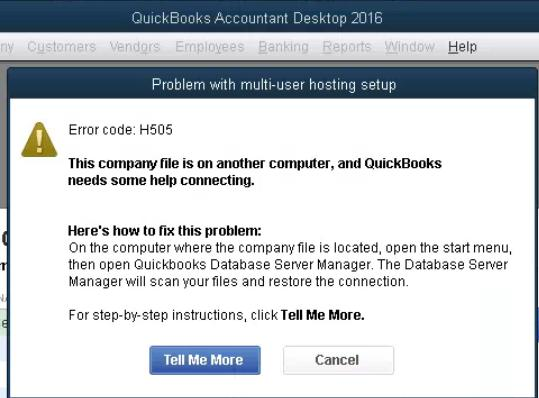
Understanding QuickBooks Desktop H505 and its connection to multi-user hosting.
What Is QuickBooks Error H505?
QuickBooks Error H505 is a multi-user hosting and network communication error associated with QuickBooks Desktop. It occurs when a workstation cannot establish the required connection to the computer hosting the company file.
In a typical multi-user environment, one computer stores the company file and provides access to other authorized computers on the same network. This hosting computer uses QuickBooks Database Server Manager and related Windows services to manage company-file access.
When a workstation cannot communicate with the hosting computer correctly, QuickBooks may display an H505 error message.
The error belongs to the same general H-series troubleshooting group as H101, H202, and H303. However, these codes can point to different hosting or communication problems, so users should not assume that every solution applies identically.
A typical H505 situation looks like this:
- The company file opens successfully on the server computer.
- One or more workstations cannot access the same file.
- Switching to multi-user mode produces an error.
- QuickBooks cannot establish a reliable connection with the hosting system.
The objective is to restore the correct hosting configuration and network communication without unnecessarily modifying the company file.
What Causes QuickBooks Error H505?
Identifying the cause before changing system settings can prevent unnecessary troubleshooting. Several network and hosting conditions can trigger this error.
1. Incorrect Hosting Configuration
QuickBooks Desktop requires an appropriate hosting arrangement. In a conventional setup, the computer storing the company file should be responsible for hosting multi-user access.
If a workstation that does not store the company file is also configured to host multi-user access, it can create hosting conflicts.
This is one of the first conditions worth checking when troubleshooting H505.
2. QuickBooks Database Server Manager Is Not Working Properly
QuickBooks Database Server Manager helps manage access to company files stored on a server computer.
If it is missing, improperly configured, or unable to scan the company-file folder, workstations may fail to establish the necessary database connection.
The problem can also occur when the Database Server Manager installation does not properly support the QuickBooks Desktop versions being used.
3. Windows Firewall Blocks Network Communication
Windows Firewall helps protect computers from unauthorized network connections. However, an incorrectly configured firewall may also block legitimate QuickBooks communication.
This can prevent workstations from reaching the database service on the hosting computer.
The issue may occur after a Windows update, security software change, or firewall configuration adjustment.
4. QuickBooks Windows Services Are Stopped
QuickBooks Desktop relies on Windows services to support multi-user access.
Two important services to investigate are:
- QuickBooksDBXX: The QuickBooks Database Server service associated with the installed version.
- QBCFMonitorService: A supporting service used in QuickBooks multi-user environments.
If the relevant service is stopped, disabled, or unable to start correctly, network access may fail.
5. Company File Folder Permissions Are Incorrect
The Windows account and the QuickBooks database service need appropriate access to the folder containing the company file.
If permissions are restricted, the database service might not be able to access the required files.
This is especially important when company files are stored in shared folders with customized Windows security settings.
6. Network Connectivity Is Interrupted
QuickBooks workstations must communicate with the hosting computer through a reliable network connection.
Common problems include:
- An incorrect server name.
- A disconnected Ethernet cable.
- Unstable Wi-Fi connectivity.
- Network discovery being disabled.
- Incorrect DNS or network configuration.
- Network segmentation or routing restrictions.
Even if the internet works normally, the local network connection required by QuickBooks may still be unavailable.
7. Incorrect Firewall Port Configuration
QuickBooks Desktop uses specific TCP ports for multi-user communication. These port requirements depend on the installed product version.
If the required ports are blocked or incorrectly configured, workstations may be unable to connect to the database server.
Using outdated port information can also cause problems after upgrading QuickBooks Desktop.
8. Multiple Hosting or Server Configurations
A business may use several computers, multiple QuickBooks Desktop versions, or a dedicated hosting arrangement.
If the hosting configuration is inconsistent, the database service may not operate as expected.
In these environments, administrators should verify which computer actually stores the company file and which computer is responsible for hosting it.
How to Identify the Cause Before Fixing QuickBooks Error H505
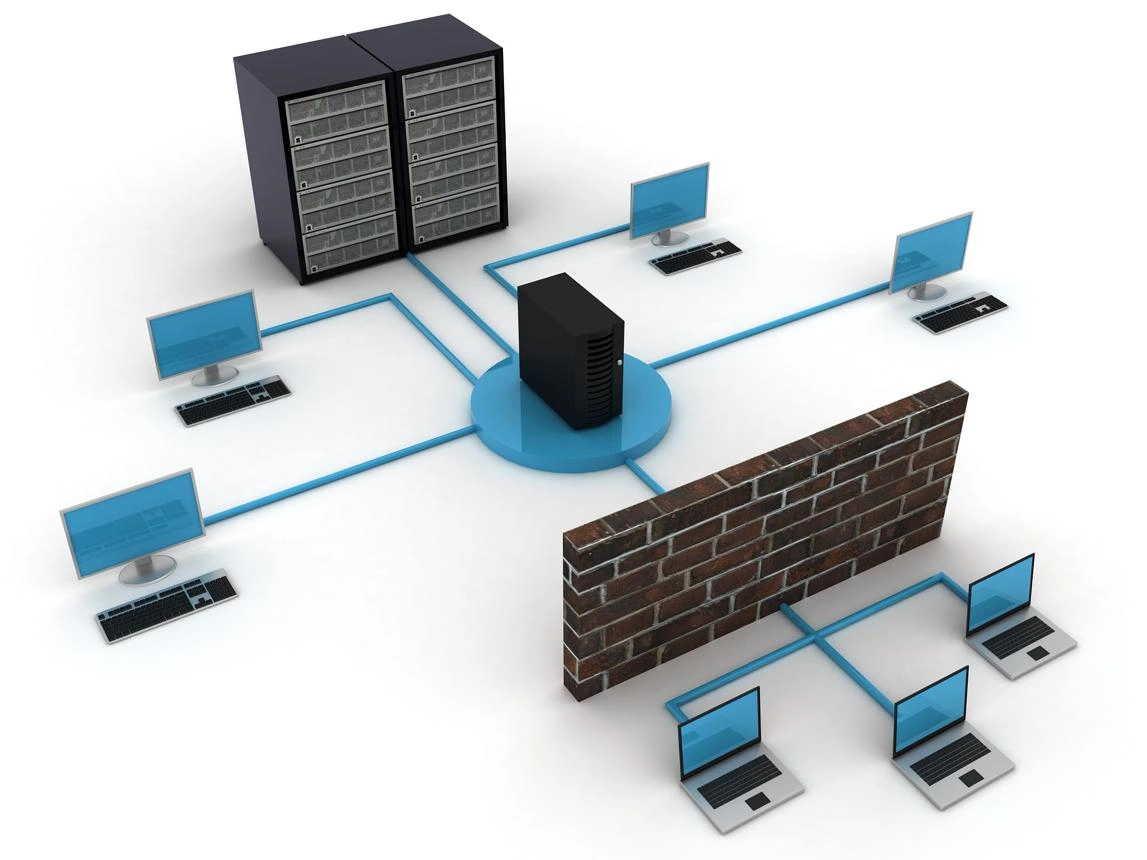
A reliable connection between the hosting computer and workstations is essential for multi-user access.
Before applying troubleshooting methods, determine whether the issue affects one workstation or the entire network.
This simple diagnostic process can save time.
| What you observe | What to investigate |
| Company file opens on the server but not on workstations | Network and database communication |
| Only one workstation displays H505 | That workstation’s network and hosting configuration |
| All workstations display H505 | Server, hosting, firewall, or database services |
| Error appeared after a Windows update | Firewall and network settings |
| Error appeared after changing the company-file location | Folder permissions and Database Server Manager scanning |
| Server computer cannot open the file either | Company-file access, storage, or file-related problems |
Important: These observations help narrow down the investigation. They do not independently prove the cause.
Before making changes, confirm the following:
- Identify the computer storing the company file.
- Confirm the exact company-file location.
- Identify the QuickBooks Desktop version installed on each computer.
- Check whether the server computer can open the company file.
- Record any recent network, Windows, firewall, or software changes.
Once these details are clear, proceed with the solutions below.
How to Fix QuickBooks Error H505: 9 Troubleshooting Methods
The following methods focus on the most relevant hosting and network conditions. Start with the configuration checks before changing firewall rules or advanced Windows settings.
Solution 1: Verify QuickBooks Hosting Settings on Every Workstation
Incorrect hosting configuration is an important cause of H505.
The computer hosting the company file should be the only computer responsible for hosting multi-user access in a conventional setup.
Follow these instructions:
- Step 1: Open QuickBooks Desktop on a workstation displaying Error H505.
- Step 2: Do not open the company file. If a company file is already open, close it first.
- Step 3: Select the File menu.
- Step 4: Choose Utilities.
- Step 5: Check the available hosting option.
- If you see Host Multi-User Access, do not select it. This indicates that multi-user hosting is not enabled on this workstation.
- If you see Stop Hosting Multi-User Access, select it to turn off hosting on that workstation.
- Step 6: Repeat the process on other workstations that do not store the company file.
- Now check the actual server computer.
- Step 7: Open QuickBooks Desktop on the hosting computer.
- Step 8: Select File > Utilities.
- Step 9: If Host Multi-User Access is available, select it. If Stop Hosting Multi-User Access is displayed, leave the setting unchanged.
- Step 10: Reopen the company file from a workstation and test multi-user access.
Why this works: It establishes a consistent hosting arrangement and prevents non-hosting workstations from attempting to act as the server.
Solution 2: Check QuickBooks Database Server Manager
QuickBooks Database Server Manager is an important component of a multi-user environment.
It helps identify company-file folders and supports the database service required for other computers to access shared company files.
Follow these steps:
- Step 1: Close QuickBooks Desktop on the server computer.
- Step 2: Open QuickBooks Tool Hub. If it is not installed, download the current version from the official Intuit website.
- Step 3: Select Network Issues.
- Step 4: Open QuickBooks Database Server Manager.
- Step 5: Locate the folder containing your company file.
- Step 6: If the folder is already listed, select Start Scan.
- Step 7: If it is not listed, use Browse to locate the correct company-file folder.
- Step 8: Start the scan and allow the utility to complete its process.
- Step 9: Close the utility after scanning finishes.
- Step 10: Open QuickBooks Desktop on a workstation and test multi-user access.
The scan can help identify company-file folders and update relevant firewall permissions.
However, make sure you select the actual folder containing your company file rather than an unrelated directory.
Important: QuickBooks Database Server Manager does not support Network Attached Storage (NAS) devices. If your company file is stored on unsupported NAS storage, changing firewall settings may not resolve the underlying compatibility problem.
Solution 3: Check QuickBooksDBXX and QBCFMonitorService
If the database services are not running properly, workstations may be unable to connect to the hosting computer.
You can inspect their status through Windows Services.
- Step 1: On the server computer, press Windows + R.
- Step 2: Type:
- services.msc
- Step 3: Press Enter.
- Step 4: Find the QuickBooksDBXX service associated with your installed QuickBooks version.
- The XX portion varies according to the version. For example:
- QuickBooks Desktop 2022 uses QuickBooksDB32.
- QuickBooks Desktop 2023 uses QuickBooksDB33.
- QuickBooks Desktop 2024 uses QuickBooksDB34.
- Do not select a service simply because its name looks similar. Confirm that it corresponds to the installed version.
- Step 5: Double-click the appropriate service.
- Step 6: Check the Startup type. Set it to Automatic if required by the Intuit troubleshooting instructions.
- Step 7: Check Service status. If the service is stopped, select Start.
- Step 8: Open the Recovery tab.
- Step 9: Where appropriate, configure First failure, Second failure, and Subsequent failures to Restart the Service.
- Step 10: Select Apply and OK.
Repeat the relevant checks for QBCFMonitorService.
Afterward, test company-file access from the workstations.
What if the service does not start?
Do not repeatedly attempt to restart it without investigating the reason. Check Windows service permissions, installation status, and available error information. An administrator may need to repair the server installation.
Solution 4: Configure Windows Firewall for QuickBooks Desktop
Firewall restrictions can prevent QuickBooks from communicating with the database server.
The correct approach is to allow the required QuickBooks programs and version-specific TCP ports rather than disabling Windows Firewall entirely.
- Step 1: Open Windows Security on the server computer.
- Step 2: Select Firewall & network protection.
- Step 3: Open Allow an app through the firewall.
- Step 4: Review the existing QuickBooks-related entries.
- Step 5: Make sure the necessary QuickBooks programs have the appropriate permissions for the network profile being used.
If the required entries are missing, follow Intuit’s official firewall configuration instructions to add the relevant program exceptions.
Important QuickBooks-related executables can include:
- QBDBMgrN.exe
- QBServerUtilityMgr.exe
- QBCFMonitorService.exe
- QBLaunch.exe
- QBUpdate.exe
The actual program paths depend on the installed version and system configuration.
Configure TCP port exceptions carefully
If application exceptions alone do not resolve the issue, check the TCP ports required by your installed QuickBooks Desktop version.
To configure a port:
- Open Windows Defender Firewall with Advanced Security.
- Select Inbound Rules.
- Choose a New Rule.
- Select Port.
- Choose TCP.
- Enter the version-specific port number supplied by Intuit.
- Select Allow the connection.
- Apply the appropriate network profiles.
- Give the rule a descriptive name.
- Save the rule.
If necessary, configure corresponding outbound rules according to your network security policy.
Important: Do not copy port numbers from an older QuickBooks installation or another version without checking compatibility. When multiple QuickBooks Desktop versions are installed, each version may require its own port configuration.
Solution 5: Check Server Connectivity Using the Ping Command
A workstation may display H505 because it cannot communicate reliably with the hosting computer.
The Windows Ping command helps test basic network reachability.
First, identify the server name.
Stage First: On the server computer, press Windows + R.
Stage 2: Enter:
- cmd
Method 3: Press Enter.
Method Four: Type:
- ipconfig /all
Task 5: Press Enter.
Task Six: Find the Host Name under Windows IP Configuration.
- Write down the server name.
- Now test the connection from an affected workstation.
Action 7: Open Command Prompt on that workstation.
Action 8: Enter:
- ping SERVERNAME
- Replace SERVERNAME with the actual server hostname.
For example:
ping OFFICE-SERVER
Step 9: Press Enter.
- Understanding the results
If you receive replies, the workstation can reach the server at the basic network level.
If you receive Request timed out or Destination host unreachable, investigate network discovery, DNS resolution, routing, firewall restrictions, and physical connectivity.
Important diagnostic distinction: A successful ping does not prove that QuickBooks database communication is working. It only confirms basic network reachability. TCP port access and database-service availability must also be checked.
Solution 6: Verify Company File Folder Permissions
Incorrect Windows permissions can prevent QuickBooks services from accessing company files.
Before changing permissions, identify the actual folder containing the company file.
- Step 1: Navigate to the company-file folder on the server.
- Step 2: Right-click the folder.
- Step 3: Select Properties.
- Step 4: Open the Security tab.
- Step 5: Review the users and groups listed.
- Step 6: Confirm that the relevant Windows accounts and database-service account have the access required by Intuit’s shared-folder configuration instructions.
- Step 7: Check the folder’s Sharing settings as well.
- Step 8: Verify that authorized users can access the shared location.
Do not grant Everyone unrestricted Full Control simply to eliminate H505. Instead, configure the minimum permissions needed for the actual hosting arrangement.
After updating permissions, test access from an authorized workstation.
Solution 7: Check Antivirus and Network Security Software
Third-party antivirus applications and endpoint security tools can sometimes block QuickBooks programs or network connections.
If the Windows Firewall settings appear correct but H505 continues, inspect the security software installed on the server and affected workstations.
Review whether:
- QuickBooks executables have been blocked.
- Database services have been restricted.
- Network protection features are preventing local communication.
- Recent security updates changed application permissions.
Add appropriate exceptions only after verifying the executable paths and required ports.
Avoid permanently disabling antivirus protection. If a temporary diagnostic test is necessary, perform it only with appropriate authorization and restore protection immediately.
Solution 8: Run QuickBooks File Doctor When Appropriate
QuickBooks File Doctor is available through QuickBooks Tool Hub and can help investigate certain company-file and network-related issues.
Use QuickBooks File Doctor’s Check Your Network option to identify network-related problems that may be preventing workstations from connecting to the company file.
Follow these steps:
- Step 1: Close QuickBooks Desktop.
- Step 2: Open QuickBooks Tool Hub.
- Step 3: Select Company File Issues.
- Step 4: Choose Run QuickBooks File Doctor.
- Step 5: Wait for the utility to open.
- Step 6: Select the company file from the list. If it is not listed, browse to its location.
- Step 7: Select the network-related diagnostic option, Check your Network, where available.
- Step 8: Follow the on-screen instructions.
- Step 9: Enter the authorized QuickBooks administrator credentials when requested.
- Step 10: Allow the diagnostic process to finish and review the results.
If File Doctor cannot open, follow the official Intuit instructions for locating and launching the utility.
Remember that File Doctor is not a substitute for correcting an incorrect hosting configuration or blocked firewall port.
Solution 9: Restart the Server and Test the Multi-User Connection
Once the configuration checks and necessary corrections are complete, restart the relevant systems in a controlled manner.
- Step 1: Close QuickBooks Desktop on all workstations.
- Step 2: Make sure all users have saved their work and closed the company file.
- Step 3: Restart the hosting computer if required by the changes made.
- Step 4: Allow Windows services and network connections to initialize.
- Step 5: Confirm that the QuickBooks database service is running.
- Step 6: Open QuickBooks Desktop on the server computer.
- Step 7: Open the company file in the correct hosting environment.
- Step 8: Launch QuickBooks on a workstation.
- Step 9: Select File and then Switch to Multi-user Mode, if necessary.
- Step 10: Confirm that authorized users can access the company file.
If the error disappears, test the connection on the remaining workstations before returning the system to normal business use.
QuickBooks Error H505 vs. H101, H202, and H303
QuickBooks Desktop uses several H-series error codes associated with multi-user hosting and network communication.
Although they share a common troubleshooting area, understanding their differences helps avoid applying unrelated solutions.
| Error code | General meaning |
| H101 | Hosting configuration or connection problem |
| H202 | Workstation cannot communicate with the server hosting the company file |
| H303 | Hosting or network communication problem involving the company-file location |
| H505 | Workstation cannot establish the required connection to the hosting computer |
These descriptions are general troubleshooting indicators, not definitive diagnoses.
H202 and H505 may both result from communication failures between a workstation and the server. H505 troubleshooting requires particular attention to the computer assigned to host multi-user access.
Advanced Troubleshooting for Persistent QuickBooks Error H505
Persistent H505 errors may require a closer inspection of server settings, network communication, and database service configuration.
Check Whether the Company File Location Changed
Moving or renaming the company file can leave Database Server Manager scanning its previous folder location. Verify the current file path and update the scanned folder settings accordingly.
Verify the actual file path and update the scanned folder configuration where necessary.
Review the Windows Event Logs
Windows Event Viewer can help identify service failures, application errors, or permission-related problems.
To open it:
- Press Windows + R.
- Enter eventvwr.msc.
- Press Enter.
- Open Windows Logs.
- Review the Application and System logs around the time the error occurred.
Look for entries involving QuickBooks database services, service startup failures, or network-related problems.
Do not assume every Windows warning is related to H505. Match the event’s timestamp and details with the actual failure.
Check DNS and Hostname Resolution
A successful IP connection with a failed hostname connection may indicate a DNS or local name-resolution problem.
Compare both connectivity tests to identify whether the hostname is resolving correctly. Check the workstation’s server configuration for outdated entries that may point to the wrong hosting computer.
Investigate VPNs and Network Segmentation
Businesses using VPNs, VLANs, managed switches, or separate network segments may have additional connectivity restrictions.
The workstation and hosting computer must be able to communicate through the required network paths and ports.
A network administrator should verify routing, access-control rules, and TCP connectivity without weakening the organization’s security controls.
Verify the Hosting Environment
Company files hosted by third-party providers may require a different troubleshooting approach. Contact the hosting provider for assistance with server-side settings, database services, or network configurations that fall under its management.
Changing local firewall settings will not necessarily resolve an issue originating within a managed hosting platform.
How to Prevent QuickBooks Error H505 in the Future
Once multi-user access is restored, a few routine checks can help reduce the likelihood of similar interruptions.
Maintain a Consistent Hosting Configuration
Keep the hosting role assigned to the intended server computer. Avoid enabling hosting on ordinary workstations.
Keep QuickBooks Desktop and Server Components Updated
Install supported updates and ensure that the appropriate Database Server Manager components are available for the versions being used.
Review Firewall Rules After Updates
Windows or security-software updates may change existing application permissions. Periodically verify that the required QuickBooks applications and TCP ports remain permitted.
Monitor Database Services
Check that QuickBooksDBXX and QBCFMonitorService are configured and operating correctly.
Maintain Reliable Network Connectivity
Use a stable business network and investigate recurring connection drops, DNS problems, or routing changes.
Protect Company Files With Verified Backups
Maintain regular backups using an appropriate backup process. Verify that backups can be restored before relying on them during an emergency.
Document Server and Workstation Settings
Keep records of the company-file location, hosting computer, installed QuickBooks versions, firewall rules, and service configuration.
This makes future troubleshooting considerably easier.
When Is Professional IT Assistance Necessary?
Not every H505 problem should be resolved by changing settings independently.
Professional network or server assistance is appropriate when:
- The database service repeatedly stops or fails to start.
- Multiple computers lose access simultaneously.
- Firewall or router changes require administrative approval.
- The network uses complex domain policies or VLANs.
- Company-file permissions are customized.
- The company file is hosted through a managed service.
- Network connectivity is inconsistent despite apparently correct local settings.
Keep a record of the displayed error, affected workstations, installed QuickBooks versions, company-file path, and recent network or system modifications. Share these details with technical support to help identify the underlying issue.
This information can help the technician isolate the problem more efficiently.
Frequently Asked Questions About QuickBooks Error H505
1. What does QuickBooks Error H505 mean?
QuickBooks Error H505 indicates that a workstation cannot establish a network connection with the computer hosting the company file. It is commonly associated with hosting configuration, firewall restrictions, database services, and network communication problems.
2. Why does QuickBooks Error H505 appear in multi-user mode?
The error may appear when QuickBooks cannot communicate with the hosting computer. Incorrect workstation hosting settings, stopped database services, restricted TCP ports, and network connectivity problems are possible causes.
3. Can Windows Firewall cause QuickBooks Error H505?
Yes. Windows Firewall or third-party security software can block the network communication required for multi-user access. Check QuickBooks application exceptions and version-specific TCP port rules. Keep Windows Firewall enabled to maintain network security.
4. How do I check whether QuickBooks Database Server Manager is working?
Open QuickBooks Database Server Manager on the hosting computer through QuickBooks Tool Hub. Verify the company-file folder and run a scan where appropriate. Inspect the corresponding Windows database service using the Services console (services.msc).
5. Should every workstation enable Host Multi-User Access?
No. In a conventional dedicated hosting arrangement, the computer hosting the company file should be responsible for multi-user hosting. Ordinary workstations should not independently host the company file.
6. Can QuickBooks Tool Hub fix H505?
QuickBooks Tool Hub provides utilities that can help diagnose and resolve certain network and company-file problems. Its Database Server Manager and File Doctor utilities can be useful, but the underlying hosting and network configuration must also be correct.
7. Does QuickBooks Error H505 mean my company file is corrupted?
Not necessarily. H505 primarily points to a hosting or network communication problem. Investigate company-file damage separately when the observed symptoms or diagnostic results indicate a potential data-integrity issue.
8. Can restarting the server resolve H505?
9. Is QuickBooks Error H505 the same as H202?
No. Both errors involve multi-user communication problems, but their troubleshooting details can differ. H505 deserves particular attention to workstation hosting settings and the intended server configuration.
10. Can I store a QuickBooks company file on a NAS device?
Intuit’s guidance states that QuickBooks Database Server Manager does not support Network Attached Storage (NAS) devices. QuickBooks hosting requirements must be checked for the new storage location before the company file is moved.
Final Thoughts
QuickBooks Error H505 can disrupt daily accounting tasks when several employees rely on the same company file. The error does not necessarily mean that financial records are damaged or lost.
The most effective troubleshooting approach is to identify the hosting computer, verify workstation hosting settings, inspect QuickBooks Database Server Manager, check Windows services, and review firewall and network communication.
QuickBooks Error H505 troubleshooting should begin with basic hosting and network configuration checks. Create and validate a company-file backup before changing system configurations or troubleshooting network settings. Keep firewall and antivirus protections enabled throughout the process.
A properly configured hosting environment, reliable network communication, and routine maintenance can help businesses maintain more consistent access to QuickBooks Desktop in multi-user mode.
About the Author – Steven Moody
Steven Moody is a content writer at Data Service Team who focuses on accounting software, QuickBooks troubleshooting, and business technology. He creates informative guides that help readers understand technical issues through practical explanations and step-by-step solutions.
Website: https://dataserviceteam.com/
Phone: +1-(888)-718-7888
Disclaimer: This article is intended for general informational and educational purposes only. The troubleshooting methods described here should be followed carefully, with appropriate backups and consideration of your system configuration. Some procedures may require administrator privileges or assistance from a qualified IT professional.
QuickBooks and QuickBooks Desktop are trademarks of Intuit Inc. This article is independently prepared and is not affiliated with, endorsed by, or sponsored by Intuit Inc. Product names are mentioned solely for identification and informational purposes.
Author


Generative AI is changing how businesses create content, analyse information, develop software, and automate everyday tasks. As organisations adopt these technologies, professionals are looking for ways to understand and apply them in their careers.
However, choosing the right learning programme requires more than comparing course titles. The curriculum, practical exposure, faculty, learning format, and career relevance all influence how much value a programme can offer.
Before enrolling, it is important to evaluate whether the programme matches your goals and provides the knowledge needed to work with generative AI. Asking the following ten questions can help you make a more informed decision.
1. Does the programme cover the fundamentals of generative AI?
A good learning programme should begin with the concepts behind generative AI before moving into advanced applications.
Check whether the curriculum explains:
- Artificial intelligence and machine learning fundamentals.
- How large language models (LLMs) work.
- Neural networks and deep learning concepts.
- Natural language processing.
- How generative models create text, images, and other content.
2. Does the curriculum include practical applications?
Understanding theory is important, but professionals also need to know how generative AI works in real situations.
Review whether the programme includes practical applications such as:
- Generating and editing content.
- Summarising documents and extracting information.
- Creating AI-assisted workflows.
- Developing chatbots and virtual assistants.
- Supporting software development and data analysis.
- Applying generative AI to business problems.
3. Will you get hands-on experience with AI tools?
Generative AI tools are evolving quickly. Learning how to use them effectively is an important part of developing practical skills.
Before enrolling, check which tools and platforms are covered. Depending on the programme’s focus, these may include large language model platforms, prompt engineering tools, AI development frameworks, and application programming interfaces (APIs).
Also, find out whether learners get opportunities to experiment with these tools through guided exercises, assignments, or projects.
Hands-on exposure helps learners understand how different tools work and when to use them.
4. Does the programme teach prompt engineering?
Prompt engineering involves designing and refining instructions to get useful outputs from generative AI systems.
A programme should explain how to:
- Write clear and specific prompts.
- Provide context and relevant information.
- Use examples to guide model responses.
- Structure prompts for complex tasks.
- Evaluate and refine generated outputs.
- Reduce inaccurate or irrelevant responses.
5. Does it cover advanced concepts such as RAG and fine-tuning?
Professionals who want to work on more specialised AI applications may need to understand concepts beyond basic prompting.
Check whether the curriculum introduces topics such as:
Retrieval-Augmented Generation (RAG): RAG allows AI systems to retrieve relevant information from external sources before generating responses. It can help applications provide answers based on specific documents or knowledge bases.
Fine-tuning: Fine-tuning involves adapting a pre-trained model using additional data to improve its performance for a particular task or domain.
AI application development: This includes connecting models with data sources, APIs, and other software components to build useful applications.
6. Who teaches the programme, and what is their experience?
The quality of instruction can significantly influence the learning experience.
Before enrolling, review the faculty’s academic qualifications, professional experience, and involvement in AI-related projects or research.
Consider whether instructors can explain technical concepts clearly and connect them with practical industry applications.
It is also useful to check whether the programme includes expert sessions, guest lectures, or opportunities to interact with instructors.
Experienced faculty can help learners understand both the technical foundations and the practical challenges of implementing generative AI.
7. Does the programme include projects and real-world case studies?
Projects help learners apply concepts rather than simply remember them.
Check whether the programme includes assignments, case studies, or a final project involving practical generative AI applications.
For example, learners may work on:
- Building a document-based question-answering application.
- Creating a chatbot for customer support.
- Developing a content generation workflow.
- Using AI to summarise business reports.
- Designing an AI-assisted research solution.
8. Is the programme suitable for your existing skill level?
Not every learner begins with the same technical background. Some may have programming experience, while others may come from business, marketing, management, or non-technical roles.
Before choosing a programme, review its eligibility requirements and prerequisites.
Ask whether it expects prior knowledge of:
- Programming languages such as Python.
- Mathematics and statistics.
- Machine learning concepts.
- Data analysis.
- Software development.
9. What learning format, duration, and support does it offer?
The learning format should fit your professional and personal commitments.
Compare programmes based on:
- Duration: How long will it take to complete the programme?
- Learning format: Are sessions live, recorded, or a combination of both?
- Flexibility: Can working professionals access learning materials at convenient times?
- Mentorship: Is guidance available when learners face difficulties?
- Peer interaction: Are there opportunities to collaborate with other learners?
- Assessment: How are progress and learning outcomes evaluated?
10. Does the programme support your long-term career goals?
The final question is whether the programme aligns with what you want to achieve professionally.
Generative AI knowledge can support different career paths, depending on the depth of technical training and the learner’s existing experience.
Potential roles and areas of application include:
- AI engineer: Developing and integrating AI-powered applications.
- Machine learning engineer: Building and maintaining machine learning systems.
- AI product manager: Identifying AI use cases and managing AI-powered products.
- Data analyst: Using AI tools to support information analysis and reporting.
- Automation specialist: Designing workflows that use AI to improve business processes.
- Content and marketing professional: Applying generative AI to research, content development, and campaign workflows.
How to Compare Different GenAI Programmes
After reviewing these questions, create a shortlist of programmes and compare them using consistent criteria.
| Evaluation factor | What to check |
| Curriculum | AI fundamentals, LLMs, prompting, RAG, and advanced concepts |
| Practical learning | Projects, assignments, and real-world applications |
| Tools | Exposure to relevant AI platforms and development tools |
| Faculty | Academic and industry experience |
| Eligibility | Prerequisites and suitability for your background |
| Learning format | Duration, flexibility, and instructor support |
| Career relevance | Skills, portfolio development, and career guidance |
| Certification | Assessment requirements and recognition |
You can also explore a structured gen AI course to understand how its curriculum, practical components, and learning support align with your professional goals.
Common Mistakes to Avoid When Choosing a GenAI Programme
Even after comparing programmes, learners can overlook important details. Keep these common mistakes in mind:
- Choosing based only on the programme title: A course labelled as advanced may not necessarily cover the concepts or applications you want to learn.
- Ignoring practical learning: A theory-heavy curriculum may not provide enough experience to apply AI tools in real situations.
- Overlooking prerequisites: Enrolling without checking eligibility can make technical topics difficult to follow.
- Focusing only on certification: A certificate is useful, but the skills and projects completed during the programme matter too.
- Believing unrealistic career promises: Be cautious of guaranteed job outcomes or claims that a short programme can qualify everyone for advanced AI roles.
- Ignoring responsible AI: Understanding privacy, bias, accuracy, and ethical use is essential when working with generative AI.
For learners comparing academic options, IIT Kharagpur online courses may also be worth exploring as part of their research into structured learning opportunities. Compare the specific programme details, eligibility, curriculum, and delivery format before making a decision.
Conclusion
Choosing a generative AI programme is an important learning decision, particularly as AI applications become more common across industries. Before enrolling, evaluate the curriculum, practical exposure, faculty experience, learning format, and career relevance.
The right programme should match your current skill level while helping you build capabilities for future opportunities. Rather than choosing based on popularity or certification alone, focus on what you will learn, what you will build, and how you can apply those skills in your professional role.
Frequently Asked Questions
1. What should I look for in a generative AI programme?
Look for a curriculum covering AI fundamentals, large language models, prompt engineering, practical tools, and real-world applications. Projects, experienced faculty, and learner support are also important considerations.
2. Can beginners enrol in a generative AI programme?
Yes. Many programmes introduce AI fundamentals before covering advanced topics. However, learners should check the eligibility requirements and determine whether prior programming, mathematics, or machine learning knowledge is expected.
3. Is coding necessary to learn generative AI?
Not always. Beginners can explore generative AI tools and prompt engineering without coding. However, programming knowledge, particularly Python, is useful for developing AI applications, integrating APIs, and working with advanced concepts.
4. How important are projects in a GenAI programme?
Projects help learners apply theoretical knowledge to practical problems. They also provide opportunities to demonstrate skills through applications such as chatbots, document assistants, and AI-powered workflows.
5. Can a generative AI programme help with career growth?
It can help professionals develop relevant AI skills and understand how to apply them in their existing roles or future career paths. Career outcomes depend on the programme’s depth, practical experience, prior qualifications, and individual effort.
Author


Open the home screen of almost any phone in an Indian city, and chances are it runs Android. According to StatCounter Global Stats, Android accounted for about 93 percent of mobile operating system usage in India in mid-2026. For restaurants, that number carries a clear message: if you want more online orders, your own Android app can place your menu directly in front of the people most likely to order. Instead of relying only on third-party platforms, you can build a direct, branded ordering channel that you control. This guide explains how custom Android apps help restaurants grow online orders, which features matter most, and what to plan for before you start.
Why Android Deserves Your First Screen
Android’s reach is only part of the story. The platform runs on devices at almost every price point, so your menu can reach a wide range of customers, and updates can be published quickly. That also means your app should be light and fast, even on older phones. For this reason, many restaurants begin with professional android app development services that focus on performance, simple navigation, and secure payments before adding extras.
Six Ways Your Own App Turns Browsers Into Buyers
- Faster reordering: Saved favorites and one-tap reorder make a repeat order take only seconds.
- A direct customer relationship: You keep preferences and order history, which helps you plan menus and offers.
- Push notifications: Timely reminders about lunch deals, new dishes, or forgotten carts bring people back.
- Loyalty rewards: Points and stamp cards give guests a reason to order from you instead of switching.
- Smooth checkout: UPI, cards, and wallets in one clean flow reduce the chance that someone gives up midway.
- Clear order tracking: Live status updates cut down on “Where is my order?” calls and build trust.
Features That Deserve a Place in Version One
Start with the essentials and add extras once real guests use the app. A table reservation system for restaurants, for example, can join the same app later, so dine-in and online orders live in one place. This table shows how to prioritize:
| Feature | Why it matters | Priority |
|---|---|---|
| Menu with photos and filters | Helps guests decide quickly | Must-have |
| Customizable orders | Handles special requests without phone calls | Must-have |
| Secure payments | Completes the sale and builds trust | Must-have |
| Order tracking | Reduces anxiety and support calls | Must-have |
| Push offers and loyalty | Drives repeat orders | Early addition |
| Table reservation | Brings dine-in guests into the same app | Optional add-on |
The Kitchen Side: Managing Orders Without Chaos
Every new online order must reach your team clearly and quickly. That is why many restaurants pair the guest app with restaurant management software development, which connects orders to a staff dashboard, kitchen screens, inventory tracking, and sales reports. The result is fewer mistakes during busy hours and better data for daily decisions.
When You Want Your Own Riders
Some restaurants prefer to manage delivery themselves. In that case, on demand food delivery app development adds a rider app, live location tracking, and automatic order assignment on top of the customer app. It takes more planning, so many businesses launch with pickup and basic delivery first and expand later.
A Realistic Look at Budget
Cost to Develop a Custom Android App depends mostly on features, design, integrations, and testing, not on a single fixed price. Similarly, food delivery app development cost in India changes with the scope, such as whether you need rider tracking, multiple restaurants, or advanced analytics. Ask every provider for an itemized estimate that includes testing and support after launch, so you can compare offers on equal terms.
Choosing a Partner Who Understands Restaurants
Whether you shortlist a custom android app development company or a specialist restaurant app development company, these questions reveal how reliable they are:
- Have you built ordering or delivery apps? Ask for real examples and results.
- How do you protect payments and customer data? Look for clear security practices.
- What support follows the launch? Confirm updates, fixes, and response times.
- Who owns the code and the customer data? Get ownership terms in writing.
Final Thoughts: Make Ordering Easier Than Anyone Else
More online orders come from making the experience easy, fast, and personal. A custom Android app gives you that control, and the right android app development services can help you launch a focused first version, learn from real orders, and grow from there.
Frequently Asked Questions
1. Do restaurants still need their own app if they use delivery platforms?
Many use both. Delivery platforms help new customers discover you, while your own app builds direct relationships and repeat orders.
2. Do I need an iOS app as well?
Not at the start if most of your customers use Android. You can add iOS later or build a cross-platform version.
3. How long does it take to build a restaurant app?
A basic ordering app can take a few months, while delivery tracking and management tools take longer.
4. Can the app connect to my billing or POS system?
Often yes, but it depends on your system, so check integration options early.
5. How do I get customers to download the app?
Offer a first-order reward, place QR codes on tables and packaging, and promote the app through your social channels.
Author



QuickBooks Error H505: 9 Ways to Fix It

QuickBooks Migration Failed Unexpectedly: 9 Fixes That Work

Marriage Green Card Denied? What Happens Next and Can You Reapply?

Phantom Stock in India: Meaning, Benefits, Taxation, and How It Works

How to Choose Sweatpants: A Practical Guide

Are Chrome Hearts Tshirt Still Worth Buying in 2026?

Comme Des Garcons Converse Outfits That Make a Statement

Are Chrome Hearts Hoodies Still Worth Buying in 2026?

The New Parke Hoodie Looks Changing Everyday Streetwear

The Texas Guide to Booking Wellness and Longevity Care Online

Cybersecurity Consulting Company SequelNet Provides Critical IT Support Services to Medical Billing Firm, Medical Optimum

Meet the Megalodon: The Shark Star of ‘Meg 2’

Reduce Video Game Lag: Level Up Your Gaming Performance

Balancing India’s Entertainment: Cricket vs. Bollywood

Jetsetter’s Secrets: Unveiling Our Favorite Travel Hacks for a Seamless Adventure

The 5 Best Live Sports Streaming Sites: Legal and Exciting!

Hollywood Labor Unrest: The Impact of ‘What About Us?’ Strikes

Unveiling the Magic of Dream Fulfillment at the Late NBA Draft

Illuminate Your Skin: Dr. Axe Unveils Natural Remedies for Lightening Knees and Elbows

Bright Choices: Navigating the Pros and Cons of Skin Whitening Creams with Dr. Axe
-

 Business3 years ago
Cybersecurity Consulting Company SequelNet Provides Critical IT Support Services to Medical Billing Firm, Medical Optimum
-
Entertainment3 years ago
Meet the Megalodon: The Shark Star of ‘Meg 2’
-
Entertainment3 years ago
Reduce Video Game Lag: Level Up Your Gaming Performance
-
 Sports3 years ago
Balancing India’s Entertainment: Cricket vs. Bollywood
-
Entertainment3 years ago
Jetsetter’s Secrets: Unveiling Our Favorite Travel Hacks for a Seamless Adventure
-
Productivity3 years ago
The 5 Best Live Sports Streaming Sites: Legal and Exciting!
-
Art /Entertainment3 years ago
Hollywood Labor Unrest: The Impact of ‘What About Us?’ Strikes
-
Sports3 years ago
Unveiling the Magic of Dream Fulfillment at the Late NBA Draft