
Business
Hellstar Shorts: The Ultimate Blend of Streetwear Aesthetics

By

Reviewed
By Norah Mabel

Introduction
In the world of fashion, some brands focus solely on aesthetics, while others prioritize functionality. Rarely do we see a perfect marriage between the two—until Hellstar Shorts stepped into the scene. They have become an instant statement piece in the streetwear community, transcending the boundaries of traditional shorts by offering something more than just seasonal clothing. They’re a style, a culture, and a representation of individuality.
This detailed exploration will uncover what makes Hellstar Shorts so special, diving into their design philosophy, cultural impact, material quality, styling possibilities, and the reasons they’ve taken the fashion world by storm.
The Rise of Hellstar Shorts in the Fashion World
Over the past few years, Hellstar as a brand has steadily gained traction in the streetwear market. Their unique graphic-heavy designs, bold branding, and rebellious energy have attracted a loyal following of fashion-forward individuals. While Hellstar produces a variety of clothing items, their shorts have emerged as one of their most popular staples.
The reason for this rapid rise is twofold: trend adaptability and authentic identity. Hellstar didn’t just make shorts; they created a wearable piece of art that fits seamlessly into today’s demand for versatile, expressive fashion. In an age where people want their clothes to say something about who they are, Hellstar Shorts deliver a clear message—bold, unapologetic confidence.
Design Philosophy: Where Art Meets Streetwear
One of the defining traits of Hellstar Shorts is their design DNA. Rather than relying on generic silhouettes, Hellstar puts a heavy emphasis on visual storytelling. Each pair is crafted with bold graphic elements, signature logos, and edgy typography that immediately set them apart from mass-produced options.

The design process isn’t just about slapping a logo onto fabric. Hellstar Shorts are the result of intentional artistic direction, often inspired by themes like cosmic visuals, futuristic fonts, and raw street culture. This gives them a dual appeal: they can be worn casually for a day out, or styled up for a striking fashion-forward look.
Premium Materials for Everyday Wear
A key factor behind the popularity of Hellstar Shorts is their material quality. The brand uses premium cotton blends, soft fleece linings, and breathable fabrics that allow for all-day comfort without sacrificing durability. Whether it’s a pair designed for lounging, skateboarding, or summer festivals, Hellstar ensures that each piece maintains its shape and vibrancy over time.
Additionally, their attention to detail extends to stitching, waistband elasticity, and pocket placement—small features that elevate the shorts from being just clothing to being functional fashion tools.
The Cultural Influence of Hellstar Shorts
Fashion is as much about culture as it is about clothing, and Hellstar Shirt have become an emblem of a certain streetwear ethos. They appeal to skaters, musicians, urban trendsetters, and creative youth who value self-expression over conformity. Wearing Hellstar Shorts is often seen as a statement—an embrace of the bold, the alternative, and the unafraid.
Social media has amplified this effect. On Instagram, TikTok, and streetwear forums, Hellstar Shorts are frequently featured in outfit breakdowns, street photography shoots, and sneaker pairing videos. They’ve essentially become part of the visual language of modern streetwear.
Styling Hellstar Shorts: Endless Possibilities
One of the strongest points of Hellstar Shorts is their styling versatility. They can adapt to different looks depending on how you pair them.
1. Casual Streetwear Look
Pair your Hellstar Shorts with an oversized graphic tee, chunky sneakers, and a snapback for a relaxed yet stylish street-ready outfit.
2. Layered Festival Fit
Combine them with a loose hoodie or an open flannel shirt layered over a tank top, plus statement accessories like chains or crossbody bags.
3. Summer Minimalist Vibe
Opt for a plain white tee, clean sneakers, and your favorite Hellstar Shorts to let the graphics shine as the centerpiece of the outfit.
4. Athleisure Edge
Match them with a fitted athletic top, performance sneakers, and a lightweight jacket for an active yet fashion-conscious look.
The flexibility of Hellstar Shorts makes them ideal for those who want one staple piece that can shift between casual, sporty, and statement styles.
The Attention to Details
Hellstar doesn’t cut corners on details. Many shorts feature embroidered patches, unique drawstring tips, custom zipper pulls, and signature inside labels. These small touches create a premium feel and also help prevent counterfeiting—a growing issue in the streetwear industry.
Even their colorways are thoughtfully selected. While black remains the most popular choice for its versatility, Hellstar often releases limited-edition hues like deep purples, washed-out greys, or neon-infused patterns. These variations keep the brand fresh and in demand.
Why Hellstar Shorts Stand Out from the Competition
There are plenty of streetwear shorts on the market, so what makes Hellstar unique?
- Bold Visual Identity: Their designs are instantly recognizable and distinctive.
- High-Quality Materials: Comfort and durability go hand in hand.
- Limited Drops: Scarcity increases demand and hype.
- Cultural Relevance: They resonate with the current streetwear community’s aesthetics.
- Styling Versatility: They adapt to multiple fashion environments.
Hellstar Shorts and the Sneaker Connection
A major reason streetwear enthusiasts love Hellstar Shorts is their synergy with sneaker culture. The shorts often feature lengths and fits that perfectly showcase high-top sneakers, Jordan retros, or chunky dad sneakers. The bold designs create a strong contrast that draws attention downward, making your sneaker game pop.
For sneakerheads, Hellstar Shorts are a dream—they’re like the perfect picture frame for your footwear.
The Hype Factor: Limited Drops and Collaborations
Part of Hellstar marketing genius is their limited release strategy. They rarely restock the same design, creating a sense of urgency. Once a pair of Hellstar Shorts sells out, it often becomes a sought-after resale item, sometimes fetching double or triple the retail price in secondary markets.
Collaborations with other streetwear brands, artists, and even musicians have further elevated the hype. These collaborations usually feature exclusive graphics, unique colorways, and collectible packaging, making them must-haves for fans.
From the Streets to the Mainstream
While Hellstar Shorts were once mainly found in underground streetwear scenes, they’ve recently started appearing in mainstream music videos, influencer content, and fashion editorials. Celebrities and athletes have been spotted wearing them, pushing the brand into wider recognition without losing its underground roots.
This crossover success is rare—most brands either stay niche or go fully mainstream, but Hellstar has found a balance by keeping its authenticity intact while expanding its audience.
Sustainability Efforts and Ethical Production
In today’s fashion landscape, consumers care not only about style but also about how their clothes are made. Hellstar has begun integrating more eco-friendly materials, ethical labor practices, and small-batch production methods to minimize waste. While they’re not yet a fully sustainable brand, these steps show a commitment to long-term responsibility in fashion.
Caring for Your Hellstar Shorts
To keep your Hellstar Shorts looking fresh for years, proper care is key.
- Wash inside out to protect prints and embroidery.
- Use cold water to preserve color vibrancy.
- Air dry instead of using a dryer to prevent shrinkage.
- Avoid harsh detergents that could weaken fibers.
Following these steps ensures your investment stays in peak condition.
The Future of Hellstar Shorts
Given their current momentum, it’s safe to say Hellstar Shorts will continue evolving in design and material innovation. We can expect bolder collaborations, tech-infused fabrics, and potentially more customization options for buyers in the near future.
Their influence in the streetwear world shows no signs of slowing down, and if anything, they might become a defining symbol of this era’s urban fashion.
More Than Just Shorts
Hellstar Shorts are not just a seasonal clothing item; they are a statement, an extension of personality, and a cultural artifact of modern streetwear. They represent a perfect fusion of art, comfort, and style—qualities that ensure they remain relevant for years to come.
For those who value individuality, authenticity, and the ability to turn heads without saying a word, Hellstar Shorts are more than worth the investment. They’re a reminder that fashion is not just about what you wear—it’s about how you wear it.
Author













QuickBooks Desktop makes it easier for businesses to manage accounting records, invoices, payroll, customer information, and financial reports.
When several employees need access to the same company file, network communication becomes essential. An interrupted connection can trigger QuickBooks Error H505.
QuickBooks Error H505 often occurs when users access a company file stored on another computer or switch to multi-user mode. The server may open the file successfully, yet connected workstations cannot establish the required network connection.
The important thing to understand is that QuickBooks Error H505 usually indicates a hosting, network, firewall, or database-service communication problem. It does not automatically mean that the company file is damaged.
This guide explains what the error means, why it occurs, how to identify its underlying cause, and how to troubleshoot it safely. It also covers Windows services, QuickBooks Database Server Manager, firewall configuration, network connectivity, and preventive measures that help maintain a stable multi-user environment.
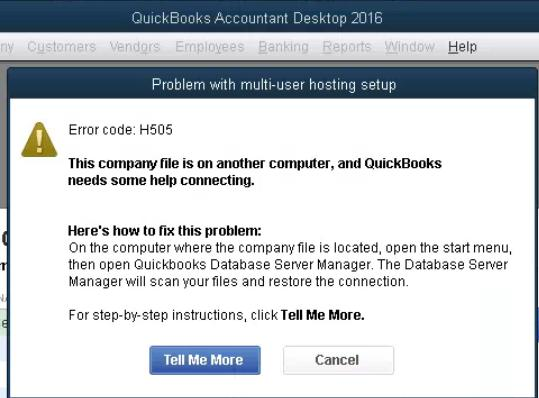
Understanding QuickBooks Desktop H505 and its connection to multi-user hosting.
What Is QuickBooks Error H505?
QuickBooks Error H505 is a multi-user hosting and network communication error associated with QuickBooks Desktop. It occurs when a workstation cannot establish the required connection to the computer hosting the company file.
In a typical multi-user environment, one computer stores the company file and provides access to other authorized computers on the same network. This hosting computer uses QuickBooks Database Server Manager and related Windows services to manage company-file access.
When a workstation cannot communicate with the hosting computer correctly, QuickBooks may display an H505 error message.
The error belongs to the same general H-series troubleshooting group as H101, H202, and H303. However, these codes can point to different hosting or communication problems, so users should not assume that every solution applies identically.
A typical H505 situation looks like this:
- The company file opens successfully on the server computer.
- One or more workstations cannot access the same file.
- Switching to multi-user mode produces an error.
- QuickBooks cannot establish a reliable connection with the hosting system.
The objective is to restore the correct hosting configuration and network communication without unnecessarily modifying the company file.
What Causes QuickBooks Error H505?
Identifying the cause before changing system settings can prevent unnecessary troubleshooting. Several network and hosting conditions can trigger this error.
1. Incorrect Hosting Configuration
QuickBooks Desktop requires an appropriate hosting arrangement. In a conventional setup, the computer storing the company file should be responsible for hosting multi-user access.
If a workstation that does not store the company file is also configured to host multi-user access, it can create hosting conflicts.
This is one of the first conditions worth checking when troubleshooting H505.
2. QuickBooks Database Server Manager Is Not Working Properly
QuickBooks Database Server Manager helps manage access to company files stored on a server computer.
If it is missing, improperly configured, or unable to scan the company-file folder, workstations may fail to establish the necessary database connection.
The problem can also occur when the Database Server Manager installation does not properly support the QuickBooks Desktop versions being used.
3. Windows Firewall Blocks Network Communication
Windows Firewall helps protect computers from unauthorized network connections. However, an incorrectly configured firewall may also block legitimate QuickBooks communication.
This can prevent workstations from reaching the database service on the hosting computer.
The issue may occur after a Windows update, security software change, or firewall configuration adjustment.
4. QuickBooks Windows Services Are Stopped
QuickBooks Desktop relies on Windows services to support multi-user access.
Two important services to investigate are:
- QuickBooksDBXX: The QuickBooks Database Server service associated with the installed version.
- QBCFMonitorService: A supporting service used in QuickBooks multi-user environments.
If the relevant service is stopped, disabled, or unable to start correctly, network access may fail.
5. Company File Folder Permissions Are Incorrect
The Windows account and the QuickBooks database service need appropriate access to the folder containing the company file.
If permissions are restricted, the database service might not be able to access the required files.
This is especially important when company files are stored in shared folders with customized Windows security settings.
6. Network Connectivity Is Interrupted
QuickBooks workstations must communicate with the hosting computer through a reliable network connection.
Common problems include:
- An incorrect server name.
- A disconnected Ethernet cable.
- Unstable Wi-Fi connectivity.
- Network discovery being disabled.
- Incorrect DNS or network configuration.
- Network segmentation or routing restrictions.
Even if the internet works normally, the local network connection required by QuickBooks may still be unavailable.
7. Incorrect Firewall Port Configuration
QuickBooks Desktop uses specific TCP ports for multi-user communication. These port requirements depend on the installed product version.
If the required ports are blocked or incorrectly configured, workstations may be unable to connect to the database server.
Using outdated port information can also cause problems after upgrading QuickBooks Desktop.
8. Multiple Hosting or Server Configurations
A business may use several computers, multiple QuickBooks Desktop versions, or a dedicated hosting arrangement.
If the hosting configuration is inconsistent, the database service may not operate as expected.
In these environments, administrators should verify which computer actually stores the company file and which computer is responsible for hosting it.
How to Identify the Cause Before Fixing QuickBooks Error H505

A reliable connection between the hosting computer and workstations is essential for multi-user access.
Before applying troubleshooting methods, determine whether the issue affects one workstation or the entire network.
This simple diagnostic process can save time.
| What you observe | What to investigate |
| Company file opens on the server but not on workstations | Network and database communication |
| Only one workstation displays H505 | That workstation’s network and hosting configuration |
| All workstations display H505 | Server, hosting, firewall, or database services |
| Error appeared after a Windows update | Firewall and network settings |
| Error appeared after changing the company-file location | Folder permissions and Database Server Manager scanning |
| Server computer cannot open the file either | Company-file access, storage, or file-related problems |
Important: These observations help narrow down the investigation. They do not independently prove the cause.
Before making changes, confirm the following:
- Identify the computer storing the company file.
- Confirm the exact company-file location.
- Identify the QuickBooks Desktop version installed on each computer.
- Check whether the server computer can open the company file.
- Record any recent network, Windows, firewall, or software changes.
Once these details are clear, proceed with the solutions below.
How to Fix QuickBooks Error H505: 9 Troubleshooting Methods
The following methods focus on the most relevant hosting and network conditions. Start with the configuration checks before changing firewall rules or advanced Windows settings.
Solution 1: Verify QuickBooks Hosting Settings on Every Workstation
Incorrect hosting configuration is an important cause of H505.
The computer hosting the company file should be the only computer responsible for hosting multi-user access in a conventional setup.
Follow these instructions:
- Step 1: Open QuickBooks Desktop on a workstation displaying Error H505.
- Step 2: Do not open the company file. If a company file is already open, close it first.
- Step 3: Select the File menu.
- Step 4: Choose Utilities.
- Step 5: Check the available hosting option.
- If you see Host Multi-User Access, do not select it. This indicates that multi-user hosting is not enabled on this workstation.
- If you see Stop Hosting Multi-User Access, select it to turn off hosting on that workstation.
- Step 6: Repeat the process on other workstations that do not store the company file.
- Now check the actual server computer.
- Step 7: Open QuickBooks Desktop on the hosting computer.
- Step 8: Select File > Utilities.
- Step 9: If Host Multi-User Access is available, select it. If Stop Hosting Multi-User Access is displayed, leave the setting unchanged.
- Step 10: Reopen the company file from a workstation and test multi-user access.
Why this works: It establishes a consistent hosting arrangement and prevents non-hosting workstations from attempting to act as the server.
Solution 2: Check QuickBooks Database Server Manager
QuickBooks Database Server Manager is an important component of a multi-user environment.
It helps identify company-file folders and supports the database service required for other computers to access shared company files.
Follow these steps:
- Step 1: Close QuickBooks Desktop on the server computer.
- Step 2: Open QuickBooks Tool Hub. If it is not installed, download the current version from the official Intuit website.
- Step 3: Select Network Issues.
- Step 4: Open QuickBooks Database Server Manager.
- Step 5: Locate the folder containing your company file.
- Step 6: If the folder is already listed, select Start Scan.
- Step 7: If it is not listed, use Browse to locate the correct company-file folder.
- Step 8: Start the scan and allow the utility to complete its process.
- Step 9: Close the utility after scanning finishes.
- Step 10: Open QuickBooks Desktop on a workstation and test multi-user access.
The scan can help identify company-file folders and update relevant firewall permissions.
However, make sure you select the actual folder containing your company file rather than an unrelated directory.
Important: QuickBooks Database Server Manager does not support Network Attached Storage (NAS) devices. If your company file is stored on unsupported NAS storage, changing firewall settings may not resolve the underlying compatibility problem.
Solution 3: Check QuickBooksDBXX and QBCFMonitorService
If the database services are not running properly, workstations may be unable to connect to the hosting computer.
You can inspect their status through Windows Services.
- Step 1: On the server computer, press Windows + R.
- Step 2: Type:
- services.msc
- Step 3: Press Enter.
- Step 4: Find the QuickBooksDBXX service associated with your installed QuickBooks version.
- The XX portion varies according to the version. For example:
- QuickBooks Desktop 2022 uses QuickBooksDB32.
- QuickBooks Desktop 2023 uses QuickBooksDB33.
- QuickBooks Desktop 2024 uses QuickBooksDB34.
- Do not select a service simply because its name looks similar. Confirm that it corresponds to the installed version.
- Step 5: Double-click the appropriate service.
- Step 6: Check the Startup type. Set it to Automatic if required by the Intuit troubleshooting instructions.
- Step 7: Check Service status. If the service is stopped, select Start.
- Step 8: Open the Recovery tab.
- Step 9: Where appropriate, configure First failure, Second failure, and Subsequent failures to Restart the Service.
- Step 10: Select Apply and OK.
Repeat the relevant checks for QBCFMonitorService.
Afterward, test company-file access from the workstations.
What if the service does not start?
Do not repeatedly attempt to restart it without investigating the reason. Check Windows service permissions, installation status, and available error information. An administrator may need to repair the server installation.
Solution 4: Configure Windows Firewall for QuickBooks Desktop
Firewall restrictions can prevent QuickBooks from communicating with the database server.
The correct approach is to allow the required QuickBooks programs and version-specific TCP ports rather than disabling Windows Firewall entirely.
- Step 1: Open Windows Security on the server computer.
- Step 2: Select Firewall & network protection.
- Step 3: Open Allow an app through the firewall.
- Step 4: Review the existing QuickBooks-related entries.
- Step 5: Make sure the necessary QuickBooks programs have the appropriate permissions for the network profile being used.
If the required entries are missing, follow Intuit’s official firewall configuration instructions to add the relevant program exceptions.
Important QuickBooks-related executables can include:
- QBDBMgrN.exe
- QBServerUtilityMgr.exe
- QBCFMonitorService.exe
- QBLaunch.exe
- QBUpdate.exe
The actual program paths depend on the installed version and system configuration.
Configure TCP port exceptions carefully
If application exceptions alone do not resolve the issue, check the TCP ports required by your installed QuickBooks Desktop version.
To configure a port:
- Open Windows Defender Firewall with Advanced Security.
- Select Inbound Rules.
- Choose a New Rule.
- Select Port.
- Choose TCP.
- Enter the version-specific port number supplied by Intuit.
- Select Allow the connection.
- Apply the appropriate network profiles.
- Give the rule a descriptive name.
- Save the rule.
If necessary, configure corresponding outbound rules according to your network security policy.
Important: Do not copy port numbers from an older QuickBooks installation or another version without checking compatibility. When multiple QuickBooks Desktop versions are installed, each version may require its own port configuration.
Solution 5: Check Server Connectivity Using the Ping Command
A workstation may display H505 because it cannot communicate reliably with the hosting computer.
The Windows Ping command helps test basic network reachability.
First, identify the server name.
Stage First: On the server computer, press Windows + R.
Stage 2: Enter:
- cmd
Method 3: Press Enter.
Method Four: Type:
- ipconfig /all
Task 5: Press Enter.
Task Six: Find the Host Name under Windows IP Configuration.
- Write down the server name.
- Now test the connection from an affected workstation.
Action 7: Open Command Prompt on that workstation.
Action 8: Enter:
- ping SERVERNAME
- Replace SERVERNAME with the actual server hostname.
For example:
ping OFFICE-SERVER
Step 9: Press Enter.
- Understanding the results
If you receive replies, the workstation can reach the server at the basic network level.
If you receive Request timed out or Destination host unreachable, investigate network discovery, DNS resolution, routing, firewall restrictions, and physical connectivity.
Important diagnostic distinction: A successful ping does not prove that QuickBooks database communication is working. It only confirms basic network reachability. TCP port access and database-service availability must also be checked.
Solution 6: Verify Company File Folder Permissions
Incorrect Windows permissions can prevent QuickBooks services from accessing company files.
Before changing permissions, identify the actual folder containing the company file.
- Step 1: Navigate to the company-file folder on the server.
- Step 2: Right-click the folder.
- Step 3: Select Properties.
- Step 4: Open the Security tab.
- Step 5: Review the users and groups listed.
- Step 6: Confirm that the relevant Windows accounts and database-service account have the access required by Intuit’s shared-folder configuration instructions.
- Step 7: Check the folder’s Sharing settings as well.
- Step 8: Verify that authorized users can access the shared location.
Do not grant Everyone unrestricted Full Control simply to eliminate H505. Instead, configure the minimum permissions needed for the actual hosting arrangement.
After updating permissions, test access from an authorized workstation.
Solution 7: Check Antivirus and Network Security Software
Third-party antivirus applications and endpoint security tools can sometimes block QuickBooks programs or network connections.
If the Windows Firewall settings appear correct but H505 continues, inspect the security software installed on the server and affected workstations.
Review whether:
- QuickBooks executables have been blocked.
- Database services have been restricted.
- Network protection features are preventing local communication.
- Recent security updates changed application permissions.
Add appropriate exceptions only after verifying the executable paths and required ports.
Avoid permanently disabling antivirus protection. If a temporary diagnostic test is necessary, perform it only with appropriate authorization and restore protection immediately.
Solution 8: Run QuickBooks File Doctor When Appropriate
QuickBooks File Doctor is available through QuickBooks Tool Hub and can help investigate certain company-file and network-related issues.
Use QuickBooks File Doctor’s Check Your Network option to identify network-related problems that may be preventing workstations from connecting to the company file.
Follow these steps:
- Step 1: Close QuickBooks Desktop.
- Step 2: Open QuickBooks Tool Hub.
- Step 3: Select Company File Issues.
- Step 4: Choose Run QuickBooks File Doctor.
- Step 5: Wait for the utility to open.
- Step 6: Select the company file from the list. If it is not listed, browse to its location.
- Step 7: Select the network-related diagnostic option, Check your Network, where available.
- Step 8: Follow the on-screen instructions.
- Step 9: Enter the authorized QuickBooks administrator credentials when requested.
- Step 10: Allow the diagnostic process to finish and review the results.
If File Doctor cannot open, follow the official Intuit instructions for locating and launching the utility.
Remember that File Doctor is not a substitute for correcting an incorrect hosting configuration or blocked firewall port.
Solution 9: Restart the Server and Test the Multi-User Connection
Once the configuration checks and necessary corrections are complete, restart the relevant systems in a controlled manner.
- Step 1: Close QuickBooks Desktop on all workstations.
- Step 2: Make sure all users have saved their work and closed the company file.
- Step 3: Restart the hosting computer if required by the changes made.
- Step 4: Allow Windows services and network connections to initialize.
- Step 5: Confirm that the QuickBooks database service is running.
- Step 6: Open QuickBooks Desktop on the server computer.
- Step 7: Open the company file in the correct hosting environment.
- Step 8: Launch QuickBooks on a workstation.
- Step 9: Select File and then Switch to Multi-user Mode, if necessary.
- Step 10: Confirm that authorized users can access the company file.
If the error disappears, test the connection on the remaining workstations before returning the system to normal business use.
QuickBooks Error H505 vs. H101, H202, and H303
QuickBooks Desktop uses several H-series error codes associated with multi-user hosting and network communication.
Although they share a common troubleshooting area, understanding their differences helps avoid applying unrelated solutions.
| Error code | General meaning |
| H101 | Hosting configuration or connection problem |
| H202 | Workstation cannot communicate with the server hosting the company file |
| H303 | Hosting or network communication problem involving the company-file location |
| H505 | Workstation cannot establish the required connection to the hosting computer |
These descriptions are general troubleshooting indicators, not definitive diagnoses.
H202 and H505 may both result from communication failures between a workstation and the server. H505 troubleshooting requires particular attention to the computer assigned to host multi-user access.
Advanced Troubleshooting for Persistent QuickBooks Error H505
Persistent H505 errors may require a closer inspection of server settings, network communication, and database service configuration.
Check Whether the Company File Location Changed
Moving or renaming the company file can leave Database Server Manager scanning its previous folder location. Verify the current file path and update the scanned folder settings accordingly.
Verify the actual file path and update the scanned folder configuration where necessary.
Review the Windows Event Logs
Windows Event Viewer can help identify service failures, application errors, or permission-related problems.
To open it:
- Press Windows + R.
- Enter eventvwr.msc.
- Press Enter.
- Open Windows Logs.
- Review the Application and System logs around the time the error occurred.
Look for entries involving QuickBooks database services, service startup failures, or network-related problems.
Do not assume every Windows warning is related to H505. Match the event’s timestamp and details with the actual failure.
Check DNS and Hostname Resolution
A successful IP connection with a failed hostname connection may indicate a DNS or local name-resolution problem.
Compare both connectivity tests to identify whether the hostname is resolving correctly. Check the workstation’s server configuration for outdated entries that may point to the wrong hosting computer.
Investigate VPNs and Network Segmentation
Businesses using VPNs, VLANs, managed switches, or separate network segments may have additional connectivity restrictions.
The workstation and hosting computer must be able to communicate through the required network paths and ports.
A network administrator should verify routing, access-control rules, and TCP connectivity without weakening the organization’s security controls.
Verify the Hosting Environment
Company files hosted by third-party providers may require a different troubleshooting approach. Contact the hosting provider for assistance with server-side settings, database services, or network configurations that fall under its management.
Changing local firewall settings will not necessarily resolve an issue originating within a managed hosting platform.
How to Prevent QuickBooks Error H505 in the Future
Once multi-user access is restored, a few routine checks can help reduce the likelihood of similar interruptions.
Maintain a Consistent Hosting Configuration
Keep the hosting role assigned to the intended server computer. Avoid enabling hosting on ordinary workstations.
Keep QuickBooks Desktop and Server Components Updated
Install supported updates and ensure that the appropriate Database Server Manager components are available for the versions being used.
Review Firewall Rules After Updates
Windows or security-software updates may change existing application permissions. Periodically verify that the required QuickBooks applications and TCP ports remain permitted.
Monitor Database Services
Check that QuickBooksDBXX and QBCFMonitorService are configured and operating correctly.
Maintain Reliable Network Connectivity
Use a stable business network and investigate recurring connection drops, DNS problems, or routing changes.
Protect Company Files With Verified Backups
Maintain regular backups using an appropriate backup process. Verify that backups can be restored before relying on them during an emergency.
Document Server and Workstation Settings
Keep records of the company-file location, hosting computer, installed QuickBooks versions, firewall rules, and service configuration.
This makes future troubleshooting considerably easier.
When Is Professional IT Assistance Necessary?
Not every H505 problem should be resolved by changing settings independently.
Professional network or server assistance is appropriate when:
- The database service repeatedly stops or fails to start.
- Multiple computers lose access simultaneously.
- Firewall or router changes require administrative approval.
- The network uses complex domain policies or VLANs.
- Company-file permissions are customized.
- The company file is hosted through a managed service.
- Network connectivity is inconsistent despite apparently correct local settings.
Keep a record of the displayed error, affected workstations, installed QuickBooks versions, company-file path, and recent network or system modifications. Share these details with technical support to help identify the underlying issue.
This information can help the technician isolate the problem more efficiently.
Frequently Asked Questions About QuickBooks Error H505
1. What does QuickBooks Error H505 mean?
QuickBooks Error H505 indicates that a workstation cannot establish a network connection with the computer hosting the company file. It is commonly associated with hosting configuration, firewall restrictions, database services, and network communication problems.
2. Why does QuickBooks Error H505 appear in multi-user mode?
The error may appear when QuickBooks cannot communicate with the hosting computer. Incorrect workstation hosting settings, stopped database services, restricted TCP ports, and network connectivity problems are possible causes.
3. Can Windows Firewall cause QuickBooks Error H505?
Yes. Windows Firewall or third-party security software can block the network communication required for multi-user access. Check QuickBooks application exceptions and version-specific TCP port rules. Keep Windows Firewall enabled to maintain network security.
4. How do I check whether QuickBooks Database Server Manager is working?
Open QuickBooks Database Server Manager on the hosting computer through QuickBooks Tool Hub. Verify the company-file folder and run a scan where appropriate. Inspect the corresponding Windows database service using the Services console (services.msc).
5. Should every workstation enable Host Multi-User Access?
No. In a conventional dedicated hosting arrangement, the computer hosting the company file should be responsible for multi-user hosting. Ordinary workstations should not independently host the company file.
6. Can QuickBooks Tool Hub fix H505?
QuickBooks Tool Hub provides utilities that can help diagnose and resolve certain network and company-file problems. Its Database Server Manager and File Doctor utilities can be useful, but the underlying hosting and network configuration must also be correct.
7. Does QuickBooks Error H505 mean my company file is corrupted?
Not necessarily. H505 primarily points to a hosting or network communication problem. Investigate company-file damage separately when the observed symptoms or diagnostic results indicate a potential data-integrity issue.
8. Can restarting the server resolve H505?
9. Is QuickBooks Error H505 the same as H202?
No. Both errors involve multi-user communication problems, but their troubleshooting details can differ. H505 deserves particular attention to workstation hosting settings and the intended server configuration.
10. Can I store a QuickBooks company file on a NAS device?
Intuit’s guidance states that QuickBooks Database Server Manager does not support Network Attached Storage (NAS) devices. QuickBooks hosting requirements must be checked for the new storage location before the company file is moved.
Final Thoughts
QuickBooks Error H505 can disrupt daily accounting tasks when several employees rely on the same company file. The error does not necessarily mean that financial records are damaged or lost.
The most effective troubleshooting approach is to identify the hosting computer, verify workstation hosting settings, inspect QuickBooks Database Server Manager, check Windows services, and review firewall and network communication.
QuickBooks Error H505 troubleshooting should begin with basic hosting and network configuration checks. Create and validate a company-file backup before changing system configurations or troubleshooting network settings. Keep firewall and antivirus protections enabled throughout the process.
A properly configured hosting environment, reliable network communication, and routine maintenance can help businesses maintain more consistent access to QuickBooks Desktop in multi-user mode.
About the Author – Steven Moody
Steven Moody is a content writer at Data Service Team who focuses on accounting software, QuickBooks troubleshooting, and business technology. He creates informative guides that help readers understand technical issues through practical explanations and step-by-step solutions.
Website: https://dataserviceteam.com/
Phone: +1-(888)-718-7888
Disclaimer: This article is intended for general informational and educational purposes only. The troubleshooting methods described here should be followed carefully, with appropriate backups and consideration of your system configuration. Some procedures may require administrator privileges or assistance from a qualified IT professional.
QuickBooks and QuickBooks Desktop are trademarks of Intuit Inc. This article is independently prepared and is not affiliated with, endorsed by, or sponsored by Intuit Inc. Product names are mentioned solely for identification and informational purposes.
Author



Footwear often decides whether an everyday combination feels ordinary or deliberate. Comme Des Garcons Converse sneakers carry a refined take on a classic silhouette, marked by cleaner proportions and the recognizable heart logo that adds quiet identity. When paired with thoughtful clothing choices, the shoes can shift simple outfits into more intentional looks without requiring complicated styling. The strongest results come from contrast, controlled volume, and clear hierarchy rather than stacking multiple loud pieces. Understanding how the sneakers interact with trousers, upper layers, and color keeps the overall appearance balanced. The following outfit directions show practical ways to create statement looks around Comme Des Garcons Converse.
Clean Contrast With Dark Straight Denim
Dark straight-leg denim provides a stable and familiar base that lets the sneakers stand out. Comme Des Garcons Converse in white or light tones create immediate contrast against deep indigo or black jeans. The clean lower line keeps the focus on the shoes while the upper half stays simple with a plain tee or light knit. Minimal branding on the clothing prevents visual competition. This combination works for daily movement and still feels considered. Strong contrast between footwear and denim remains one of the most reliable ways to give the sneakers presence.
Tonal Dressing for Quiet Impact
A near-monochrome system allows the heart logo and silhouette of the sneakers to become the main point of interest. Comme Des Garcons Converse in black or grey integrate smoothly with matching or closely related trousers and upper layers. The absence of strong color breaks draws attention to shape and small design details. Fabric texture can vary slightly to avoid flatness while the palette stays controlled. The result feels refined rather than loud. Tonal outfits demonstrate that a statement does not require high contrast or multiple bold elements.
Soft Volume on Top, Clean Line Below
Pairing a relaxed upper piece with neater trousers creates productive tension. Comme Des Garcons Converse sit effectively under straight or gently tapered pants while a soft hoodie or oversized shirt adds comfort and presence above. The sneakers ground the combination and prevent the relaxed upper half from appearing unfinished. Keeping the lower leg clean maintains a clear vertical flow to the shoes. Neutral colors across the clothing keep the focus balanced. This contrast in volume produces a modern casual outline with minimal effort.
Sharp Trousers for Elevated Casual Energy
Moving away from denim shifts the sneakers into slightly more intentional territory. CDG Converse paired with structured cotton or lightweight wool trousers create a refined casual contrast. The classic sneaker shape softens the sharper lower half while still looking deliberate. A simple crewneck or collared shirt tucked or half-tucked keeps the upper half controlled. Footwear remains the distinctive element that prevents the outfit from reading as formal. Clean trousers offer an effective way to make the sneakers feel more elevated.
Layered Neutrals for Depth Without Noise
Light layering adds dimension while preserving the sneakers as a focal point. Comme Des Garcons Converse work well beneath an open overshirt or unstructured jacket in a related neutral tone. The extra layer introduces texture and seasonal flexibility without covering the shoes. Straight trousers maintain a clear path to the footwear. Keeping the full palette restrained ensures the heart logo and sneaker shape stay visible in the overall composition. Layered neutrals support statement-making through depth rather than bright color or heavy graphics.
Unexpected Lower Textures
Introducing a different fabric at the trouser level creates subtle interest. Comme Des Garcons Converse paired with corduroy, heavy cotton, or technical trousers produce quiet surface contrast. The sneakers keep the combination grounded in casual territory while the textured lower half adds character. Related tones prevent the fabrics from competing. Simple upper pieces allow the texture and footwear to share attention. This approach refreshes standard formulas without relying on bold prints or complicated styling.
Minimal Upper, Strong Footwear Focus
Reducing detail above the waist pushes more attention downward. Comme Des Garcons Converse become the clearest design element when the t-shirt or knit remains plain and well-fitted. Straight or tapered trousers in a solid color complete the clean frame. The heart logo and silhouette of the shoes register more strongly against this simplicity. Accessories stay minimal so the hierarchy remains obvious. A restrained upper half is one of the most direct ways to let the sneakers make the statement.
Consistent Footwear Across Multiple Formulas
Repeating the same sneakers with small variations in clothing builds a recognizable personal style. Comme Des Garcons Converse can anchor several outfits that differ only in trouser type, layer, or color temperature. Consistency in footwear reduces decision fatigue while still allowing daily variety. The heart logo becomes a steady signature rather than a one-off accent. Over time the repeated element strengthens the overall impression. Reliable repetition often creates a stronger statement than constant change.
FAQs
How can Comme Des Garcons Converse create a statement without loud clothing?
Pair them with clean, simple upper pieces and well-proportioned trousers so the silhouette and heart logo become the clear focal point.
What trouser styles work best for stronger presence?
Straight or gently tapered dark denim, structured cotton trousers, and tonal neutral pants all provide clean lines that highlight the sneakers.
Why does tonal dressing work well with these sneakers?
A restrained color palette reduces visual competition and allows the shape and small design details of the Comme Des Garcons Converse to stand out more clearly.
Author


A customer expects the correct products in the correct quantities to be delivered at the correct time. In back of this simple expectation are a series of warehouse operations: checking if the requested product(s) are in stock; allocating inventory for each item; selecting the requested products from their location(s); verifying that the total quantity selected matches what was ordered; packaging the products for shipment; and documenting the transaction in the company’s system.
When your company’s business functions depend upon separate systems or manual procedures, even a slight delay in communicating information about what’s going on will delay how fast you can deliver products to customers. It may appear as though there is enough product available for purchase; however, that product could be previously purchased and therefore no longer available for customer use. Warehouse employees could use old picking instructions, while sales employees would not know where in the process each customer order was located.
An ERP warehouse management system addresses these issues by linking warehouse operations to other aspects of the business. Rather than having a single department in charge of order fulfillment (the warehouse), companies can use information from different departments such as inventory, sales, purchasing, and logistics to coordinate all activities.
Why Order Fulfilment Depends on More Than Inventory Availability
A company having product available in the warehouse doesn’t necessarily indicate that an order is ready for delivery.
Product is on-hand but in the wrong spot; There are units that have been sold to other people; The number of units needed is located throughout many different places; Inventory records may not show exactly what is on hand.
The disparity created by these circumstances is the difference between what was available at recording time, and how prepared it was for delivery.
The difference between “how many items” and “where are the items” has implications for both warehouse and distribution teams. Both will need to be aware of how much inventory exists, where it is stored within the facility, if that inventory is available for sale (allocation), and what steps must occur in order to complete a customer’s order.
A structured Warehouse Management System (WMS) is used to help manage the day-to-day operations within a warehouse; whereas, an ERP system links these same daily operational tasks to other parts of the business that are related to sales/purchasing and accounting/administration.
When you have both of your systems working in conjunction with each other, it makes it much simpler for you to manage the order fulfillment process by coordinating and monitoring what is happening.
How an ERP Warehouse Management System Improves the Fulfilment Process
A connected ERP and WMS system will allow for the processing of orders through different stages of an operation.
Improve Stock Visibility Before Promising an Order
An accurate inventory is essential to provide reliable service when delivering an order.
Sales teams must have reliable inventory data to verify whether a product is in stock before placing an order with a client. Warehouse workers must be aware of what products can be picked from the warehouse shelves. Procurement staff will need to see shortages so they can determine if they will need to replenish their inventory.
When these functions are performed with different sets of data, there may be inconsistencies in the stock data.
An Integrated ERP Warehouse Management System connects inventory records to warehouse activity. Therefore, all affected parties will have a consistent picture of stock levels, reservation, and movement.
For organizations that have several warehouse sites, this association is especially critical. Products located in one area may not be readily available for orders being processed from another site.
In addition to better decision making about how resources are allocated, improved visibility will allow companies to make better decisions regarding the delivery of their products.
Organize Picking and Packing Activities
The most critical stage of the warehouse process, order picking, will affect the rate at which you can fulfill orders, how accurately those orders are fulfilled, and the amount of labor needed to complete the process.
Unorganized warehouse processes can lead to workers spending excessive amounts of time trying to find items, verifying inventory levels, and/or clarifying confusing directions.
Warehouse management software assists in organizing and managing the various functions involved in the storage and movement of products within a warehouse. This assistance includes but is not limited to, managing where products are located, creating picking lists for employees to follow when retrieving products from their storage location, and tracking product movement throughout the warehouse.
A more organized picking process can help businesses:
Reduce unnecessary movement within storage areas.
Improve coordination between picking and packing.
Minimize incorrect product selection.
Identify incomplete orders earlier.
Maintain clearer records of warehouse activity.
The packaging of the product needs to be considered. Prior to shipping from the warehouse, it is important to verify that all of the requested items are included and that the correct quantity has been supplied.
This verification will help reduce errors which could cause return shipments, dissatisfied customers, and increased transportation expenses.
Connect Warehouse Activity with Sales Orders
Warehouse teams should not have to work independently from the sales department.
When an order is confirmed, the warehouse will require access to the correct product and quantity of the item that has been ordered. When the picking and packing process begins, the sales team will need to be provided with up-to-date information so they can provide customers with accurate delivery times and allow customers to have realistic expectations for their orders.
This is where ERP and WMS Integration becomes valuable.
The ERP system contains all of the company’s other data (such as customer orders, business transactions, and inventory). The WMS handles the actual work being done in the warehouse, including managing how items move around.
In general, when data moves from one environment to another, it allows companies to minimize the amount of time they spend on hand-offs and maintain accuracy in their records of orders and warehouse activities.
An example of this is when a customer places an order, but you cannot complete that order due to a lack of available quantities of the product they ordered. At that point, the appropriate teams can see the problem before it becomes worse and decide what to do next – either replenish your inventory, transfer inventory from another location, or fulfill some portion of the original order.
The goal of making sure that every department has access to the most up-to-date information regarding the status of the order is not merely about exchanging data from one application to another.
Building a More Connected Fulfilment Operation with Deister Software
Organizations experience unnecessary delays and operational risk when they do not connect the flow of information among their various business functions such as inventory, sales, purchasing, and warehouse operations. To improve the order fulfillment process, organizations must coordinate the efforts of their business management team with the execution by their warehouse personnel.
Deister Software creates commercial software applications that assist with complicated organizational processes. The Axional ERP (Enterprise Resource Planning) and Axional WMS (Warehouse Management System) are two components of the Deister Software commercial software package, providing solutions for larger scale organizations in terms of both managing their overall business operations and also organizing their warehouse facilities.
The most critical factor for an organization that is considering using an ERP based warehouse management system is whether the technology chosen will support the organization’s unique processes and connect its warehouse operations to other parts of the organization.
A well-connected fulfillment environment enables businesses to have improved visibility into their operations, organize tasks more efficiently and make intelligent decisions based on the increasing volume of orders.
Building a More Efficient and Connected Fulfilment Process
Order fulfillment doesn’t take place in only one warehouse. Instead it results from a series of coordinated choices that involve how much product you have on hand (inventory), how orders are processed, what products will be picked from the shelves, how those products will be packaged, when they will leave your facility (dispatch), and how they will get to their final destination (logistics).
ERP Warehouse Management Systems (WMS) assist businesses to develop more connected operational environments through bringing together all relevant business activities. Organizations may decrease information gaps and improve fulfillment accuracy as well as create processes that are better suited for growth when they combine their company-wide information with structured warehouse executions.
Value comes from selecting technology that supports how your business functions and allows all teams with need for access to the information they require.
Read More: Enterprise Software Company for Long-Term Business Growth
Author



QuickBooks Error H505: 9 Ways to Fix It

QuickBooks Migration Failed Unexpectedly: 9 Fixes That Work

Marriage Green Card Denied? What Happens Next and Can You Reapply?

Phantom Stock in India: Meaning, Benefits, Taxation, and How It Works

How to Choose Sweatpants: A Practical Guide

Are Chrome Hearts Tshirt Still Worth Buying in 2026?

Comme Des Garcons Converse Outfits That Make a Statement

Are Chrome Hearts Hoodies Still Worth Buying in 2026?

The New Parke Hoodie Looks Changing Everyday Streetwear

The Texas Guide to Booking Wellness and Longevity Care Online

Cybersecurity Consulting Company SequelNet Provides Critical IT Support Services to Medical Billing Firm, Medical Optimum

Meet the Megalodon: The Shark Star of ‘Meg 2’

Reduce Video Game Lag: Level Up Your Gaming Performance

Balancing India’s Entertainment: Cricket vs. Bollywood

Jetsetter’s Secrets: Unveiling Our Favorite Travel Hacks for a Seamless Adventure

The 5 Best Live Sports Streaming Sites: Legal and Exciting!

Hollywood Labor Unrest: The Impact of ‘What About Us?’ Strikes

Unveiling the Magic of Dream Fulfillment at the Late NBA Draft

Illuminate Your Skin: Dr. Axe Unveils Natural Remedies for Lightening Knees and Elbows

Bright Choices: Navigating the Pros and Cons of Skin Whitening Creams with Dr. Axe
-

 Business3 years ago
Cybersecurity Consulting Company SequelNet Provides Critical IT Support Services to Medical Billing Firm, Medical Optimum
-
Entertainment3 years ago
Meet the Megalodon: The Shark Star of ‘Meg 2’
-
Entertainment3 years ago
Reduce Video Game Lag: Level Up Your Gaming Performance
-
 Sports3 years ago
Balancing India’s Entertainment: Cricket vs. Bollywood
-
Entertainment3 years ago
Jetsetter’s Secrets: Unveiling Our Favorite Travel Hacks for a Seamless Adventure
-
Productivity3 years ago
The 5 Best Live Sports Streaming Sites: Legal and Exciting!
-
Art /Entertainment3 years ago
Hollywood Labor Unrest: The Impact of ‘What About Us?’ Strikes
-
Sports3 years ago
Unveiling the Magic of Dream Fulfillment at the Late NBA Draft