Technology
Snip & Sketch: A Quick Guide to Capturing Screenshots


Introduction
Snip & Sketch is a handy tool for capturing and annotating screenshots on your Windows device. Whether you want to share information, create tutorials, or save important moments, makes the process quick and easy. In this guide, we’ll explore the major updates and features of Sketch and how you can make the most of this versatile tool.
September 19, 2019
The Snip & Sketch version 10.1907 update is now available to Windows Insiders in the Release Preview ring. This update includes significant improvements, such as single window mode and zoom support, enhancing the snipping experience.
July 31, 2019
Snip & Sketch received valuable feedback from users, leading to some exciting improvements:
- Single window mode: New snips now open in your current app window, reducing clutter and streamlining the snipping process. You can toggle this option in settings based on your preference.

Image by: https://learn.microsoft.com/en-us/windows-insider/apps/snip-and-sketch
- Zoom: You can now zoom in on screenshots for easier annotation using touch or keyboard shortcuts.

Image by: https://learn.microsoft.com/en-us/windows-insider/apps/snip-and-sketch
- Enhanced discoverability: The app now guides new users on how to take a snip using the WIN + Shift + S shortcut.
March 6, 2019
An app update for Snip & Sketch brought various fixes based on user feedback, including:
- Improved image clarity after saving or copying to clipboard.
- Enhanced copying to clipboard, even when switching out of the app during the operation.
- Narrator (screen reader) confirmations when copying a snip to clipboard.
- Default save format changed to png, with other format options available.
- Auto-copy changes to clipboard now work consistently.
- Improved app stability by fixing potential crashes and default save file location.
December 10, 2018
This update focused on bug fixes and reliability improvements:
- Resolved the issue of truncated snips at the bottom.
- Improved snip margins and free form snips when saving as jpg.
- Fixed the problem of autogenerated file names when saving a snip after writing a custom name.
- Addressed the space issue by cleaning up temporary image files from app storage.
- Enhanced performance when annotating high-resolution images with auto-copy enabled.
- Window snip and borders are now available to all Fast ring Insiders.
Bring window snip to your modern snipping experience
Start your snip via your preferred entry point—WIN + Shift + S, Print Screen (if you’ve enabled it), directly from within Snip Sketch—and select the window snip option at the top, and snip away! That selection will be remembered the next time you start a snip.
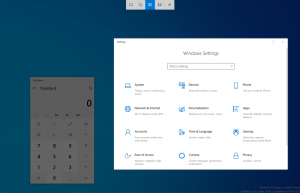
Image by: https://learn.microsoft.com/en-us/windows-insider/apps/snip-and-sketch
October 31, 2018
Snip Sketch received several notable improvements:
- Added an option to add borders to screenshots, making them stand out against backgrounds with the same color.
- Introduced a new Print button for easy printing or saving as PDF.

Image by: https://learn.microsoft.com/en-us/windows-insider/apps/snip-and-sketch
- Implemented confirmation for unsaved changes when closing a window or opening a file.
- Default proposed file names now include a timestamp for easy identification.
- Added support for saving snips as jpg and gif file types.
- The old About flyout was replaced with a comprehensive Settings page.
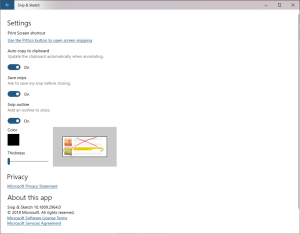
Image by: https://learn.microsoft.com/en-us/windows-insider/apps/snip-and-sketch
September 6, 2018
The version 10.1807.2286.0 update brought the highly-requested delay snip feature:
- Snip in 3 or 10 seconds: Users can now choose a delay before capturing a snip, allowing them to set up the perfect shot.
- Right-click options: The app icon on the taskbar provides quick access to snip delay settings through the jump list.

Image by: https://learn.microsoft.com/en-us/windows-insider/apps/snip-and-sketch
Conclusion
Snip & Sketch is continuously improving to meet user needs, and it remains a powerful tool for capturing, annotating, and sharing screenshots effortlessly. Whether you’re a Windows Insider or a retail user, Snip Sketch’s features are designed to enhance your snipping experience. Try out the latest updates and let Microsoft know your suggestions for further improvements by providing feedback through the app’s menu. Happy snipping!
Reference

Author



Author



Dallas has emerged as one of the most competitive commercial hubs in Texas. Companies across the city compete for attention on Google, social media, paid advertising platforms, and local search results. As competition grows, simply having a website no longer guarantees visibility.
Businesses need a clear strategy that matches how local customers search, compare, and choose services. They also need to reach potential customers at the right stage of the buying journey.
A strong Digital Marketing strategy can help businesses attract relevant visitors, generate qualified leads, and build long-term brand visibility. It can combine search engine optimization, content creation, paid advertising, social media, website improvements, and local search tactics.
Why Dallas Businesses Need a Strong Online Strategy
Dallas has a diverse and rapidly growing business environment. Local companies often compete within specific neighborhoods, while others target customers throughout the wider Dallas-Fort Worth area.
A company may serve customers in Uptown, Downtown Dallas, Oak Lawn, Lake Highlands, or Bishop Arts. Meanwhile, businesses targeting the larger DFW market may also compete with companies in Plano, Irving, Frisco, and Fort Worth.
Customers seldom reach out to a company without conducting some research beforehand. They may search Google, read reviews, compare prices, explore services, or visit several websites before making a decision.
Therefore, businesses need to remain visible throughout this process. A well-planned online strategy can help them appear when potential customers actively look for their products or services.
Build a Strong Local Search Presence
Local search can provide significant value for businesses that serve customers in specific areas. A company can improve its local visibility by optimizing its website, Google Business Profile, service pages, location pages, and customer reviews.
For example, a Dallas home improvement company could create content around searches such as kitchen remodeling in Dallas or bathroom renovation near me. These searches often show stronger buying intent than broad searches.
Instead of trying to reach everyone, local optimization focuses on people who already need a particular service. This approach can bring more relevant traffic and improve the chances of generating inquiries.
Create Content That Answers Customer Questions
Good content should help people make decisions. It should not simply repeat keywords across multiple pages.
A strong Digital Marketing plan can include service pages, location-based content, blog posts, guides, FAQs, and comparison articles. Each piece should address a genuine customer question or concern.
For instance, a local business could explain pricing factors, expected timelines, service options, common mistakes, or preparation steps. This information gives potential customers useful answers before they contact the company.
Helpful content can also build trust. When a business consistently provides clear and relevant information, customers may view it as a knowledgeable option within its industry.
Turn Website Visitors Into Leads
Generating website traffic represents only one part of the process. Businesses also need to turn that traffic into meaningful actions.
A confusing website can cause visitors to leave before they make an inquiry. Therefore, companies should make the next step simple and obvious.
A conversion-friendly website should include:
- Clear descriptions of products or services
- Strong and relevant calls to action
- Easy-to-find contact information
- Simple inquiry forms
- Click-to-call options for mobile users
- Customer reviews and trust signals
- Straightforward navigation
- Fast-loading pages
- Mobile-friendly design
These improvements can make the customer journey smoother. They can also help businesses get more value from the traffic they already receive.
Combine SEO With Paid Advertising
Search engine optimization can build visibility over time. Paid advertising, on the other hand, can place a business in front of potential customers much faster.
A balanced strategy can combine organic search with Google Ads, remarketing, social media advertising, digital marketing and targeted campaigns. Businesses can then compare performance across different channels.
Paid campaigns can also provide valuable insights. For example, advertising data may reveal which search terms generate the most inquiries. Businesses can use those findings to improve their website content and organic search strategy.
However, paid advertising should not operate without a clear goal. Campaigns need relevant landing pages, suitable audiences, strong offers, and ongoing performance monitoring.
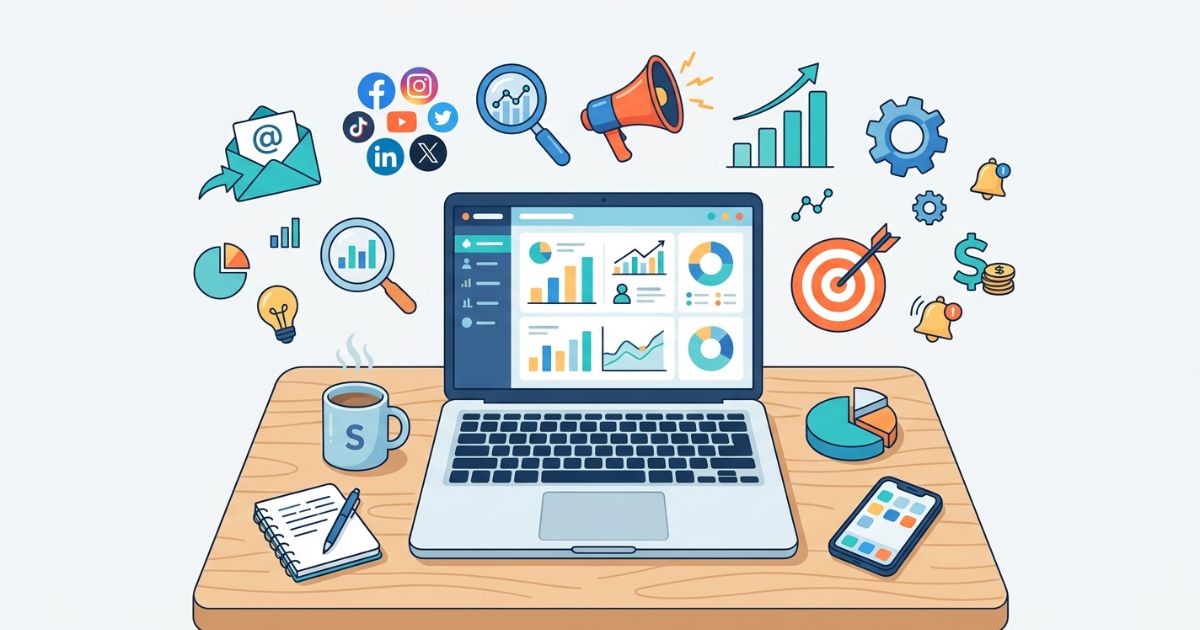
Strengthen Your Social Media Presence
Social media gives Dallas businesses another opportunity to connect with customers. The appropriate platform varies based on the audience and sector. Facebook and Instagram can work well for local services and visual businesses. LinkedIn can support B2B companies and professional services. Meanwhile, TikTok and YouTube can help brands reach audiences through short-form and educational video content.
Businesses can use social media to showcase completed projects, customer experiences, team members, product demonstrations, special offers, and community involvement.
Most importantly, businesses should focus on consistency. Posting random content simply to remain active rarely creates meaningful results. Instead, each post should have a clear purpose and provide something useful or interesting to the audience.
Use Data to Make Better Marketing Decisions
One major advantage of online marketing involves access to measurable data. Businesses can track website traffic, search rankings, leads, conversions, advertising results, engagement, and other important metrics. This data assists businesses in knowing what is effective and what requires enhancement.
For example, a service page may receive hundreds of visitors but generate very few inquiries. That result could indicate a weak call to action, unclear messaging, poor user experience, or an offer that does not match customer expectations. Data gives businesses an opportunity to investigate the problem. Instead of guessing, marketers can make changes based on actual customer behavior.
What to Look for in a Dallas Marketing Agency
Choosing an agency should involve more than comparing monthly fees. Businesses need a partner that understands their industry, customers, competitors, and service area.
A reliable agency should offer a clear strategy and explain how each activity supports the company’s goals. It should also provide transparent reporting and regular performance updates.
Look for experience in areas such as:
- Local SEO
- Content strategy
- Competitor research
- Website conversion optimization
- Paid advertising
- Social media marketing
- Performance tracking
- Reputation management
Most importantly, avoid agencies that offer the exact same package to every client. Your business has different customers, challenges, and goals. Your strategy should reflect those differences.
Create a Connected Growth Strategy
Successful online growth rarely comes from one marketing channel. SEO, content, paid advertising, social media, local search, reputation management, and website optimization should work together.
A Dallas marketing agency can connect these channels around shared business objectives. This approach creates a smoother path from initial search to website visit, inquiry, and eventual customer.
For example, local SEO can attract people searching for a service. Helpful content can answer their questions. A strong website can encourage them to contact the business. Reviews can then provide additional confidence before they make a decision.
This connected approach can create more consistent results than relying on one tactic alone.
Final Thoughts
Dallas businesses operate in a competitive digital environment. Customers have more choices, and they can compare companies within seconds. As a result, businesses need more than an attractive website. They need a strategy that puts them in front of the right audience and makes it easy for potential customers to take action.
Effective Digital Marketing combines visibility with trust, useful content, strong websites, and measurable campaigns. Businesses that continually review their data and improve their strategy can build stronger online visibility over time.
The key is to focus on the customer first. Understand what people search for, answer their questions, remove obstacles, and provide a clear reason to choose your business. With a consistent and connected approach, Dallas companies can attract better prospects and create sustainable opportunities for growth.
Author


AI tools such as ChatGPT Search have transformed the way people find information online. In the past, most people entered a few keywords into a search box and opened several websites to find the right answer. Today, you can ask a complete question and receive a direct, conversational response with relevant sources.
However, better technology does not always guarantee better results. Search Engine quality of your answer often depends on the quality of your question. A vague prompt may produce a general response, while a detailed prompt can help you find information that closely matches your needs.
That means you need to rethink how you search. Instead of treating AI like a traditional search box, you can treat it like a research assistant. Here are five practical ways to get more useful and accurate answers.
Ask a Clear and Specific Question
One of the easiest ways to improve your results is to stop relying on short keywords. A traditional Search Engine can work well with simple phrases, but AI tools can understand complete questions and detailed instructions.
For example, instead of searching for:
- Keyword search: “AI marketing tools”
- Try asking:
- AI prompt: “What are the best AI marketing tools for small businesses in 2026? Compare their main features, pricing, and best use cases.”
The second prompt gives the AI much more information. It explains what you are looking for, who the tools should suit, and which details matter most.
As a result, you are more likely to receive a focused answer instead of a general list. You can also mention your goal directly. For example, tell the AI whether you want to increase website traffic, create social media content, generate leads, or improve email marketing. The more clearly you describe the task, the easier it becomes for the AI to understand what you actually need.

Give Context Before You Search
Context can make a major difference. AI can provide more relevant recommendations when it understands your situation. For instance, searching “Which laptop is best?” leaves many important questions unanswered. Instead, you could write: “I am a computer science college student. I need a laptop under $1,000 for programming, research, and video calls. Which models should I consider?”
Now the AI knows your budget, your field of study, and the tasks you need to perform. Therefore, it can focus on options that fit your requirements rather than suggesting every popular laptop.
This approach works for many types of research. You can provide your location when looking for restaurants or travel destinations. You can mention your experience level when searching for software or courses. Likewise, you can include your budget when comparing products.
In short, context helps the Search Engine understand why you are searching. It can then narrow down the information and make the results more useful.
Tell the AI How You Want the Information Presented
You should not assume that the AI will automatically organize information in the way you prefer. Instead, tell it what the final answer should look like. For example, rather than asking: “Compare SEO tools.”
You could ask: “Compare these five SEO tools based on keyword research, pricing, ease of use, and features. Present the information in a simple table and recommend the best option for a small business.”
This simple instruction can save you considerable time. Instead of reading several long paragraphs, you can receive information in a format that makes comparison easier.
You can request bullet points, step-by-step instructions, pros and cons, summaries, checklists, or comparison tables. You can also ask for a short answer when you only need the main points.
Furthermore, you can tell the AI how detailed you want the response to be. If you are a beginner, ask for simple explanations. If you already understand the subject, request a more advanced response.
Use Follow-Up Questions to Explore the Topic
Another major advantage of AI search is the ability to continue a conversation. You do not need to create a completely new search whenever you think of another question. Instead, you can begin with a broad question and gradually explore the subject. For example, your research might begin with: What are the main benefits of solar energy for a small business? Then you could ask: “What are the biggest disadvantages?” After that, you might ask: “Which government incentives are currently available?” Finally, you could say: “Summarize the benefits, risks, and incentives in a simple comparison.”
This approach makes research feel more natural. You can respond to the information you receive and ask for clarification when something seems unclear. It also prevents you from creating one extremely long prompt that tries to cover everything at once. Start with the main question. Then use follow-ups to explore specific areas. Think of AI as a conversational research assistant rather than a traditional Search Engine. You can guide the conversation until you find the information you need.
Always Check the Sources
AI can make research faster, but you should not assume every answer is automatically accurate. AI tools can occasionally provide outdated information, misunderstand a source, or make factual errors.
This matters even more when you research health, finance, law, technology, or current events. Information in these areas can change quickly, so older sources may no longer provide an accurate picture.
Therefore, take a moment to review the citations and links included with the answer. Look for information from reliable sources, including government agencies, official company websites, universities, academic publications, and established news organizations.
You can also ask the AI to verify important claims. For example, ask, “What sources support this information?” You can also request, “Verify these statistics using reliable sources published within the last year.” This extra step can help you identify outdated or questionable information before you rely on it.
Final Thoughts
AI has made online research faster and more conversational Search Engine. However, the quality of your results still depends heavily on the way you ask questions. Start with a clear goal. Add useful context. Tell the AI how you want the answer organized. Then, use follow-up questions to explore the subject further. Finally, verify important information through reliable sources.
These habits can improve your research whether you are studying for school, working on a business project, comparing products, or learning something new. The key is simple: the clearer your question, the more useful your answer is likely to be. With practice, you can turn AI into a much more effective research tool and find relevant information with less effort.
Author


Car Maintenance: 7 Essential Summer Checks for Safer Driving

Digital Marketing Launceston: Grow Your Business Online

Drafting Services: Accurate CAD Solutions for Construction

Ghostwriter Cost 2026: Pricing, Services and Hiring

Carsicko Hoodie’s: Modern Streetwear Styling and Outfit Ideas

Business Opportunities in Brazil 2026: Ideas & Investment Tips

Best Cashback Mortgages UK: Compare Deals & Savings

Loan Settlement: Process, Credit Score Impact & Repayment Tips

Everyday Style: Common Projects Sneakers UK Styling Tips

Commercial Truck Financing Options for Business Owners

Cybersecurity Consulting Company SequelNet Provides Critical IT Support Services to Medical Billing Firm, Medical Optimum

Meet the Megalodon: The Shark Star of ‘Meg 2’

Reduce Video Game Lag: Level Up Your Gaming Performance

Balancing India’s Entertainment: Cricket vs. Bollywood

Jetsetter’s Secrets: Unveiling Our Favorite Travel Hacks for a Seamless Adventure

The 5 Best Live Sports Streaming Sites: Legal and Exciting!

Hollywood Labor Unrest: The Impact of ‘What About Us?’ Strikes

Unveiling the Magic of Dream Fulfillment at the Late NBA Draft

Illuminate Your Skin: Dr. Axe Unveils Natural Remedies for Lightening Knees and Elbows

Bright Choices: Navigating the Pros and Cons of Skin Whitening Creams with Dr. Axe
-

 Business3 years ago
Cybersecurity Consulting Company SequelNet Provides Critical IT Support Services to Medical Billing Firm, Medical Optimum
-
Entertainment3 years ago
Meet the Megalodon: The Shark Star of ‘Meg 2’
-
Entertainment3 years ago
Reduce Video Game Lag: Level Up Your Gaming Performance
-
 Sports3 years ago
Balancing India’s Entertainment: Cricket vs. Bollywood
-
Entertainment3 years ago
Jetsetter’s Secrets: Unveiling Our Favorite Travel Hacks for a Seamless Adventure
-
Productivity3 years ago
The 5 Best Live Sports Streaming Sites: Legal and Exciting!
-
Art /Entertainment3 years ago
Hollywood Labor Unrest: The Impact of ‘What About Us?’ Strikes
-
Sports3 years ago
Unveiling the Magic of Dream Fulfillment at the Late NBA Draft