
Finance
The Impact of Federal Reserve Policies on the Region

By

Reviewed
By Mike steven

The Federal Reserve, often referred to as the Fed, plays a critical role in shaping the U.S. economy. As the central banking system of the United States, its policies have wide-reaching impacts on everything from inflation rates and employment levels to financial markets and the cost of borrowing. In this article, we will explore how Federal Reserve policies influence the economy, examining both the positive and negative consequences of these actions, and providing a comprehensive understanding of the Fed’s vital role.
Understanding the Federal Reserve and Its Role
The Federal Reserve was established in 1913 to provide the country with a safer, more stable monetary and financial system. Its primary goals are to manage inflation, maintain employment, and stabilize the financial system. The Federal Reserve achieves these objectives through its control of the nation’s money supply and interest rates.
The Fed operates by setting the federal funds rate, which influences interest rates throughout the economy, and by adjusting the supply of money available to banks. These tools allow the Fed to either stimulate economic growth or slow it down, depending on the needs of the economy.
Federal Reserve Policies: Key Tools and Mechanisms
The Federal Reserve has several tools at its disposal to shape the economy:
1. Open Market Operations
The most commonly used tool is open market operations (OMO), where the Fed buys or sells government securities. When the Fed buys securities, it injects money into the economy, encouraging borrowing and spending. Conversely, selling securities withdraws money from the economy, slowing down borrowing and spending.

2. Federal Funds Rate
The federal funds rate is another significant tool. It is the interest rate at which banks lend to each other overnight. By lowering this rate, the Fed encourages borrowing, while raising it makes borrowing more expensive and discourages spending.
3. Discount Rate
The discount rate is the interest rate the Federal Reserve charges commercial banks for short-term loans. Lowering the discount rate can stimulate the economy by making it easier for banks to lend, while raising it can have the opposite effect.
4. Reserve Requirements
The reserve requirement refers to the amount of funds that banks must hold in reserve and not lend out. By lowering the reserve requirement, the Fed can increase the money supply, while raising it decreases the available money in the economy.
The Impact of Federal Reserve Policies on Inflation

This image is taken from google .com
Inflation, or the rise in prices over time, is a key concern for the Federal Reserve. When inflation is too high, the purchasing power of money decreases, leading to higher costs for consumers and businesses. The Fed uses its policies to keep inflation at a moderate level, typically around 2% annually.
Expansionary Monetary Policy and Inflation
When the economy is growing too slowly, the Fed may implement expansionary monetary policy by lowering interest rates and increasing the money supply. This can lead to higher inflation as more money chases the same amount of goods and services. While moderate inflation is normal in a healthy economy, excessively high inflation can be damaging.
Contractionary Monetary Policy and Inflation
On the other hand, when inflation is too high, the Fed can implement contractionary monetary policy. By raising interest rates and reducing the money supply, the Fed can cool down the economy and bring inflation under control. This approach, however, can slow economic growth and increase unemployment, as businesses reduce spending and investments.
The Impact of Federal Reserve Policies on Employment
One of the Federal Reserve’s primary goals is to maximize employment. The relationship between the Fed’s policies and employment levels is complex and often requires a delicate balancing act.
Stimulating Job Growth
When the economy is weak, the Federal Reserve lowers interest rates to stimulate borrowing and investment, leading to job creation. Lower borrowing costs encourage businesses to expand, hire more workers, and invest in new projects. As more money flows into the economy, consumer demand increases, driving the need for more labor.
Risk of Unemployment
However, when the Fed raises interest rates to control inflation, the cost of borrowing increases. This can lead to a slowdown in business growth and a reduction in job creation. In extreme cases, contractionary policies can lead to layoffs and higher unemployment rates. The Fed must carefully manage these dynamics to avoid triggering recessions while fighting inflation.
The Federal Reserve and Interest Rates: Effects on Borrowing and Spending
Interest rates set by the Federal Reserve are one of the most powerful influences on borrowing and spending in the economy. By adjusting the federal funds rate, the Fed can either encourage borrowing or make it more expensive, thus slowing spending.
Impact on Consumers
For consumers, lower interest rates reduce the cost of borrowing for mortgages, car loans, and credit cards. This leads to increased consumer spending, which stimulates economic growth. Conversely, higher interest rates make borrowing more expensive, reducing consumer spending and slowing economic growth.
Impact on Businesses
For businesses, interest rate changes affect the cost of financing. Lower rates encourage businesses to borrow more to invest in new projects, expand operations, and hire employees. Higher rates, on the other hand, discourage borrowing, leading to reduced business investment and slower growth.
The Impact of Federal Reserve Policies on Financial Markets
Federal Reserve policies also have significant impacts on financial markets. Interest rates, inflation expectations, and overall economic outlook are all influenced by the Fed’s actions, which in turn affect stock prices, bond yields, and currency values.
Stock Market
When the Fed lowers interest rates, it often leads to higher stock prices. This is because lower interest rates reduce the returns on bonds, making stocks a more attractive investment. Additionally, lower borrowing costs can increase corporate profits, boosting stock prices. However, if the Fed raises rates, stocks may decline as investors shift their money into safer, higher-yielding bonds.
Bond Market
In the bond market, interest rates are inversely related to bond prices. When interest rates rise, bond prices fall, and when rates decrease, bond prices rise. Fed policies that affect interest rates can therefore lead to significant fluctuations in bond prices, impacting investors and pension funds.
Foreign Exchange Market
Federal Reserve policies also affect the value of the U.S. dollar. Lower interest rates can weaken the dollar as investors seek higher returns in other currencies, while higher rates can strengthen the dollar by attracting foreign investment. These currency fluctuations can have widespread effects on international trade and global financial markets.
Long-Term Impacts of Federal Reserve Policies on Economic Growth
The Federal Reserve’s policies not only have short-term effects but also shape long-term economic growth. A stable and predictable monetary environment fosters confidence among investors, businesses, and consumers, which can lead to sustained economic growth.
Encouraging Long-Term Investment
By keeping inflation low and stable, the Fed creates an environment in which long-term investments, such as infrastructure and technology, become more attractive. This fosters innovation and productivity, which are essential for long-term economic growth.
Challenges in Predicting the Future
However, the long-term impacts of Fed policies can be difficult to predict. While the Fed aims to stabilize the economy, external factors such as global economic shifts, political instability, and technological change can complicate its ability to achieve these goals. Moreover, overreliance on monetary policy can sometimes create economic imbalances, leading to financial bubbles or unsustainable debt levels.
Analysis of Federal Reserve Policies
| Aspect | Positive Impact | Negative Impact |
|---|---|---|
| Inflation Control | Keeps inflation at manageable levels | May lead to deflation or too-low inflation, reducing growth |
| Employment | Stimulates job growth through lower interest rates | Can increase unemployment when contractionary policies are used |
| Consumer Borrowing | Low rates make loans affordable, boosting spending | High rates can reduce borrowing, leading to lower demand |
| Business Investment | Encourages investment and expansion | Higher borrowing costs can slow business growth |
| Financial Markets | Boosts stock prices with lower interest rates | Stock market volatility when rates are increased |
| Economic Stability | Provides long-term stability for planning | Overly aggressive policies can lead to financial bubbles |
Comparative Table of Monetary Policies
| Monetary Policy | Purpose | When It’s Used | Effect on Economy |
|---|---|---|---|
| Expansionary Policy | Stimulate growth, reduce unemployment | During recessions or periods of slow growth | Increases spending, inflation, and employment |
| Contractionary Policy | Reduce inflation, slow down economy | When inflation is high or the economy is overheating | Reduces spending, controls inflation, may raise unemployment |
| Neutral Policy | Maintain current economic conditions | During periods of stable growth | Keeps inflation and employment stable |
Conclusion
The Federal Reserve’s policies have profound impacts on the U.S. economy. Through its control of interest rates, money supply, and lending conditions, the Fed plays a central role in guiding economic growth, inflation, employment, and financial stability. While its policies offer significant benefits, such as stabilizing prices and promoting job growth, they also carry risks, particularly when not carefully balanced. Understanding these dynamics is essential for comprehending how monetary policy shapes the broader economic landscape.
Author



When QuickBooks bank feeds are not working, new transactions may stop downloading, balances may appear outdated, or QuickBooks may display a banking error such as 101, 102, 103, 105, 108, 390, 350, or 1000.
The good news is that a bank-feed problem does not automatically mean your QuickBooks company file is damaged. The issue may be related to your bank’s connection, outdated sign-in information, required bank authorization, browser data, a changed bank connection, or QuickBooks Desktop’s Financial Institutions Directory.
The most efficient approach is to identify the symptom first and then apply the fix that matches the underlying cause.
What to Do When QuickBooks Bank Feeds Stop Working
Start with these checks:
- Run a manual bank update.
- Sign in to your bank’s website directly.
- Check for bank alerts, maintenance, security prompts, or terms requiring acceptance.
- Verify your bank username and password.
- Complete any additional authentication requested by the bank.
- Try QuickBooks in a private or incognito browser window.
- If the connection itself needs rebuilding, review downloaded transactions before disconnecting and reconnecting.
- For QuickBooks Desktop, update the Financial Institutions Directory and verify that your Desktop version is supported.
- If automatic connectivity remains unavailable, manually import eligible transactions while investigating the connection.
QuickBooks states that connected bank accounts normally download new transactions automatically, while a manual update can be used to retrieve the latest available transactions.
Quick Diagnosis: Why Is Your QuickBooks Bank Feed Not Working?
| What You See | Possible Cause | Best First Action |
| Bank feed stopped without an error | Temporary bank or connection issue | Run a manual Update |
| Error 101 | Inactive account or unaccepted bank terms | Check account activity and bank prompts |
| Error 102 or 105 | Bank-side connection or maintenance problem | Update, check bank website, then wait and retry |
| Error 103 | Incorrect bank credentials or third-party access requirement | Verify credentials and bank access |
| Error 108 | Bank notification or message requiring attention | Sign in to bank and clear required prompts |
| Error 350 | Secure bank connection has expired or no longer works | Reconnect the bank connection |
| Error 390 | Bank connection needs to be upgraded | Disconnect and reconnect after reviewing transactions |
| Error 1000 | QuickBooks requires the bank connection to be rebuilt | Review transactions, then reconnect |
| Balance updates but transactions are missing | Posting, download, or bank-data delay | Run Update and check whether transactions are posted |
| “Consent has lapsed” or similar authorization message | Bank authorization needs attention | Follow the bank’s reauthorization process |
| QuickBooks Desktop cannot download transactions | Bank Feed, FiDir, connection, or supported-version issue | Update QuickBooks and refresh FiDir |
The exact message matters because different bank errors have different causes and troubleshooting paths. For example, Intuit currently identifies Error 102/105 with bank-side connection problems, while Error 103 generally relates to bank sign-in information.
Why Are QuickBooks Bank Feeds Not Working?
Bank-feed failures can originate from either side of the connection. Therefore, troubleshooting should begin by determining whether your bank website, QuickBooks account, or connection credentials are responsible.
1. Bank Maintenance or Connection Problems
Sometimes the bank’s online banking service is temporarily unavailable or undergoing maintenance. In that situation, QuickBooks may be unable to retrieve transactions even though your QuickBooks account itself is working correctly.
Error 102 and Error 105 are commonly associated with this type of connection problem.
Start by:
- Running a manual Update.
- Signing in to your bank website.
- Checking for outage or maintenance messages.
- Reviewing alerts and notifications.
- Trying the connection again after the bank resolves the issue.
Current QuickBooks guidance notes that bank-side problems may take 24–48 hours or longer to resolve, depending on the financial institution.
2. Bank Username or Password Changed
If you changed your bank password, username, or other online-banking information, QuickBooks may continue trying to use outdated credentials.
This is a common reason for QuickBooks Error 103.
First, verify that the credentials work directly on the bank’s website. If they do, update the sign-in information stored in QuickBooks and complete any requested authentication.
3. Your Bank Requires Third-Party Access
Some financial institutions require customers to authorize third-party services before an application such as QuickBooks can retrieve banking information.
Therefore, successfully signing in to your bank website does not always mean that third-party access is enabled.
Check the bank’s security or connected-services settings and follow its authorization instructions.
4. Bank Terms, Notifications, or Security Prompts Need Attention
A bank may require you to accept updated terms, acknowledge a security message, verify information, or complete another prompt before transaction data can be shared.
For example, QuickBooks identifies missed bank prompts as one possible cause of Error 101.
Sign in to the bank directly and clear any required notification before trying QuickBooks again.
5. Account Is Inactive
QuickBooks Error 101 can occur when attempting to connect an inactive account. Current QuickBooks guidance describes an account as active when it has an existing balance or transactions within the previous 12 months.
If the account should still be active but QuickBooks cannot connect, verify its status with the financial institution.
6. Browser Cache, Extensions, or Stored Sessions
QuickBooks Online banking connections can also behave differently because of browser extensions, cached authentication information, or an outdated browser session.
A useful diagnostic step is to sign in to QuickBooks using a private or incognito window and retry the bank update. Current QuickBooks guidance specifically recommends private browsing as a way to rule out browser-related connection problems.
How to Fix QuickBooks Bank Feeds Not Working
Step 1: Run a Manual Bank Update
This should normally be your first troubleshooting step.
QuickBooks Online
- Open QuickBooks.
- Go to All apps.
- Select Accounting.
- Open Bank transactions.
- Select Update.
- If QuickBooks requests additional authentication, complete the verification.
- Wait for the update to finish.
QuickBooks normally downloads available transactions automatically, but a manual update lets you request the latest available data instead of waiting for the next scheduled download.
If the update works, review the downloaded transactions before adding or matching them.
Step 2: Sign In to Your Bank Directly
If the update fails, open your bank’s website separately.
Check:
- Can you sign in successfully?
- Is the account active?
- Are there security alerts?
- Is there a new terms-and-conditions notice?
- Does the bank require third-party authorization?
- Is online banking undergoing maintenance?
- Can you see recent posted transactions?
If you cannot sign in to the bank directly, resolve that issue with the bank first.
If you can sign in normally, continue with QuickBooks troubleshooting.
Step 3: Fix QuickBooks Error 103
Error 103 generally indicates incorrect bank sign-in information.
To troubleshoot it:
- Open your bank website in a new or private browser window.
- Confirm the correct user ID.
- Confirm the current password.
- Make sure you are using the correct financial institution.
- Check whether third-party access is required.
- Return to QuickBooks.
- Open the affected bank account.
- Select Edit and then Edit sign-in info, where available.
- Enter the current credentials.
- Complete any requested verification.
- Select Update or Save and connect.
If your browser automatically fills old credentials, clear those fields and enter the current information manually.
Step 4: Troubleshoot Errors 102 and 105
For QuickBooks Error 102 or 105, start with a manual update.
Then:
- Sign in to the bank website.
- Look for maintenance notices.
- Review account alerts.
- Check whether transactions are visible.
- Return to QuickBooks.
- Run another Update.
If the bank is experiencing an outage, repeated QuickBooks changes are unlikely to solve the underlying problem. Give the financial institution time to restore its connection and retry afterward.
Step 5: Do Not Disconnect the Account Too Quickly
Disconnecting and reconnecting can help with certain connection errors, but it should not automatically be your first step.
Before disconnecting:
- Review the For review transactions.
- Check transactions that have already been categorized or matched.
- Note the date of the latest downloaded transaction.
- Confirm the correct QuickBooks account.
- Consider creating a backup where appropriate.
This matters because reconnecting can result in duplicate downloads or leave older transactions unavailable through the normal bank connection.
Current QuickBooks guidance specifically recommends reviewing downloaded transactions before disconnecting and reconnecting an affected account.
Step 6: Disconnect and Reconnect the Bank Feed
If the connection itself needs to be rebuilt:
- Open Bank transactions.
- Select the affected account.
- Review downloaded transactions first.
- Open the account’s Edit options.
- Select the option to disconnect the account.
- Save the change.
- Select Link account.
- Search for the correct financial institution.
- Enter the current banking credentials.
- Complete the bank’s authorization process.
- When QuickBooks asks which existing account should receive the transactions, select the correct account in your Chart of Accounts.
- Review the downloaded transactions carefully.
Errors such as 390 and 1000 may specifically require disconnecting and reconnecting the bank connection.
Step 7: Try QuickBooks in a Private Browser
If the bank works but QuickBooks still cannot update:
- Open an incognito/private browser window.
- Sign in to QuickBooks.
- Open Bank transactions.
- Select the affected account.
- Run Update again.
This helps determine whether cached data, extensions, or an existing browser session is interfering with the banking connection.
If the private window works, clear or review your normal browser’s cached data and extensions.
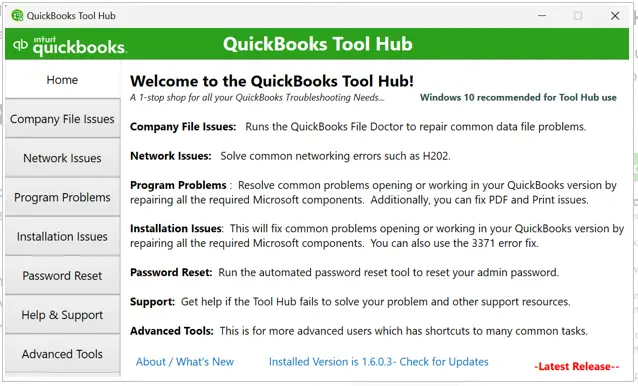
Expert Note: QuickBooks Tool Hub is a practical troubleshooting utility for QuickBooks Desktop that brings several diagnostic tools into one place, helping users address common program, company-file, network, and installation problems through a structured troubleshooting process.
QuickBooks Desktop Bank Feeds Not Working
QuickBooks Desktop uses different bank-feed mechanisms from QuickBooks Online.
Desktop bank connections can use Direct Connect or Web Connect, depending on what your financial institution supports. Web Connect uses a bank-provided .QBO file.
Update the Financial Institutions Directory
If QuickBooks Desktop cannot communicate correctly with your financial institution:
- Back up your company file.
- Update QuickBooks Desktop to the latest available release.
- Open Banking.
- Select Bank Feeds.
- Open Bank Feeds Center.
- Select Refresh account(s) or the appropriate synchronization option.
The Financial Institutions Directory, or FiDir, contains financial-institution information used by QuickBooks Desktop. Intuit provides both automatic and manual methods for updating it.
If the problem continues, test the bank connection in a properly configured test company file. This can help distinguish a company-file problem from a bank-connection problem.
What If QuickBooks Shows the Correct Balance but No Transactions?
This situation can be confusing because it may appear that the bank connection is working.
However, a balance and transaction list do not always update at exactly the same time.
Before changing the connection:
- Run a manual Update.
- Check whether the missing transactions are actually posted.
- Review the bank website.
- Check the transaction date range.
- Review the For review and categorized areas.
- Check whether the transactions are pending.
QuickBooks does not download pending transactions, and some transaction delays can take time to appear.
Alternative Solution: Manually Import Bank Transactions
If the automatic connection cannot be restored immediately, you can keep your accounting records current by importing supported transaction files.
QuickBooks Online currently supports transaction uploads including QBO, QFX, CSV, and certain statement formats.
A typical workflow is:
- Download the transaction file from your bank.
- Open Bank transactions in QuickBooks.
- Choose Upload from file.
- Select the appropriate QuickBooks account.
- Map the transaction columns.
- Review the imported transactions.
- Save the transactions.
- Match and categorize them.
- Reconcile the account when appropriate.
Be careful not to import transactions that are already present in QuickBooks. Otherwise, duplicates can be created.
For QuickBooks Desktop, Web Connect uses .QBO files, so the correct file format depends on the Desktop connection method and financial institution.
Important QuickBooks Bank Feed Errors to Know
Error 101
Usually associated with an inactive bank account or an unaccepted bank requirement. Check account activity and bank prompts.
Error 102
Generally indicates that QuickBooks cannot connect to the bank. Check for bank-side maintenance and run an update.
Error 103
Usually associated with incorrect bank credentials. Verify the login directly with the bank and update the information in QuickBooks.
Error 105
Usually indicates a bank connection problem, often related to the financial institution’s side. Update the connection and check the bank website.
Error 108
Can occur when a bank notification or message requires attention before transactions can download.
Error 350
Indicates that the secure connection between QuickBooks and the bank has expired or is no longer functioning correctly.
Error 390
Indicates that a bank connection needs to be upgraded and may require reconnecting the account.
Error 1000
Can indicate that the bank connection needs to be disconnected and reconnected. Review existing transactions first to reduce duplicate-download risk.
How to Prevent QuickBooks Bank Feed Problems
Good bank-feed maintenance starts before an error appears.
Follow these practices:
- Keep your QuickBooks product and supported components updated.
- Update QuickBooks immediately after changing bank credentials.
- Respond promptly to bank security prompts.
- Check the bank website when transactions suddenly stop.
- Review downloaded transactions regularly.
- Avoid disconnecting a bank account unnecessarily.
- Keep company-file backups when working with QuickBooks Desktop.
- Use the correct financial institution and connection method.
- Monitor unmatched or missing transactions before reconciliation.
- Use manual imports carefully when automatic connectivity is unavailable.
The goal is not simply to make transactions appear again. The goal is to maintain an accurate audit trail and prevent duplicate, missing, or incorrectly categorized transactions.
Frequently Asked Questions
Why are my QuickBooks bank feeds not working?
The cause may be a temporary bank connection problem, incorrect credentials, a required bank authorization, an inactive account, browser issues, or a connection that needs to be refreshed. Start with a manual Update and then check your bank website.
How do I fix QuickBooks Error 103?
Verify your bank username and password directly on the bank’s website. Then update the sign-in information in QuickBooks and complete any third-party authorization or verification required by the bank.
How do I fix QuickBooks Error 101?
Sign in to your bank, verify that the account is active, and look for missed terms or security prompts. Then return to QuickBooks and refresh the connection.
Why are QuickBooks bank transactions delayed?
Transactions may not appear immediately because of bank processing, connection delays, pending status, or download timing. QuickBooks also does not download pending transactions. Run a manual update and compare the results with your bank’s posted transactions.
Should I disconnect and reconnect my bank account?
Not immediately. First review downloaded transactions and determine whether the problem actually requires reconnection. Disconnecting unnecessarily can create duplicate-download risks or affect transactions waiting for review.
Can I use QuickBooks if bank feeds are down?
Yes. You can continue bookkeeping and, when appropriate, manually upload supported transaction files. However, imported transactions should be reviewed, matched, categorized, and reconciled carefully.
When should I get professional help?
Consider professional assistance when the same connection repeatedly fails after you have verified the bank website, credentials, authorization, browser environment, and QuickBooks configuration. Additional help is particularly useful when missing transactions affect reconciliation or when a QuickBooks Desktop company file behaves differently from a test company.
Final Takeaway
QuickBooks bank feeds not working does not necessarily mean your accounting data is damaged. In many situations, the underlying problem is the bank connection, outdated credentials, required authorization, browser session, temporary bank maintenance, or an outdated Desktop financial-institution configuration.
Start with a manual Update, then check the bank website and verify your credentials. Next, investigate authentication prompts and browser issues. Only after those checks should you consider disconnecting and reconnecting the account. For QuickBooks Desktop, also review the Financial Institutions Directory and supported-product requirements.
If automatic banking remains unavailable, manual transaction import can keep your bookkeeping moving while the connection is investigated.
For complex bank-feed, reconciliation, connectivity, or QuickBooks Desktop issues, Data Service Team can provide technical troubleshooting assistance at +1-(888)-718-7888.
Author

Introduction
You finish an invoice in QuickBooks Online, select Send, and expect the message to reach your customer. Instead, QuickBooks displays “Delivery Server Down,” “Unable to send your email,” or a similar email-delivery message.
The problem can interrupt invoice delivery, sales receipts, estimates, statements, and other customer communications. When invoices are waiting to be sent, an email failure can quickly become a business problem because customers may not receive the information they need to make payments.
Despite the wording, “Delivery Server Down” does not by itself prove that the QuickBooks email service is unavailable. The failure can originate from several places, including the email address, invoice or attachment, PDF generation, browser session, account configuration, or an actual service-side interruption.
This guide provides a structured way to identify the cause instead of repeatedly trying unrelated fixes.
What Does QuickBooks Delivery Server Down Mean?
The QuickBooks Delivery Server Down error occurs when QuickBooks cannot complete the process required to deliver an email or customer-facing sales form.
The issue may appear while sending:
- Invoices
- Estimates
- Sales receipts
- Credit memos
- Statements
- Purchase orders
- Other forms or PDF attachments
A message such as “Delivery Server Down” is therefore a delivery failure, not necessarily evidence that your company file or accounting records are damaged.
Quick Summary
| Item | Details |
| Problem type | Email and sales-form delivery failure |
| Common environment | QuickBooks Online |
| Main symptom | Email cannot be sent successfully |
| Possible causes | Email configuration, attachment, PDF, browser, account, network, or service issue |
| Data concern | An email-delivery failure does not itself indicate transaction loss |
| Best first check | Determine whether the problem affects one transaction, one user, or the entire account |
| Troubleshooting level | Usually straightforward, but recurring failures require deeper diagnosis |
Why Does QuickBooks Say “Delivery Server Down”?
There are several possible causes. The most efficient troubleshooting method is to determine where the failure occurs.
1. Invalid or Incorrect Email Address
An incorrectly entered customer or company email address can prevent successful delivery.
Look for:
- Missing @
- Missing domain name
- Extra spaces
- Incorrect punctuation
- Accidental prefixes
- Multiple addresses entered incorrectly
- Typographical errors
For example, an address containing additional text before the actual email address may not be accepted as a valid address.
Check both the customer’s email address and the email information associated with your QuickBooks account.
2. Problem With the Invoice or Attachment
If a message is sent successfully without an attachment but fails when a PDF is included, the attachment becomes an important troubleshooting clue.
Potential problems include:
- Unsupported attachment format
- Oversized attachment
- Damaged PDF
- Unusual filename
- Multiple attachments causing the failure
- A problem generating the sales-form PDF
Instead of changing several account settings at once, test the same transaction with the attachment removed or with a newly generated PDF.
This helps isolate whether the delivery failure is associated with the document itself.
3. PDF Generation or Rendering Problem
QuickBooks needs to generate the document correctly before it can deliver an invoice or other sales form as a PDF.
A PDF-related problem may become apparent when:
- The invoice preview does not render correctly.
- The PDF cannot be downloaded.
- The PDF opens incorrectly.
- Sending without a PDF works but sending with one fails.
- The issue occurs only with a particular custom form.
If the PDF itself cannot be generated correctly, changing the customer’s email address will not solve the underlying problem.
4. Browser Session Problems
QuickBooks Online runs through a web browser, so browser-related problems can interfere with account functions.
Possible contributors include:
- Corrupted cached data
- Outdated browser components
- Browser extensions
- An expired login session
- Cookies or site data causing unexpected behavior
Testing QuickBooks in a private/incognito window is a useful diagnostic step because it temporarily reduces the impact of cached data and many extensions.
5. Email or Account Configuration
QuickBooks may use account-level email settings for customer communications.
Review the email information associated with the company and verify that:
- The address is correct.
- There are no unintended characters.
- The appropriate company/customer-facing information is present.
- Recent changes have been saved.
If only one customer cannot receive an invoice, compare that customer’s record with a customer whose invoice sends successfully.
6. Network or Security Restrictions
A business network can sometimes interfere with browser-based services.
Possible contributors include:
- Corporate firewall policies
- Web filtering
- Security software
- VPN configuration
- Unstable internet connectivity
- Browser security restrictions
If QuickBooks works normally for other functions but email delivery fails consistently on one network, test the account from a different reliable connection.
Do not leave antivirus or firewall protection permanently disabled simply to test an email problem.
7. A Temporary Service-Side Problem
A genuine service interruption is also possible.
That is why the error message should not automatically be interpreted as either a server outage or a local configuration problem.
If multiple users experience the same delivery failure at approximately the same time, while unrelated account functions remain normal, check the current service status before making extensive configuration changes.
This is especially important when the problem begins suddenly without any changes to the account, browser, invoice, or customer records.
Quick Diagnostic Test
Before changing settings, perform this simple test.
Test A: Send another invoice
Send a different invoice to a different customer.
If the second invoice works:
The problem may be specific to the original customer, invoice, attachment, or transaction.
If the second invoice also fails:
Investigate account, browser, network, or service-level causes.
Test B: Remove the attachment
Try sending the transaction without an additional attachment.
Works without attachment:
Investigate the PDF or attachment.
Still fails:
Investigate email configuration, browser, account, network, or service conditions.
Test C: Try another browser
Open QuickBooks in another supported browser or a private browsing session.
Works there:
The original browser’s cache, cookies, extensions, or settings may be involved.
Fails everywhere:
Move the investigation toward the account, transaction, network, or service.
This simple isolation process can prevent unnecessary changes.
How to Fix QuickBooks Delivery Server Down Error
Fix 1: Verify the Customer Email Address
Start with the recipient’s address.
- Open the affected customer record.
- Review the email address carefully.
- Remove accidental spaces or additional text.
- Confirm the domain is spelled correctly.
- Save the customer record.
- Reopen the invoice.
- Try sending it again.
If the same invoice can be sent to another valid customer address, the recipient record is an especially strong suspect.
Fix 2: Check Your Company Email Information
Review the email information associated with your QuickBooks company settings.
Look for:
- Incorrect addresses
- Extra text
- Formatting errors
- Outdated addresses
- Unsaved changes
After making a correction, save the settings and test a new invoice.
Avoid changing several unrelated settings simultaneously. Making one controlled change at a time makes the cause easier to identify.
Fix 3: Test the Invoice Without Additional Attachments
If your invoice contains additional files, remove them temporarily.
Then:
- Open the invoice.
- Remove optional attachments.
- Save the transaction.
- Send the invoice again.
- If it works, add attachments back individually.
This approach identifies whether one particular attachment is responsible for the failure.
Fix 4: Regenerate the PDF
If the problem occurs only when sending a sales form as a PDF, regenerate the document.
- Open the affected transaction.
- Preview the form.
- Confirm that the invoice displays correctly.
- Save or download a fresh PDF if necessary.
- Test the newly generated document.
- Try sending the invoice again.
If one custom invoice template consistently produces the error while another template works, investigate the custom form rather than changing the entire email configuration.
Fix 5: Use a Private/Incognito Browser Window
A private browser session can help identify browser-cache or extension problems.
- Open a private/incognito window.
- Sign in to QuickBooks.
- Open the same invoice.
- Try sending it again.
If the message is sent successfully in private browsing, return to the normal browser and investigate extensions, cached data, cookies, and browser settings.
Fix 6: Clear Browser Cache and Site Data
If private browsing works but the normal session does not, clear the relevant browser cache and site data.
Then:
- Close the browser.
- Reopen it.
- Sign in to QuickBooks again.
- Open the affected transaction.
- Test email delivery.
You may need to sign in again after clearing browser data.
Fix 7: Disable Problematic Browser Extensions for Testing
Some browser extensions modify webpages, downloads, PDFs, privacy controls, or network requests.
If QuickBooks email delivery fails in your normal browser:
- Open the browser’s extension settings.
- Temporarily disable nonessential extensions.
- Sign in to QuickBooks again.
- Test the invoice.
- Re-enable extensions individually after testing.
Do not permanently remove security extensions solely because one test failed.
Fix 8: Check the Internet and Network Environment
Make sure the browser has a stable internet connection.
If you are on a business network:
- Test from another reliable network.
- Temporarily disconnect a VPN if your organization’s policy permits.
- Check whether other users experience the same problem.
- Ask the network administrator whether web filtering is affecting QuickBooks.
If the problem disappears when using another connection, investigate the original network rather than changing invoice data.
Fix 9: Check Whether the Problem Is Account-Wide
Determine the scope of the failure.
Ask:
- Can another user send an invoice?
- Can another customer receive an invoice?
- Can another transaction be emailed?
- Does the problem happen in another browser?
- Does the problem happen on another computer?
If only one transaction fails, investigate that transaction.
If one user fails, investigate the user’s browser/session.
If multiple users and transactions fail, investigate account-level, network, or service-level causes.
This is one of the most valuable diagnostic distinctions for recurring email problems.
What If You Need to Send the Invoice Immediately?
If QuickBooks email delivery is temporarily unavailable, you can use an alternative delivery method.
Depending on the options available in your QuickBooks account, you can:
- Open the invoice.
- Preview or download the invoice as a PDF.
- Save the document securely.
- Send the PDF using your normal business email service.
You can also use an available invoice-sharing option when appropriate.
This does not repair the QuickBooks delivery problem, but it can help prevent an urgent invoice from being delayed while troubleshooting continues.
Real-World Diagnostic Example
Imagine a consulting company reports that every invoice returns “Delivery Server Down.”
Instead of immediately changing browser settings, the technician performs three tests.
First, a different invoice is sent to another customer. It fails.
Second, the same account is tested in a private browser window. It still fails.
Third, another authorized user attempts to send an invoice. That also fails.
Because the failure occurs across multiple transactions, users, and browser sessions, the investigation should move away from one customer’s email address or one invoice.
The next step is to check the account environment, network conditions, and whether there is a current service-side interruption.
This approach is more reliable than assuming every Delivery Server Down message has the same cause.
QuickBooks Delivery Server Down vs. Other Email Problems
Not every QuickBooks email problem is the same.
| Problem | What to investigate |
| Delivery Server Down | Delivery process, account, browser, attachment, network, service |
| Invoice will not email | Customer address, account settings, browser, service |
| PDF will not generate | Form, browser, PDF rendering, transaction |
| Email sends but customer does not receive it | Recipient mailbox, spam filtering, recipient address |
| Only one invoice fails | Transaction, customer, attachment, template |
| All users cannot send | Account, network, service-side condition |
| Only one browser fails | Cache, cookies, extensions, browser configuration |
This distinction matters because the correct solution depends on where the failure occurs.
How to Prevent QuickBooks Email Delivery Problems
A few maintenance practices can reduce recurring issues:
- Keep customer email addresses accurate.
- Review company email information after organizational changes.
- Avoid unnecessary or oversized attachments.
- Keep browsers supported and updated.
- Remove problematic browser extensions.
- Use stable internet connections.
- Keep invoice templates organized and test custom forms after major changes.
- Maintain reliable PDF generation on the computer used for document handling.
- Test a second transaction before assuming the entire QuickBooks account is affected.
- Check service status when multiple users suddenly experience the same failure.
- Keep an alternate invoice-delivery process available for urgent billing.
If you’re experiencing other QuickBooks Desktop application issues, see our guide to QuickBooks Error 6094, 0 troubleshooting for additional diagnostic steps.
Frequently Asked Questions
What does QuickBooks Delivery Server Down mean?
It means QuickBooks could not complete an email or sales-form delivery operation. The message does not, by itself, prove that the QuickBooks service is down. The cause may be local, account-related, transaction-specific, network-related, or service-side.
Will Delivery Server Down delete my invoice?
An email delivery failure does not normally mean that the invoice transaction itself has been deleted. Verify the invoice in QuickBooks before attempting to recreate it to avoid duplicate transactions.
Why can I create an invoice but not email it?
Creating an invoice and delivering an email are separate processes. If the transaction saves successfully but sending fails, investigate the email address, PDF/attachment, browser, account configuration, network, or service environment.
Why does QuickBooks email work for one customer but not another?
The affected customer record may contain an incorrect or improperly formatted email address, or the transaction may contain different attachments or information. Compare a successful transaction with the failed one.
Why does the Delivery Server Down error happen only with attachments?
If invoices send normally without attachments, the attachment or PDF-generation process becomes a strong diagnostic clue. Test the invoice without the additional attachment and then add files individually.
Can browser cache cause QuickBooks email problems?
Yes, browser data or extensions can interfere with web applications. Testing QuickBooks in a private/incognito window is a useful way to determine whether the normal browser session is contributing to the problem.
Is QuickBooks Delivery Server Down always caused by an incorrect email address?
No. An incorrect address is only one possible cause. Attachment problems, browser issues, network restrictions, account configuration, and temporary service interruptions can also affect delivery.
Can I send an invoice without QuickBooks email working?
Yes. If your QuickBooks account allows you to preview or download the invoice, you can save the document as a PDF and use another business email method while troubleshooting the original delivery problem.
Does this error mean my QuickBooks company data is corrupted?
No. A delivery error alone does not establish company-file corruption. If transactions open and save normally but email delivery fails, focus first on the delivery process.
What should I do if every user receives the error?
If multiple users cannot send different transactions, stop treating the problem as an isolated customer-record issue. Check account-level conditions, network restrictions, and current service availability.
When should I get professional help?
Seek technical assistance when the problem persists across multiple browsers and users, affects all customer communications, returns after repeated troubleshooting, or is accompanied by other QuickBooks errors or unexpected transaction behavior.
Final Takeaway
QuickBooks Delivery Server Down is an email-delivery problem, not a diagnosis of company-file damage.
The most effective troubleshooting strategy is to isolate the failure.
Start by checking the recipient’s email address and the affected transaction. If the problem occurs only with attachments, investigate the PDF or file. If it disappears in another browser, examine cache, cookies, and extensions. If multiple users and transactions fail simultaneously, investigate account, network, and service-level conditions before making extensive changes.
Most importantly, do not assume that the phrase “Delivery Server Down” automatically means either a QuickBooks outage or a local configuration problem. Diagnose the scope of the failure first, then apply the appropriate fix.
If your business depends on QuickBooks for timely customer invoicing and email delivery continues to fail, Data Service Team can provide practical troubleshooting assistance for QuickBooks Online email, invoice, PDF, and account-related delivery problems.
For expert assistance, call Data Service Team at +1-(888)-718-7888.
Author
Author


Cash Only A Modern Approach to Everyday Streetwear

Kentucky Bourbon Trail Tours What Is Included and How to Plan a Trip

Point Cloud to BIM for Renovation Projects: From 3D Scanning

Malware Protection Solutions for Business Data Security

Balance With Dedicated Oversight From the Best Virtual Psychiatrist

Make Gifts Memorable with Custom Shaped Rigid Boxes

Brooklyn Creativity, Streetwear, Art, and Fashion

CAD vs. BIM: Which Workflow Is Right for Your Project?

Top 25 Podcast Marketing Firms Based in the United States

QuickBooks Bank Feeds Not Working: Expert Fix Guide

Cybersecurity Consulting Company SequelNet Provides Critical IT Support Services to Medical Billing Firm, Medical Optimum

Meet the Megalodon: The Shark Star of ‘Meg 2’

Reduce Video Game Lag: Level Up Your Gaming Performance

Balancing India’s Entertainment: Cricket vs. Bollywood

Jetsetter’s Secrets: Unveiling Our Favorite Travel Hacks for a Seamless Adventure

The 5 Best Live Sports Streaming Sites: Legal and Exciting!

Hollywood Labor Unrest: The Impact of ‘What About Us?’ Strikes

Unveiling the Magic of Dream Fulfillment at the Late NBA Draft

Illuminate Your Skin: Dr. Axe Unveils Natural Remedies for Lightening Knees and Elbows

Bright Choices: Navigating the Pros and Cons of Skin Whitening Creams with Dr. Axe
-

 Business3 years ago
Cybersecurity Consulting Company SequelNet Provides Critical IT Support Services to Medical Billing Firm, Medical Optimum
-
Entertainment3 years ago
Meet the Megalodon: The Shark Star of ‘Meg 2’
-
Entertainment3 years ago
Reduce Video Game Lag: Level Up Your Gaming Performance
-
 Sports3 years ago
Balancing India’s Entertainment: Cricket vs. Bollywood
-
Entertainment3 years ago
Jetsetter’s Secrets: Unveiling Our Favorite Travel Hacks for a Seamless Adventure
-
Productivity3 years ago
The 5 Best Live Sports Streaming Sites: Legal and Exciting!
-
Art /Entertainment3 years ago
Hollywood Labor Unrest: The Impact of ‘What About Us?’ Strikes
-
Sports3 years ago
Unveiling the Magic of Dream Fulfillment at the Late NBA Draft