
Finance
How to Fix QuickBooks Has Stopped Working in Mac


QuickBooks Desktop for Mac helps businesses manage accounting records, track expenses, create invoices, and monitor financial transactions. However, when QuickBooks has stopped working in Mac, it can interrupt daily accounting activities and prevent users from accessing important company information.
This issue may appear when QuickBooks freezes, closes unexpectedly, fails to launch, or displays a crash report. The problem can be related to outdated software, compatibility issues, damaged company files, or temporary system problems.
In this guide, you will learn why QuickBooks stops working on a Mac and how to troubleshoot the issue safely.
Why Has QuickBooks Stopped Working on Mac?
Several factors can cause QuickBooks Desktop for Mac to crash or become unresponsive.
- Outdated QuickBooks software: An older release may contain bugs that affect stability or compatibility.
- macOS compatibility issues: Certain QuickBooks versions may experience problems after a macOS update.
- Damaged company files: A problem with your company file may cause QuickBooks to crash when opening or processing data.
- Temporary system issues: Background processes or limited system resources may affect performance.
- Damaged application components: Missing or corrupted program files can prevent QuickBooks from working correctly.
- Unexpected application errors: QuickBooks may close while opening reports, processing transactions, or performing other accounting tasks.
Identifying when the crash occurs can help you determine which troubleshooting method to try first.
How to Fix QuickBooks Has Stopped Working in Mac
Follow these troubleshooting steps in order, testing QuickBooks after each step.

1. Force Quit QuickBooks and Restart Your Mac
Temporary application problems can sometimes cause QuickBooks to freeze or stop responding.
- Save your work if QuickBooks is still responding.
- Press Command + Option + Esc to open the Force Quit Applications window.
- Select QuickBooks from the list.
- Click Force Quit if the application is unresponsive.
- Restart your Mac and open QuickBooks again.
Allow the application enough time to load before clicking its icon repeatedly. If QuickBooks continues to crash, proceed to the next solution.
2. Update QuickBooks Desktop for Mac
Outdated software may contain bugs or compatibility issues that affect application stability.
To check for updates:
- Open QuickBooks Desktop for Mac.
- Select the QuickBooks menu.
- Click Check for QuickBooks Updates.
- If an update is available, select Install Update.
- Follow the prompts to install the update and relaunch QuickBooks.
If the application will not open, consult Intuit’s official update instructions to determine whether a manual update is available for your product and version.
3. Check macOS Compatibility
If QuickBooks started crashing after a macOS upgrade, compatibility may be a contributing factor.
Check whether your QuickBooks version supports the installed macOS version. Visit the official Intuit support website to review product-specific compatibility information and available patches.
Avoid upgrading or downgrading macOS solely to troubleshoot QuickBooks without first checking compatibility and protecting your accounting data.
4. Check Whether the Company File Is Causing the Crash
Sometimes QuickBooks opens successfully but crashes when you access a particular company file.
To investigate:
- Close QuickBooks completely.
- Reopen the application without immediately opening your usual company file, if the application allows it.
- Check whether QuickBooks remains stable before opening the company file.
- If you suspect file damage, make a backup before attempting data repairs.
QuickBooks Desktop for Mac includes Verify and Rebuild utilities that can identify and address certain company file data problems. Follow Intuit’s instructions for your version before running a rebuild.
If QuickBooks crashes only when opening one particular file, avoid repeatedly modifying or restoring it without a verified backup.
5. Reinstall QuickBooks for Mac if Necessary
If restarting and updating do not resolve the problem, the application installation may need attention.
Before reinstalling, make sure you have a current company file backup and access to your product and license information. Download the correct installer for your QuickBooks version from an official Intuit source.
Follow Intuit’s Mac-specific reinstall instructions. A clean installation may require removing certain preference files, which can reset application settings or registration information. Do not delete company data or preference files without understanding the consequences.
For related troubleshooting, read our guide on QuickBooks keeps crashing to explore additional causes of unexpected application closures.
How to Prevent QuickBooks from Crashing on Mac
A few routine practices can help reduce recurring problems:
- Install available QuickBooks updates that apply to your version.
- Check compatibility before upgrading macOS.
- Maintain regular backups of your company file.
- Close QuickBooks properly when possible.
- Keep sufficient free storage space on your Mac.
- Record any error messages or crash reports before contacting support.
If QuickBooks repeatedly fails to launch, our guide to QuickBooks won’t open provides additional troubleshooting information for startup problems.
Important: QuickBooks Tool Hub and its Windows repair utilities are not standard troubleshooting tools for macOS. Use instructions and utilities specifically intended for QuickBooks Desktop for Mac.
Conclusion
When QuickBooks has stopped working in Mac, the first steps are to restart the application, check for compatible updates, and determine whether the issue affects the entire program or a particular company file.
Back up your accounting data before attempting repairs or reinstalling the software. If the problem continues, consult official Intuit support with your QuickBooks version, macOS version, and any available crash report to identify the appropriate solution.
Frequently Asked Questions
Why does QuickBooks keep crashing on my Mac?
Possible causes include outdated QuickBooks software, macOS compatibility problems, damaged company files, or application errors. Restart your Mac and check for compatible QuickBooks updates before attempting advanced repairs.
How do I fix QuickBooks when it stops responding on Mac?
Try saving your work if possible, force quitting the application, and restarting your Mac. If the issue continues, update QuickBooks and investigate whether a particular company file triggers the crash.
Why won’t QuickBooks Desktop for Mac open after a macOS update?
The installed QuickBooks version may have compatibility issues with the updated operating system. Check Intuit’s compatibility guidance and install any applicable product updates before considering other changes.
Can a damaged company file cause QuickBooks to crash on Mac?
Yes. Company file problems can cause crashes when QuickBooks opens or processes accounting data. Back up the file and use the Verify and Rebuild utilities according to Intuit’s instructions.
Will reinstalling QuickBooks for Mac delete my company file?
Reinstalling the application is different from deleting a company file, but you should never assume your data is protected without a backup. Make a verified backup before reinstalling and follow the official Mac-specific instructions.
Is QuickBooks Tool Hub available for Mac?
QuickBooks Tool Hub is designed for Windows and should not be treated as a Mac repair utility. Mac users should follow troubleshooting instructions specifically intended for QuickBooks Desktop for Mac.
Read more: https://contrank.com/
Author



QuickBooks Error PSXXX is a payroll-related message that can appear when QuickBooks Desktop encounters difficulty processing a payroll update, validating payroll information, or communicating correctly with the services required for payroll functions. Because payroll depends on current tax tables and accurate company information, ignoring a PSXXX error can create problems when processing employee payments or updating payroll data.
The exact PSXXX code can vary depending on the underlying condition. For that reason, the first step should always be to identify the complete error code displayed on the screen rather than treating every PSXXX message as the same problem.
QuickBooks Error PSXXX? Call Data Service Team at +1-888-718-7888 for a [FREE CONSULTATION].
What Does QuickBooks Error PSXXX Mean?
QuickBooks Error PSXXX generally indicates that QuickBooks Desktop has encountered a problem while working with payroll-related updates or payroll components. The error may appear during a payroll update, when downloading the latest payroll tax table, or while accessing payroll-related features.
A PSXXX message can be associated with several conditions, including an outdated QuickBooks Desktop release, damaged program components, an incorrect payroll subscription status, incomplete updates, or interference from Windows settings.
Rather than repeatedly attempting the same update, users should first determine the specific PSXXX code and then work through the appropriate troubleshooting process.
Common Causes of QuickBooks Error PSXXX
There is rarely one universal cause behind every PSXXX message. Several technical or account-related conditions can trigger the problem.
1. Outdated QuickBooks Desktop
An older QuickBooks Desktop release may not work correctly with newer payroll requirements. Installing the latest available update for the installed version can resolve compatibility-related issues.
2. Incomplete Payroll Update
If a payroll update was interrupted by a connection problem, Windows interruption, or another application, some required files may not have been downloaded correctly.
3. Damaged QuickBooks Components
Corrupted program files can prevent QuickBooks from completing payroll-related operations. In such situations, repairing the application may be more effective than repeatedly downloading the same update.
4. Incorrect System Date and Time
QuickBooks uses system information when communicating with online services. An incorrect Windows date, time, or time-zone configuration can interfere with authentication and update processes.
5. Payroll Subscription Problems
Payroll features depend on an active payroll subscription and accurate account information. If the subscription is inactive or QuickBooks cannot validate the account properly, payroll updates may fail.
6. Windows Firewall or Security Restrictions
Security software can sometimes interfere with QuickBooks connections. This does not mean that security protection should simply be disabled. Instead, the QuickBooks installation and required connection settings should be checked carefully.
7. Damaged Company or Program Data
In some situations, the error may occur because of damaged company information or problems within the QuickBooks installation itself.
How to Fix QuickBooks Error PSXXX
The correct solution depends on the specific PSXXX code and what QuickBooks was doing when the error appeared. The following sequence provides a practical starting point.
Step 1: Record the Complete Error Code
Before changing anything, write down the complete PSXXX message. For example, QuickBooks payroll errors can include codes such as PS033 or PS036.
The final digits matter because different codes can indicate different underlying conditions. Avoid applying a random fix simply because another QuickBooks user experienced a similar-looking message.
Step 2: Verify Your Internet Connection
A payroll update requires a reliable internet connection. Open a few trusted websites in your browser to confirm that the connection is working.
If the connection is unstable, resolve that problem first. Then reopen QuickBooks and try the payroll update again.
Step 3: Check Windows Date and Time
Open Windows date and time settings and verify the following:
- Correct date
- Correct time
- Correct time zone
- Automatic time synchronization, when appropriate
After correcting the settings, restart QuickBooks and retry the payroll update.
Step 4: Update QuickBooks Desktop
Open QuickBooks Desktop and look for the available update option. Download and install the appropriate update for your QuickBooks version.
After installation, restart the application and attempt the payroll update again.
Keeping QuickBooks current can also help prevent other Desktop problems involving payroll, printing, company files, and connectivity.
Step 5: Update the Payroll Tax Table
If the QuickBooks application is current but the payroll tax table is not, download the latest available payroll update through the normal QuickBooks payroll update process.
Allow the process to finish completely. Interrupting the download or closing QuickBooks during an update can leave the installation incomplete.
Step 6: Run QuickBooks as an Administrator
In some Windows environments, QuickBooks may require elevated permissions to complete specific installation or update operations.
Close QuickBooks, right-click the QuickBooks Desktop icon, select the administrator option, and then reopen the company file.
This should be used as a troubleshooting step rather than changing Windows permissions permanently without understanding the consequences.
Step 7: Repair QuickBooks Program Files
If the PSXXX error continues after updating QuickBooks, damaged installation files may be involved.
The QuickBooks Tool Hub can be useful for diagnosing several Desktop problems. Depending on the issue, its utilities may help repair program components or identify problems affecting QuickBooks operation.
Data Service Team also provides assistance with QuickBooks Tool Hub, QuickBooks File Doctor, and QuickBooks Missing PDF Component problems. Call +1-888-718-7888 for a [FREE CONSULTATION].
QuickBooks PS033 and PS036 Errors
Two payroll-related codes that users commonly encounter are PS033 and PS036.
QuickBooks Error PS033
PS033 can occur when QuickBooks has difficulty reading or processing a payroll update. Damaged payroll update files, an incomplete update, or problems with payroll data may contribute to the issue.
A practical approach is to update QuickBooks Desktop, download the latest payroll update, restart Windows, and then test the payroll function again.
QuickBooks Error PS036
PS036 may appear when QuickBooks encounters difficulty validating payroll information or processing a payroll subscription-related operation.
Check the payroll account information, verify the subscription status, update QuickBooks Desktop, and then attempt the payroll update again. If the message remains, examine the specific details shown in the error window rather than repeatedly retrying the same operation.
For payroll errors that remain unresolved, Data Service Team can help users examine the QuickBooks environment and identify the likely source of the problem at +1-888-718-7888.
When QuickBooks Tool Hub Can Help
QuickBooks Tool Hub combines several troubleshooting utilities in one application. It can be useful when a QuickBooks Desktop problem involves damaged installation components, company file issues, network problems, or other common application errors.
It is especially relevant when a PSXXX problem occurs alongside additional symptoms such as:
- QuickBooks freezing
- QuickBooks refusing to open
- Company files failing to load
- Connection problems
- Program installation errors
- Unexpected application messages
However, Tool Hub should not be treated as a universal solution. The underlying error code and symptoms should determine which diagnostic utility is appropriate.
What If QuickBooks Error PSXXX Keeps Returning?
If the error returns after updating QuickBooks and the payroll tax table, avoid making repeated changes to Windows or deleting files without knowing what they contain.
Instead, check the following:
- Confirm the complete PSXXX code.
- Verify the QuickBooks Desktop version.
- Check whether the payroll subscription is active.
- Confirm that Windows date and time are correct.
- Install the appropriate QuickBooks updates.
- Restart the computer.
- Retry the payroll update.
- Examine any additional message displayed by QuickBooks.
If the problem started immediately after a software, Windows, or payroll update, note that timing. It can provide an important clue when diagnosing the problem.
Can QuickBooks File Doctor Fix a PSXXX Error?
QuickBooks File Doctor is primarily designed for certain company file and network-related problems. It may be useful when the PSXXX message occurs together with company file damage or connectivity symptoms, but it should not automatically be considered the correct solution for every payroll error.
The diagnostic tool should match the actual problem. Using multiple utilities without identifying the underlying issue can make troubleshooting unnecessarily complicated.
Why Should You Avoid Random QuickBooks Fixes?
QuickBooks stores important financial and payroll information. Making unnecessary changes to company files, Windows permissions, installation folders, or security settings can create additional problems.
A better troubleshooting approach is to identify the error first, make one appropriate change at a time, and verify the result before moving to another step.
This approach also creates a clearer record of what changed and whether the problem was actually resolved.
How Data Service Team Can Help With QuickBooks Errors
Data Service Team provides QuickBooks-focused assistance for Desktop, payroll, company file, migration, printing, and connectivity-related problems.
The team can help users investigate issues involving QuickBooks Tool Hub, QuickBooks File Doctor, Missing PDF Component problems, payroll errors, installation errors, and other Desktop messages.
For users who are uncertain which troubleshooting method applies to their particular PSXXX code, a FREE CONSULTATION can help establish the next appropriate step.
Call +1-888-718-7888 for a FREE CONSULTATION with Data Service Team.
QuickBooks Desktop to Online Migration
Some QuickBooks users encounter repeated Desktop problems and eventually decide to move their accounting workflow to QuickBooks Online. Migration should not be treated as a simple file transfer.
Before moving from QuickBooks Desktop to Online, review your company file, transaction history, lists, payroll information, reports, and other business records. Determine what information needs to be transferred and verify the resulting Online data after migration.
Data Service Team also provides services for migrating from QuickBooks Desktop to Online. Call +1-888-718-7888 for a FREE CONSULTATION.
Frequently Asked Questions
What is QuickBooks Error PSXXX?
QuickBooks Error PSXXX is a family of payroll-related error messages that can occur when QuickBooks encounters difficulty with payroll updates, payroll information, program components, or related account operations.
Is PSXXX always caused by payroll?
PSXXX codes are generally associated with payroll-related operations, but the underlying cause can involve QuickBooks program files, updates, Windows settings, connectivity, or subscription validation.
How do I start fixing a PSXXX error?
Start by recording the complete error code. Then verify your internet connection, Windows date and time, QuickBooks version, payroll subscription status, and available QuickBooks updates.
Can updating QuickBooks resolve PSXXX?
Updating QuickBooks can resolve problems caused by an outdated application or compatibility issue. However, it is not guaranteed to fix every PSXXX code.
What should I do if PS033 appears?
For PS033, verify the QuickBooks version, install the latest applicable QuickBooks update, download the current payroll update, and retry the process. If the error remains, investigate the specific message and payroll environment.
What should I do about PS036?
Check the payroll subscription and account information, update QuickBooks Desktop, and retry the payroll update. Persistent PS036 messages may require a closer examination of the installation and payroll configuration.
Can QuickBooks Tool Hub help with payroll errors?
Tool Hub can help diagnose several QuickBooks Desktop problems, but not every payroll error is caused by an issue that Tool Hub can resolve. Select a utility based on the symptoms and error code.
Can Data Service Team help with other QuickBooks errors?
Yes. Data Service Team works with issues such as QuickBooks Error 1904, PS033, 6123, 0, 15215, 1935, QBWC1039, Unrecoverable Errors, Missing PDF Component problems, and related Desktop issues.
Is it safe to delete QuickBooks files to fix PSXXX?
Deleting QuickBooks or payroll files without knowing their purpose is not recommended. Important company and payroll information can be affected by unnecessary file changes. Identify the error first and use an appropriate troubleshooting procedure.
Where can I get a FREE CONSULTATION for QuickBooks Error PSXXX?
You can contact Data Service Team at +1-888-718-7888 for a FREE CONSULTATION regarding QuickBooks Error PSXXX and other QuickBooks Desktop issues.
Final Thoughts
QuickBooks Error PSXXX should be approached as a specific diagnostic problem rather than a generic QuickBooks failure. The complete error code, QuickBooks version, payroll status, update history, and symptoms all provide useful clues.
Start with straightforward checks such as the internet connection, Windows date and time, QuickBooks updates, and payroll tax table updates. Avoid unnecessary file deletion or system changes when the cause has not been established.
For additional QuickBooks issues—including QuickBooks Tool Hub, File Doctor, Missing PDF Component, Unrecoverable Error, Error 1904, PS033, Error 6123, 0, Error 15215, QBWC1039, Error 1935, QuickBooks Error 6094 0 and Desktop-to-Online migration—Data Service Team offers a FREE CONSULTATION.
Call +1-888-718-7888 to discuss your QuickBooks issue and determine the appropriate next step.
Author


Managing cash flow is one of the biggest challenges for businesses, especially when customers take 30, 60 or 90 days to make payments. A business may have completed an order and raised an invoice, but the money remains tied up until the buyer makes the payment.
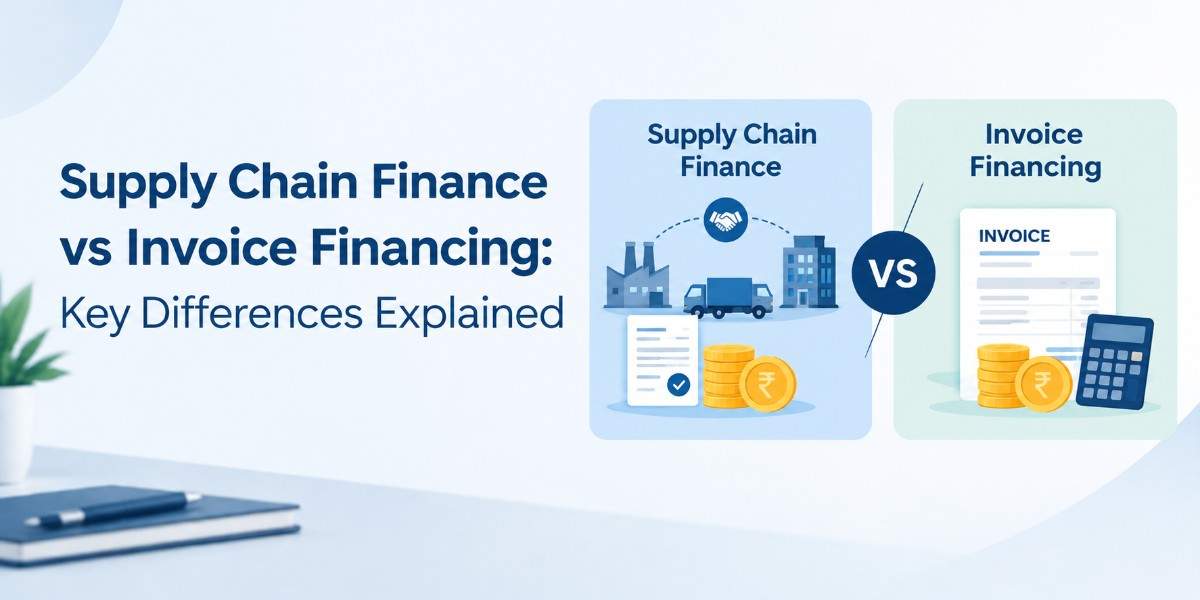
Supply chain finance and invoice financing are two financing options that can help businesses manage this gap. While both can provide access to working capital, they work differently and are designed around different business situations.
Understanding the difference between supply chain finance and invoice financing can help businesses choose an option based on their cash flow needs, customer relationships and payment cycles.
What Is Supply Chain Finance?
Supply chain finance is a financing arrangement that helps improve cash flow for businesses involved in a supply chain. It generally allows suppliers to receive payment earlier while giving buyers the flexibility to maintain their agreed payment terms.
For example, a supplier may sell goods to a large corporate buyer and raise an invoice with a 60-day payment period. Instead of waiting for 60 days, the supplier may be able to receive the payment earlier through a supply chain finance arrangement.
The financier provides funds against the eligible receivable, while the buyer makes payment according to the agreed terms.
Supply chain finance can therefore benefit both sides of a transaction. Suppliers can improve their cash flow, while buyers can maintain their payment cycles and strengthen relationships with suppliers.
What Is Invoice Financing?
Invoice financing is a broader form of financing where a business uses its outstanding invoices to access working capital before the customer pays.
When a business has unpaid invoices from customers, it can use eligible invoices to obtain financing from a financier or financing platform. The amount provided depends on factors such as the invoice value, buyer, transaction terms and the financier’s assessment.
For example, if an MSME has raised an invoice worth ₹10 lakh and expects payment after 60 days, invoice financing may allow the business to access funds against that invoice instead of waiting until the due date.
Invoice financing can include different structures, such as invoice discounting and invoice factoring.
Supply Chain Finance vs Invoice Financing: What Is the Difference?
The main difference is the way the financing is structured and the parties involved.
Supply chain finance is generally built around a relationship between a buyer and its suppliers. The buyer’s involvement and acceptance of the transaction can play an important role in the financing process.
Invoice financing, on the other hand, focuses primarily on helping a business access funds against its outstanding invoices. The financing can be arranged based on eligible receivables and the terms agreed with the financier.
Let’s look at the key differences in more detail.
1. Focus of Financing
Supply chain finance focuses on the overall supply chain relationship between buyers, suppliers and financiers.
It can help suppliers get paid earlier while allowing buyers to maintain their agreed payment terms.
Invoice financing mainly focuses on converting unpaid invoices into working capital. The business does not have to wait until the customer makes the payment to access funds, subject to the financing arrangement.
2. Role of the Buyer
The buyer generally has an important role in supply chain finance. The transaction may need to be accepted or confirmed by the buyer before financing is provided.
In invoice financing, the buyer’s role depends on the type of financing and the arrangement with the financier. The focus is primarily on the outstanding invoice and the underlying receivable.
3. Who Can Benefit?
Supply chain finance is commonly used in B2B supply chains where established buyers purchase goods or services from suppliers.
It can be particularly useful for MSME suppliers working with larger companies and dealing with longer payment cycles.
Invoice financing can be used by businesses that have eligible outstanding invoices and want to access working capital before those invoices are paid.
4. Purpose of Financing
The purpose of supply chain finance is not only to provide financing but also to improve cash flow across a supply chain.
For suppliers, early payment can help fund salaries, purchase raw materials, pay vendors and fulfil new orders.
Invoice financing is generally used to unlock the cash tied up in unpaid invoices and address short-term working capital requirements.
5. Payment Terms
Supply chain finance can allow suppliers to receive their money earlier while buyers continue to follow their agreed payment schedule.
For example, a buyer may have agreed to pay a supplier after 60 days. Through an eligible supply chain finance arrangement, the supplier may receive the funds earlier, while the buyer pays according to the agreed terms.
With invoice financing, the business receives financing against its outstanding invoice and settles the financing arrangement when the invoice is paid, based on the agreed structure.
6. Relationship Between the Parties
Supply chain finance is closely connected to the relationship between a buyer and its suppliers. The strength and nature of this relationship can be important to the financing arrangement.
Invoice financing is more directly connected to the business’s receivables. A company can use eligible invoices generated from its customers to access working capital.
How Does Supply Chain Finance Work?
A typical supply chain finance process may involve the following steps:
Step 1: Supplier delivers goods or services
The supplier completes an order for the buyer and raises an invoice.
Step 2: Buyer accepts the invoice
The buyer verifies and accepts the invoice according to the agreed process.
Step 3: Supplier seeks early payment
Instead of waiting until the invoice due date, the supplier can choose to receive early payment through the financing arrangement.
Step 4: Financier provides funds
The financier provides funds against the eligible receivable, subject to the applicable terms.
Step 5: Buyer makes payment
The buyer makes payment according to the agreed payment terms.
This process can help suppliers maintain liquidity without putting additional pressure on their customers to make early payments.
How Does Invoice Financing Work?
Invoice financing generally follows a simple process.
First, the business supplies goods or services and raises an invoice. The eligible invoice is then submitted to a financier or financing platform.
After reviewing the transaction and applicable terms, the financier provides funds against the invoice.
The customer eventually pays the invoice, and the financing arrangement is settled according to the agreed terms.
The exact process can differ depending on whether the business uses invoice discounting, factoring or another form of receivables financing.
Which Option Should a Business Consider?
The choice between supply chain finance and invoice financing depends on the business’s requirements.
Supply chain finance may be relevant for businesses that:
- Supply goods or services to established corporate buyers
- Have longer payment cycles
- Want to receive payment earlier
- Want to maintain healthy supplier-buyer relationships
- Have eligible buyer-approved receivables
Invoice financing may be relevant for businesses that:
- Have outstanding invoices from customers
- Need short-term working capital
- Want to unlock cash tied up in receivables
- Do not want to wait until the invoice due date
- Want financing based on their eligible invoices
Businesses should consider factors such as financing costs, eligibility, invoice approval, customer relationships, payment terms and the overall financing structure before making a decision.
Role of TReDS in Supply Chain and Invoice Financing
TReDS, or the Trade Receivables Discounting System, provides a digital mechanism for financing eligible trade receivables of MSMEs.
An MSME supplier can submit eligible invoices or receivables on a TReDS platform. Once the buyer accepts the transaction, financiers can participate in financing the receivable. This can help the MSME receive funds before the original payment due date.
Platforms such as RXIL facilitate receivables discounting through TReDS, giving eligible MSMEs a way to access working capital against approved trade receivables.
For businesses dealing with delayed payments or long credit periods, TReDS can therefore be considered as one of the channels for accessing invoice-based working capital.
Final Thoughts
Supply chain finance and invoice financing both address a common business problem: money getting tied up in unpaid receivables.
However, they are not exactly the same. Supply chain finance is generally built around the buyer-supplier relationship and aims to improve cash flow across the supply chain. Invoice financing focuses more directly on helping a business access funds against its outstanding invoices.
For MSMEs, the right option depends on factors such as the type of customers they work with, invoice payment cycles, working capital requirements and the financing terms available.
Author


When QuickBooks bank feeds are not working, new transactions may stop downloading, balances may appear outdated, or QuickBooks may display a banking error such as 101, 102, 103, 105, 108, 390, 350, or 1000.
The good news is that a bank-feed problem does not automatically mean your QuickBooks company file is damaged. The issue may be related to your bank’s connection, outdated sign-in information, required bank authorization, browser data, a changed bank connection, or QuickBooks Desktop’s Financial Institutions Directory.
The most efficient approach is to identify the symptom first and then apply the fix that matches the underlying cause.
What to Do When QuickBooks Bank Feeds Stop Working
Start with these checks:
- Run a manual bank update.
- Sign in to your bank’s website directly.
- Check for bank alerts, maintenance, security prompts, or terms requiring acceptance.
- Verify your bank username and password.
- Complete any additional authentication requested by the bank.
- Try QuickBooks in a private or incognito browser window.
- If the connection itself needs rebuilding, review downloaded transactions before disconnecting and reconnecting.
- For QuickBooks Desktop, update the Financial Institutions Directory and verify that your Desktop version is supported.
- If automatic connectivity remains unavailable, manually import eligible transactions while investigating the connection.
QuickBooks states that connected bank accounts normally download new transactions automatically, while a manual update can be used to retrieve the latest available transactions.
Quick Diagnosis: Why Is Your QuickBooks Bank Feed Not Working?
| What You See | Possible Cause | Best First Action |
| Bank feed stopped without an error | Temporary bank or connection issue | Run a manual Update |
| Error 101 | Inactive account or unaccepted bank terms | Check account activity and bank prompts |
| Error 102 or 105 | Bank-side connection or maintenance problem | Update, check bank website, then wait and retry |
| Error 103 | Incorrect bank credentials or third-party access requirement | Verify credentials and bank access |
| Error 108 | Bank notification or message requiring attention | Sign in to bank and clear required prompts |
| Error 350 | Secure bank connection has expired or no longer works | Reconnect the bank connection |
| Error 390 | Bank connection needs to be upgraded | Disconnect and reconnect after reviewing transactions |
| Error 1000 | QuickBooks requires the bank connection to be rebuilt | Review transactions, then reconnect |
| Balance updates but transactions are missing | Posting, download, or bank-data delay | Run Update and check whether transactions are posted |
| “Consent has lapsed” or similar authorization message | Bank authorization needs attention | Follow the bank’s reauthorization process |
| QuickBooks Desktop cannot download transactions | Bank Feed, FiDir, connection, or supported-version issue | Update QuickBooks and refresh FiDir |
The exact message matters because different bank errors have different causes and troubleshooting paths. For example, Intuit currently identifies Error 102/105 with bank-side connection problems, while Error 103 generally relates to bank sign-in information.
Why Are QuickBooks Bank Feeds Not Working?
Bank-feed failures can originate from either side of the connection. Therefore, troubleshooting should begin by determining whether your bank website, QuickBooks account, or connection credentials are responsible.
1. Bank Maintenance or Connection Problems
Sometimes the bank’s online banking service is temporarily unavailable or undergoing maintenance. In that situation, QuickBooks may be unable to retrieve transactions even though your QuickBooks account itself is working correctly.
Error 102 and Error 105 are commonly associated with this type of connection problem.
Start by:
- Running a manual Update.
- Signing in to your bank website.
- Checking for outage or maintenance messages.
- Reviewing alerts and notifications.
- Trying the connection again after the bank resolves the issue.
Current QuickBooks guidance notes that bank-side problems may take 24–48 hours or longer to resolve, depending on the financial institution.
2. Bank Username or Password Changed
If you changed your bank password, username, or other online-banking information, QuickBooks may continue trying to use outdated credentials.
This is a common reason for QuickBooks Error 103.
First, verify that the credentials work directly on the bank’s website. If they do, update the sign-in information stored in QuickBooks and complete any requested authentication.
3. Your Bank Requires Third-Party Access
Some financial institutions require customers to authorize third-party services before an application such as QuickBooks can retrieve banking information.
Therefore, successfully signing in to your bank website does not always mean that third-party access is enabled.
Check the bank’s security or connected-services settings and follow its authorization instructions.
4. Bank Terms, Notifications, or Security Prompts Need Attention
A bank may require you to accept updated terms, acknowledge a security message, verify information, or complete another prompt before transaction data can be shared.
For example, QuickBooks identifies missed bank prompts as one possible cause of Error 101.
Sign in to the bank directly and clear any required notification before trying QuickBooks again.
5. Account Is Inactive
QuickBooks Error 101 can occur when attempting to connect an inactive account. Current QuickBooks guidance describes an account as active when it has an existing balance or transactions within the previous 12 months.
If the account should still be active but QuickBooks cannot connect, verify its status with the financial institution.
6. Browser Cache, Extensions, or Stored Sessions
QuickBooks Online banking connections can also behave differently because of browser extensions, cached authentication information, or an outdated browser session.
A useful diagnostic step is to sign in to QuickBooks using a private or incognito window and retry the bank update. Current QuickBooks guidance specifically recommends private browsing as a way to rule out browser-related connection problems.
How to Fix QuickBooks Bank Feeds Not Working
Step 1: Run a Manual Bank Update
This should normally be your first troubleshooting step.
QuickBooks Online
- Open QuickBooks.
- Go to All apps.
- Select Accounting.
- Open Bank transactions.
- Select Update.
- If QuickBooks requests additional authentication, complete the verification.
- Wait for the update to finish.
QuickBooks normally downloads available transactions automatically, but a manual update lets you request the latest available data instead of waiting for the next scheduled download.
If the update works, review the downloaded transactions before adding or matching them.
Step 2: Sign In to Your Bank Directly
If the update fails, open your bank’s website separately.
Check:
- Can you sign in successfully?
- Is the account active?
- Are there security alerts?
- Is there a new terms-and-conditions notice?
- Does the bank require third-party authorization?
- Is online banking undergoing maintenance?
- Can you see recent posted transactions?
If you cannot sign in to the bank directly, resolve that issue with the bank first.
If you can sign in normally, continue with QuickBooks troubleshooting.
Step 3: Fix QuickBooks Error 103
Error 103 generally indicates incorrect bank sign-in information.
To troubleshoot it:
- Open your bank website in a new or private browser window.
- Confirm the correct user ID.
- Confirm the current password.
- Make sure you are using the correct financial institution.
- Check whether third-party access is required.
- Return to QuickBooks.
- Open the affected bank account.
- Select Edit and then Edit sign-in info, where available.
- Enter the current credentials.
- Complete any requested verification.
- Select Update or Save and connect.
If your browser automatically fills old credentials, clear those fields and enter the current information manually.
Step 4: Troubleshoot Errors 102 and 105
For QuickBooks Error 102 or 105, start with a manual update.
Then:
- Sign in to the bank website.
- Look for maintenance notices.
- Review account alerts.
- Check whether transactions are visible.
- Return to QuickBooks.
- Run another Update.
If the bank is experiencing an outage, repeated QuickBooks changes are unlikely to solve the underlying problem. Give the financial institution time to restore its connection and retry afterward.
Step 5: Do Not Disconnect the Account Too Quickly
Disconnecting and reconnecting can help with certain connection errors, but it should not automatically be your first step.
Before disconnecting:
- Review the For review transactions.
- Check transactions that have already been categorized or matched.
- Note the date of the latest downloaded transaction.
- Confirm the correct QuickBooks account.
- Consider creating a backup where appropriate.
This matters because reconnecting can result in duplicate downloads or leave older transactions unavailable through the normal bank connection.
Current QuickBooks guidance specifically recommends reviewing downloaded transactions before disconnecting and reconnecting an affected account.
Step 6: Disconnect and Reconnect the Bank Feed
If the connection itself needs to be rebuilt:
- Open Bank transactions.
- Select the affected account.
- Review downloaded transactions first.
- Open the account’s Edit options.
- Select the option to disconnect the account.
- Save the change.
- Select Link account.
- Search for the correct financial institution.
- Enter the current banking credentials.
- Complete the bank’s authorization process.
- When QuickBooks asks which existing account should receive the transactions, select the correct account in your Chart of Accounts.
- Review the downloaded transactions carefully.
Errors such as 390 and 1000 may specifically require disconnecting and reconnecting the bank connection.
Step 7: Try QuickBooks in a Private Browser
If the bank works but QuickBooks still cannot update:
- Open an incognito/private browser window.
- Sign in to QuickBooks.
- Open Bank transactions.
- Select the affected account.
- Run Update again.
This helps determine whether cached data, extensions, or an existing browser session is interfering with the banking connection.
If the private window works, clear or review your normal browser’s cached data and extensions.
Expert Note: QuickBooks Tool Hub is a practical troubleshooting utility for QuickBooks Desktop that brings several diagnostic tools into one place, helping users address common program, company-file, network, and installation problems through a structured troubleshooting process.
QuickBooks Desktop Bank Feeds Not Working
QuickBooks Desktop uses different bank-feed mechanisms from QuickBooks Online.
Desktop bank connections can use Direct Connect or Web Connect, depending on what your financial institution supports. Web Connect uses a bank-provided .QBO file.
Update the Financial Institutions Directory
If QuickBooks Desktop cannot communicate correctly with your financial institution:
- Back up your company file.
- Update QuickBooks Desktop to the latest available release.
- Open Banking.
- Select Bank Feeds.
- Open Bank Feeds Center.
- Select Refresh account(s) or the appropriate synchronization option.
The Financial Institutions Directory, or FiDir, contains financial-institution information used by QuickBooks Desktop. Intuit provides both automatic and manual methods for updating it.
If the problem continues, test the bank connection in a properly configured test company file. This can help distinguish a company-file problem from a bank-connection problem.
What If QuickBooks Shows the Correct Balance but No Transactions?
This situation can be confusing because it may appear that the bank connection is working.
However, a balance and transaction list do not always update at exactly the same time.
Before changing the connection:
- Run a manual Update.
- Check whether the missing transactions are actually posted.
- Review the bank website.
- Check the transaction date range.
- Review the For review and categorized areas.
- Check whether the transactions are pending.
QuickBooks does not download pending transactions, and some transaction delays can take time to appear.
Alternative Solution: Manually Import Bank Transactions
If the automatic connection cannot be restored immediately, you can keep your accounting records current by importing supported transaction files.
QuickBooks Online currently supports transaction uploads including QBO, QFX, CSV, and certain statement formats.
A typical workflow is:
- Download the transaction file from your bank.
- Open Bank transactions in QuickBooks.
- Choose Upload from file.
- Select the appropriate QuickBooks account.
- Map the transaction columns.
- Review the imported transactions.
- Save the transactions.
- Match and categorize them.
- Reconcile the account when appropriate.
Be careful not to import transactions that are already present in QuickBooks. Otherwise, duplicates can be created.
For QuickBooks Desktop, Web Connect uses .QBO files, so the correct file format depends on the Desktop connection method and financial institution.
Important QuickBooks Bank Feed Errors to Know
Error 101
Usually associated with an inactive bank account or an unaccepted bank requirement. Check account activity and bank prompts.
Error 102
Generally indicates that QuickBooks cannot connect to the bank. Check for bank-side maintenance and run an update.
Error 103
Usually associated with incorrect bank credentials. Verify the login directly with the bank and update the information in QuickBooks.
Error 105
Usually indicates a bank connection problem, often related to the financial institution’s side. Update the connection and check the bank website.
Error 108
Can occur when a bank notification or message requires attention before transactions can download.
Error 350
Indicates that the secure connection between QuickBooks and the bank has expired or is no longer functioning correctly.
Error 390
Indicates that a bank connection needs to be upgraded and may require reconnecting the account.
Error 1000
Can indicate that the bank connection needs to be disconnected and reconnected. Review existing transactions first to reduce duplicate-download risk.
How to Prevent QuickBooks Bank Feed Problems
Good bank-feed maintenance starts before an error appears.
Follow these practices:
- Keep your QuickBooks product and supported components updated.
- Update QuickBooks immediately after changing bank credentials.
- Respond promptly to bank security prompts.
- Check the bank website when transactions suddenly stop.
- Review downloaded transactions regularly.
- Avoid disconnecting a bank account unnecessarily.
- Keep company-file backups when working with QuickBooks Desktop.
- Use the correct financial institution and connection method.
- Monitor unmatched or missing transactions before reconciliation.
- Use manual imports carefully when automatic connectivity is unavailable.
The goal is not simply to make transactions appear again. The goal is to maintain an accurate audit trail and prevent duplicate, missing, or incorrectly categorized transactions.
Frequently Asked Questions
Why are my QuickBooks bank feeds not working?
The cause may be a temporary bank connection problem, incorrect credentials, a required bank authorization, an inactive account, browser issues, or a connection that needs to be refreshed. Start with a manual Update and then check your bank website.
How do I fix QuickBooks Error 103?
Verify your bank username and password directly on the bank’s website. Then update the sign-in information in QuickBooks and complete any third-party authorization or verification required by the bank.
How do I fix QuickBooks Error 101?
Sign in to your bank, verify that the account is active, and look for missed terms or security prompts. Then return to QuickBooks and refresh the connection.
Why are QuickBooks bank transactions delayed?
Transactions may not appear immediately because of bank processing, connection delays, pending status, or download timing. QuickBooks also does not download pending transactions. Run a manual update and compare the results with your bank’s posted transactions.
Should I disconnect and reconnect my bank account?
Not immediately. First review downloaded transactions and determine whether the problem actually requires reconnection. Disconnecting unnecessarily can create duplicate-download risks or affect transactions waiting for review.
Can I use QuickBooks if bank feeds are down?
Yes. You can continue bookkeeping and, when appropriate, manually upload supported transaction files. However, imported transactions should be reviewed, matched, categorized, and reconciled carefully.
When should I get professional help?
Consider professional assistance when the same connection repeatedly fails after you have verified the bank website, credentials, authorization, browser environment, and QuickBooks configuration. Additional help is particularly useful when missing transactions affect reconciliation or when a QuickBooks Desktop company file behaves differently from a test company.
Final Takeaway
QuickBooks bank feeds not working does not necessarily mean your accounting data is damaged. In many situations, the underlying problem is the bank connection, outdated credentials, required authorization, browser session, temporary bank maintenance, or an outdated Desktop financial-institution configuration.
Start with a manual Update, then check the bank website and verify your credentials. Next, investigate authentication prompts and browser issues. Only after those checks should you consider disconnecting and reconnecting the account. For QuickBooks Desktop, also review the Financial Institutions Directory and supported-product requirements.
If automatic banking remains unavailable, manual transaction import can keep your bookkeeping moving while the connection is investigated.
For complex bank-feed, reconciliation, connectivity, or QuickBooks Desktop issues, Data Service Team can provide technical troubleshooting assistance at +1-(888)-718-7888.
Author



As-Built Drawings for Commercial Renovations: Complete AEC Guide

Why orSlow Japanese Workwear Is Becoming a Go-To Choice for Everyday

White Label GPS Tracking Software Build Your Own GPS Brand

Back, Neck & Shoulder vs Full Body Massage: Which Is Best?

AutoCAD Supports Accurate Shop Drawing Production in US Construction

Skin Toner: Core Ingredients, Benefits and Suitable Skin Types

Men’s Vitality Power Booster in Pakistan: Price, Features

Family Restaurant in Rajkot: Why Zaika Is Perfect for Weekend Dinners

How AI Is Changing Local SEO for Doctors and Clinics

Outsourcing CAD to BIM Services: Benefits for AEC Firms

Cybersecurity Consulting Company SequelNet Provides Critical IT Support Services to Medical Billing Firm, Medical Optimum

Meet the Megalodon: The Shark Star of ‘Meg 2’

Reduce Video Game Lag: Level Up Your Gaming Performance

Balancing India’s Entertainment: Cricket vs. Bollywood

Jetsetter’s Secrets: Unveiling Our Favorite Travel Hacks for a Seamless Adventure

The 5 Best Live Sports Streaming Sites: Legal and Exciting!

Hollywood Labor Unrest: The Impact of ‘What About Us?’ Strikes

Unveiling the Magic of Dream Fulfillment at the Late NBA Draft

Illuminate Your Skin: Dr. Axe Unveils Natural Remedies for Lightening Knees and Elbows

Bright Choices: Navigating the Pros and Cons of Skin Whitening Creams with Dr. Axe
-

 Business3 years ago
Cybersecurity Consulting Company SequelNet Provides Critical IT Support Services to Medical Billing Firm, Medical Optimum
-
Entertainment3 years ago
Meet the Megalodon: The Shark Star of ‘Meg 2’
-
Entertainment3 years ago
Reduce Video Game Lag: Level Up Your Gaming Performance
-
 Sports3 years ago
Balancing India’s Entertainment: Cricket vs. Bollywood
-
Entertainment3 years ago
Jetsetter’s Secrets: Unveiling Our Favorite Travel Hacks for a Seamless Adventure
-
Productivity3 years ago
The 5 Best Live Sports Streaming Sites: Legal and Exciting!
-
Art /Entertainment3 years ago
Hollywood Labor Unrest: The Impact of ‘What About Us?’ Strikes
-
Sports3 years ago
Unveiling the Magic of Dream Fulfillment at the Late NBA Draft