
Business
8 Must-Have Tools for Concert Live Streaming


As technology continues to evolve, live streaming concerts has become an essential tool for artists and event organizers to reach a wider audience. Whether you’re streaming a small gig or a large-scale festival, having the right tools is crucial for delivering a high-quality experience. In this article, we’ll explore eight must-have tools for concert live streaming, ensuring your performance resonates with both in-person and virtual audiences. We’ll also discuss the importance of choosing the right concert live stream platform to maximize your reach.
1. High-Quality Cameras
The foundation of a successful live stream starts with high-quality cameras. Investing in professional-grade cameras can significantly enhance the visual quality of your concert stream.
Why Quality Matters
High-definition cameras capture details and colors accurately, ensuring that your audience gets the best view of the performance. Look for cameras that can handle low-light conditions, as concert lighting can vary significantly.
Recommended Options
- DSLR Cameras: These offer excellent video quality and flexibility. Models like the Canon EOS 90D or Nikon D7500 are great choices.
- Mirrorless Cameras: Compact and lightweight, mirrorless cameras like the Sony Alpha series provide high-quality video with advanced features.
2. Good Microphones
Audio quality is just as important as video quality in live streaming. A good microphone can make all the difference in how your performance is perceived.
Types of Microphones
- Dynamic Microphones: Ideal for live settings, dynamic mics like the Shure SM58 are durable and well-suited for capturing vocals in loud environments.
- Condenser Microphones: These capture a wider range of frequencies and are excellent for acoustic performances. Consider models like the Audio-Technica AT2020.
Mixer Integration
Using a mixer allows you to combine multiple audio sources, ensuring that vocals and instruments are balanced. Look for mixers with built-in effects and EQ settings to enhance sound quality.
3. Capture Cards
To connect your cameras to your computer for streaming, you’ll need a capture card. This tool converts the video signal from your camera into a format your streaming software can understand.
Choosing the Right Capture Card
Look for capture cards that support high-definition video (1080p or higher) and have low latency. Popular options include:

- Elgato HD60 S: Great for streaming consoles and cameras.
- AverMedia Live Gamer Portable 2 Plus: Offers both streaming and recording capabilities.
4. Streaming Software
The heart of your live stream is the software you use to broadcast your concert. This software allows you to manage video sources, add graphics, and interact with your audience.
Popular Streaming Software Options
- OBS Studio: Free and open-source, OBS allows for extensive customization and is widely used in the streaming community.
- Wirecast: A professional-grade software that offers advanced features like instant replay and multi-camera support.
- Streamlabs OBS: User-friendly and designed specifically for streamers, it integrates well with various platforms.
5. Reliable Internet Connection
A strong and stable internet connection is crucial for successful concert live streaming. Buffering or interruptions can ruin the viewing experience.
Tips for Ensuring Stability
- Wired Connection: Whenever possible, use a wired Ethernet connection instead of Wi-Fi to minimize latency and disconnections.
- Test Your Speed: Use tools like Speedtest to check your upload speed. Aim for at least 5 Mbps for HD streaming, and higher for 4K content.
6. Lighting Equipment
Proper lighting is essential for creating a visually appealing concert stream. Bad lighting can make even the best performances look dull and uninviting.
Types of Lighting
- LED Stage Lights: These are energy-efficient and versatile, providing a range of colors and effects.
- Softbox Lights: Great for illuminating performers evenly, softbox lights help reduce harsh shadows.
Lighting Control
Consider using a lighting control system that allows for real-time adjustments during the performance. This can help you adapt to changes in the stage setup or performance dynamics.
7. Concert Live Stream Platform
Choosing the right concert live stream platform is critical for reaching your audience effectively. Different platforms offer unique features, so it’s important to select one that aligns with your goals.
Popular Streaming Platforms
- YouTube Live: Ideal for reaching a large audience, YouTube offers powerful features for engagement and monetization.
- Twitch: Originally designed for gamers, Twitch has grown to include musicians and artists, providing a community-focused platform.
- Facebook Live: Great for leveraging your existing social media audience, Facebook Live allows for easy sharing and interaction.
Considerations for Selection
When choosing a platform, consider factors such as audience size, monetization options, user interface, and the ability to integrate with your streaming software.
8. Engagement Tools
Engaging with your audience during the live stream is crucial for creating a memorable experience. Tools that facilitate interaction can help keep viewers invested in your performance.
Chat and Polling Features
Utilize chat features available on most streaming platforms to interact with your audience in real-time. Consider incorporating polling tools to gather audience feedback or preferences during the concert.
Social Media Integration
Encourage viewers to share their thoughts and experiences on social media with specific hashtags. This not only boosts engagement but also promotes your concert to a wider audience.
Conclusion
Successfully live streaming a concert requires careful planning and the right tools. From high-quality cameras and microphones to choosing the right concert live stream platform, each element plays a crucial role in delivering a seamless experience. By investing in the right equipment and using effective engagement strategies, you can create a memorable performance that resonates with both live and online audiences. As the music industry continues to adapt to digital trends, mastering the art of concert live streaming will set you apart in an increasingly competitive landscape.
Author














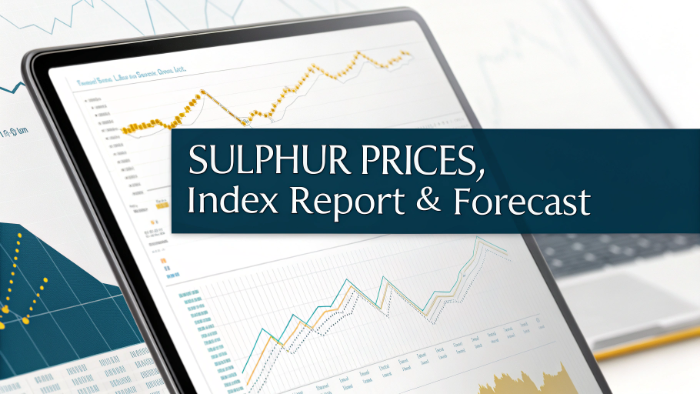
Sulphur prices in March 2026 displayed a mixed yet dynamic pattern across major regions, reflecting varied supply conditions and demand from fertilizer and chemical industries. While Northeast Asia experienced a slight decline, other regions recorded strong upward movements due to increased consumption and tightening supply. The overall Sulphur Price Trend highlights regional contrasts in pricing behavior. Insights from the Sulphur Price Forecast suggest that demand from agriculture and industrial sectors continues to play a significant role in shaping global price movements.
Sulphur Price Index Analysis in Northeast Asia: March 2026 Breakdown
In Northeast Asia, sulphur prices stood at USD 0.61/kg in March 2026, reflecting a 1.6% decline. The Sulphur Price Trend shows slight downward movement influenced by balanced supply and moderated demand. According to the Sulphur Price Forecast, stable production and reduced short-term consumption contributed to easing pricing during this period.
Sulphur Price Index Analysis in Europe: March 2026 Breakdown
Europe recorded sulphur prices at USD 0.41/kg, showing a significant 24.2% increase in March 2026. The Sulphur Price Trend highlights strong upward movement driven by increased demand and supply constraints. As per the Sulphur Price Forecast, continued consumption from fertilizer and industrial sectors is expected to support elevated pricing levels.
Sulphur Price Index Analysis in India: March 2026 Breakdown
India saw sulphur prices at USD 0.5/kg in March 2026, marking a 13.6% increase. The Sulphur Price Trend reflects firm pricing supported by strong demand from the agricultural sector. According to the Sulphur Price Forecast, ongoing fertilizer demand and supply factors are expected to maintain upward pricing momentum.
Sulphur Price Index Analysis in Middle East: March 2026 Breakdown
In the Middle East, sulphur prices reached USD 0.33/kg, reflecting a notable 26.9% increase in March 2026. The Sulphur Price Trend indicates strong upward movement supported by export demand and production dynamics. Based on the Sulphur Price Forecast, continued global demand and supply conditions are expected to sustain higher pricing levels.
Sulphur Price Index Analysis in North America: March 2026 Breakdown
North America recorded sulphur prices at USD 0.2/kg in March 2026, showing a 5.3% increase. The Sulphur Price Trend highlights moderate upward movement driven by steady demand and supply balance. According to the Sulphur Price Forecast, consistent consumption from industrial and agricultural sectors is expected to support stable pricing trends.
What is Sulphur?
Sulphur is a naturally occurring non-metal widely used in fertilizer production, chemicals, and industrial processes. It is primarily obtained as a by-product of oil refining and natural gas processing. Due to its essential role in agriculture and industry, Sulphur Prices are closely monitored, as they reflect changes in energy production, supply levels, and demand from key downstream sectors.
Factors Affecting Sulphur Prices
Key factors influencing Sulphur Prices include
- Crude Oil & Gas Production: Sulphur supply depends on refining output
- Fertilizer Demand: Strong agricultural demand drives Sulphur price trend
- Industrial Consumption: Usage in chemicals impacts the price of Sulphur
- Supply Chain Efficiency: Logistics and distribution affect Sulphur price today
- Export-Import Activity: Trade flows influence regional pricing
- Energy Costs: Refining and processing expenses impact Sulphur price history
- Seasonal Demand: Agricultural cycles affect Sulphur future price
- Environmental Regulations: Compliance impacts production and pricing
Supply and Prices Overview – Latest
The latest data shows that Sulphur Prices experienced mixed movement in March 2026 across regions. The Sulphur price chart reflects strong increases in Europe, India, and the Middle East, while Northeast Asia recorded a slight decline. The price of Sulphur continues to be influenced by demand from fertilizers and industrial sectors, along with supply variations across regions.
Sulphur Price Index:
The Sulphur price index serves as a key benchmark for tracking global pricing trends. It compiles regional data to provide insights into price movements and variations. Recent insights from the Sulphur price index highlight strong upward movement in several regions. Businesses rely on the Sulphur price index to monitor trends and optimize procurement strategies.
Recent News and Development:
Recent developments have influenced Sulphur Prices significantly. Increased fertilizer demand in key agricultural regions has driven price growth, while stable refining output has ensured consistent supply. Additionally, global trade dynamics and seasonal demand patterns have contributed to the ongoing Sulphur price trend, shaping pricing across regions.
Sulphur Price Trend Analysis – March 2026:
The Sulphur price trend in March 2026 indicates a mixed pattern across regions. The Sulphur price chart highlights strong upward movement in Europe, India, and the Middle East, while Northeast Asia experienced a slight decline. Compared to Sulphur price history, current trends reflect strong demand combined with regional supply variations.
Future Outlook for Sulphur:
The outlook for Sulphur Prices remains positive, with expectations of stable to increasing trends. The Sulphur future price is likely to be influenced by agricultural demand, energy production levels, and global supply conditions. The Sulphur price index is expected to show gradual upward movement supported by consistent demand.
Current Demand for Sulphur:
Current demand continues to support Sulphur Prices, particularly from fertilizer production and chemical industries. The Sulphur price trend reflects strong consumption in agricultural sectors, especially in emerging economies. This steady demand plays a key role in maintaining price stability across regions.
Uses of Sulphur:
Major applications influencing Sulphur Prices include
- Fertilizer Production: Key component in phosphate fertilizers
- Chemical Industry: Used in sulfuric acid production
- Petroleum Refining: Essential in refining processes
- Rubber Processing: Used in vulcanization
- Pharmaceuticals: Used in medicinal compounds
- Industrial Applications: Used in various manufacturing processes
Key Coverage:
- Market Analysis
- Market Breakup by Region
- Demand Supply Analysis by Type
- Demand Supply Analysis by Application
- Demand Supply Analysis of Raw Materials
- Price Analysis
- Spot Prices by Major Ports
- Price Breakup
- Price Trends by Region
- Factors influencing the Price Trends
- Market Drivers, Restraints, and Opportunities
- Competitive Landscape
- Recent Developments
- Global Event Analysis
FAQs regarding Sulphur Price Trends, Index, and Forecast
What is the current trend in Sulphur Prices in March 2026?
The current Sulphur Prices trend shows a mixed pattern, with strong increases in Europe, India, and the Middle East, while Northeast Asia recorded a slight decline. The latest Sulphur price trend reflects regional demand variations and supply dynamics.
How does the Sulphur Price Index help businesses track pricing?
The Sulphur price index provides a reliable benchmark for monitoring global price movements. It helps businesses analyze trends, compare regional pricing, and make informed decisions using insights from the Sulphur price index data.
Where can I access accurate Sulphur price charts and historical data?
You can access detailed Sulphur price chart, historical trends, and regional insights through our comprehensive report. It includes Sulphur price history, current updates, and forecasts to support strategic planning.
What factors are currently affecting Sulphur Prices?
Key factors influencing Sulphur Prices include fertilizer demand, refining output, logistics, and seasonal agricultural cycles. These elements directly impact the price of Sulphur and shape the Sulphur future price outlook globally.
What is the future outlook for Sulphur Prices?
The outlook for Sulphur Prices remains positive, with stable to increasing trends expected. The Sulphur future price is likely to be supported by strong agricultural demand and consistent industrial consumption.
Author



Author



Most enterprises don’t struggle because of lack of tools, they struggle because of too many disconnected ones.
Finance runs on one system. Operations on another. Reporting lives somewhere else. Automation is layered on top. Over time, this creates friction across the organization, slowing down execution and increasing operational risk.
This is where a unified Enterprise Application Platform becomes essential. Instead of connecting multiple tools, businesses are starting to rethink how systems are designed from the ground up and platforms like Airtool are emerging at the center of that shift.
The Hidden Cost of Disconnected Enterprise Systems
Fragmented systems don’t just create technical complexity, they directly impact business performance.
A typical enterprise software architecture often includes multiple SaaS tools stitched together through integrations. While this may work initially, it introduces long-term inefficiencies.
Key operational issues:
- Data duplication across systems
- Inconsistent reporting across departments
- High dependency on integration layers
- Delays in executing cross-functional workflows
- Difficulty in scaling systems without rework
Over time, teams spend more effort managing systems than improving business processes.

Rethinking Platform as a Service for Enterprises
The concept of platform as a service has evolved. It’s no longer just about hosting applications, it’s about running entire business operations on a unified system.
A modern Enterprise Application Platform provides:
- A shared data model across applications
- Built-in workflow execution
- Native analytics and reporting
- Embedded automation capabilities
- Flexible deployment across environments
This creates a foundation where systems are not just connected—they are inherently aligned.
How Airtool Changes the Architecture Layer
Airtool as an Operational Framework
Airtool is designed as a full-stack enterprise platform that integrates multiple layers of business systems into one runtime environment.
Rather than separating application logic, data handling, and automation, Airtool brings them together into a cohesive framework.
What makes this approach different:
- Applications and data operate within the same system
- Automation is embedded, not added externally
- Reporting is generated from live operational data
- Changes can be implemented without disrupting workflows
This reduces the need for external dependencies and simplifies how systems evolve over time.
Book a demo with Airtool to see how a modern enterprise platform can support your business automation strategy and reduce system complexity.
Core Capabilities That Enable Business Automation
A modern enterprise platform must go beyond basic functionality. It should actively support how businesses operate at scale.
Key capabilities include:
- Unified Data Management
All business entities transactions, users, workflows exist within a single data structure. - Process Automation Engine
Business rules and workflows are executed automatically without manual intervention. - Dynamic Application Layer
Interfaces and processes adapt based on underlying data and logic. - Real-Time Reporting
Insights are generated directly from operational data without external tools. - Flexible Deployment Models
Systems can run in cloud, private environments, or hybrid setups.
These capabilities allow organizations to move faster while maintaining control.
Use Case: Automating Multi-Department Operations
Consider a company managing procurement, finance, and operations across different systems.
Before a unified platform:
- Procurement data must be manually shared with finance
- Approval workflows are handled through emails
- Reports are generated from outdated data
- System updates require coordination across teams
After implementing a unified platform like Airtool:
- Procurement and finance operate on shared data
- Approval workflows are automated within the system
- Reports reflect real-time operational activity
- Changes are applied instantly without system downtime
This significantly reduces delays and improves overall efficiency.
Comparison: Layered Systems vs Unified Platform Architecture
| Layered SaaS Model | Unified Platform Model |
| Multiple tools for each function | Single system for all functions |
| Heavy reliance on APIs | Built-in system integration |
| Delayed data synchronization | Real-time data consistency |
| Complex maintenance | Simplified system management |
| Limited cross-functional visibility | Full operational transparency |
A unified enterprise platform simplifies architecture while improving performance.
Why Enterprises Are Moving Toward Unified Systems
The shift toward unified platforms is not just a trend, it’s a response to growing operational demands.
Enterprises are adopting unified systems to enable faster execution, simplify integration complexity, support real-time decisions, reduce infrastructure overhead, and scale automation within a flexible, modern enterprise software architecture
Airtool in Context: A Practical Platform Approach
In practical terms, Airtool enables organizations to consolidate their systems into a single operational layer. Instead of managing multiple tools, teams can build and run their applications within one platform.
This approach aligns development, operations, and analytics in a way that traditional systems cannot easily achieve.
To understand how this model works in detail, you can explore Airtool’s low-code application platform and enterprise capabilities here:
It provides a clearer view of how unified systems can replace fragmented architectures.
Conclusion: Moving Beyond System Integration
The future of enterprise systems is not about better integrations, it’s about eliminating the need for them.
A unified Enterprise Application Platform allows organizations to operate with greater clarity, speed, and control. By bringing applications, data, and automation into one system, businesses can reduce complexity and focus on execution.
Airtool represents this shift by offering a platform designed for modern enterprise needs where systems are not just connected, but inherently unified.
Author



Enfants Riches Déprimés x Essentials Hoodie: Luxury Streetwear

Temporary Replacement Vehicles UK: Save Time and Stay Mobile

Low-Cost Family Cars London: Everything You Need to Know

JetBlue Airlines: Contact Number, Chat & Support Guide 2026

Sulphur Price Trend March 2026: Forecast & Regional Analysis

Skin Parasites in Livestock: Prevention & Best Hygiene Solutions

Pool Coping Replacement: Signs, Benefits & Cost Guide

Fully Managed Landlord Services: Save Time, Stress, and Money

Prevent Crushing and Leaning With Custom Corrugated Boxes

Car Battery Replacement: Step-by-Step Guide to Reliable Starts

Cybersecurity Consulting Company SequelNet Provides Critical IT Support Services to Medical Billing Firm, Medical Optimum

Team Communication Software Transforms Operations at Finance Innovate

Project Management Tool Transforms Long Island Business

How Alleviate Poverty Utilized IPPBX’s All-in-One Solution to Transform Lives in New York City

Breast Cancer: The Imperative Role of Mammograms in Screening and Early Detection

Unstoppable Collaboration: D.C.’s Citi Open and Silicon Valley Classic Unite to Propel Women’s Tennis to New Heights

Embracing Renewal: Sizdabedar Celebrations Unite Iranians in New York’s Eisenhower Park

The Benefits of Starting a Side Hustle for Financial Freedom

New Blood Donation Screening Questions What You Need to Know

Stylishly Timeless: The 5 Types of Sandals You Need in Your Closet
-

 Business3 years ago
Cybersecurity Consulting Company SequelNet Provides Critical IT Support Services to Medical Billing Firm, Medical Optimum
-
Business3 years ago
Team Communication Software Transforms Operations at Finance Innovate
-
Business3 years ago
Project Management Tool Transforms Long Island Business
-
Business3 years ago
How Alleviate Poverty Utilized IPPBX’s All-in-One Solution to Transform Lives in New York City
-
health3 years ago
Breast Cancer: The Imperative Role of Mammograms in Screening and Early Detection
-
Sports3 years ago
Unstoppable Collaboration: D.C.’s Citi Open and Silicon Valley Classic Unite to Propel Women’s Tennis to New Heights
-
Art /Entertainment3 years ago
Embracing Renewal: Sizdabedar Celebrations Unite Iranians in New York’s Eisenhower Park
-
Finance3 years ago
The Benefits of Starting a Side Hustle for Financial Freedom







